Report links and the verify page
Send a private report link in the "report ready" message, let patients download the report as a PDF, and let anyone check a printed report through its QR code.
When a report is released, your "report ready" message can carry a private link straight to that report. A QR code on the printed report lets anyone check that the report is genuine. Neither shows a result to someone who is not the patient.
The report link page asking the patient for the code sent to their phone
Before you begin
- The patient portal is on.
- A rule sends Lab report ready or Radiology report ready to the patient by SMS or WhatsApp. See Rules.
Where to find it
The switches are in Outpatients (OPD) → Work → Patient Queue → Queue rules → Patient portal. The QR code is in Laboratory → Setup → Lab Report Template, see Lab Report Template.
Put the report link in the message
- Switch Report link in the message to On.
- Open Communication → Notification System → Templates and edit the template your report-ready rule uses. See Templates.
- Add
@Report_Linkto the message, for example Your report is ready: @Report_Link. - Save the template.
Back on the switch, a green line says Your "report ready" message carries the link. Until then, an orange line asks you to add it.
What the patient sees
- The patient taps the link. The page shows Your report is ready with their MR number and phone partly hidden.
- They tap Send me the code. The code goes to the mobile number on their file.
- They type the six-digit code and tap Open my report.
The report opens in the portal, and the patient stays signed in. A link works for 30 days. After that the page says This link no longer works, and the patient signs in with their MR number instead.
Let patients download a PDF
Switch Download the report (PDF) to On. Each released report in the portal then has Download PDF next to Print. The PDF is made on your letterhead. On a phone that can share files, a Share button sends it on.
Turn on the QR check
- Open Lab Report Template.
- Under Verification & barcode, tick QR verification code.
- In Verify URL (order # appended), type your verify address. Copy it from Verify a printed report in the portal settings; it ends in
/verify. - Click Save Template.
Printed lab reports now carry a QR code with the order number.
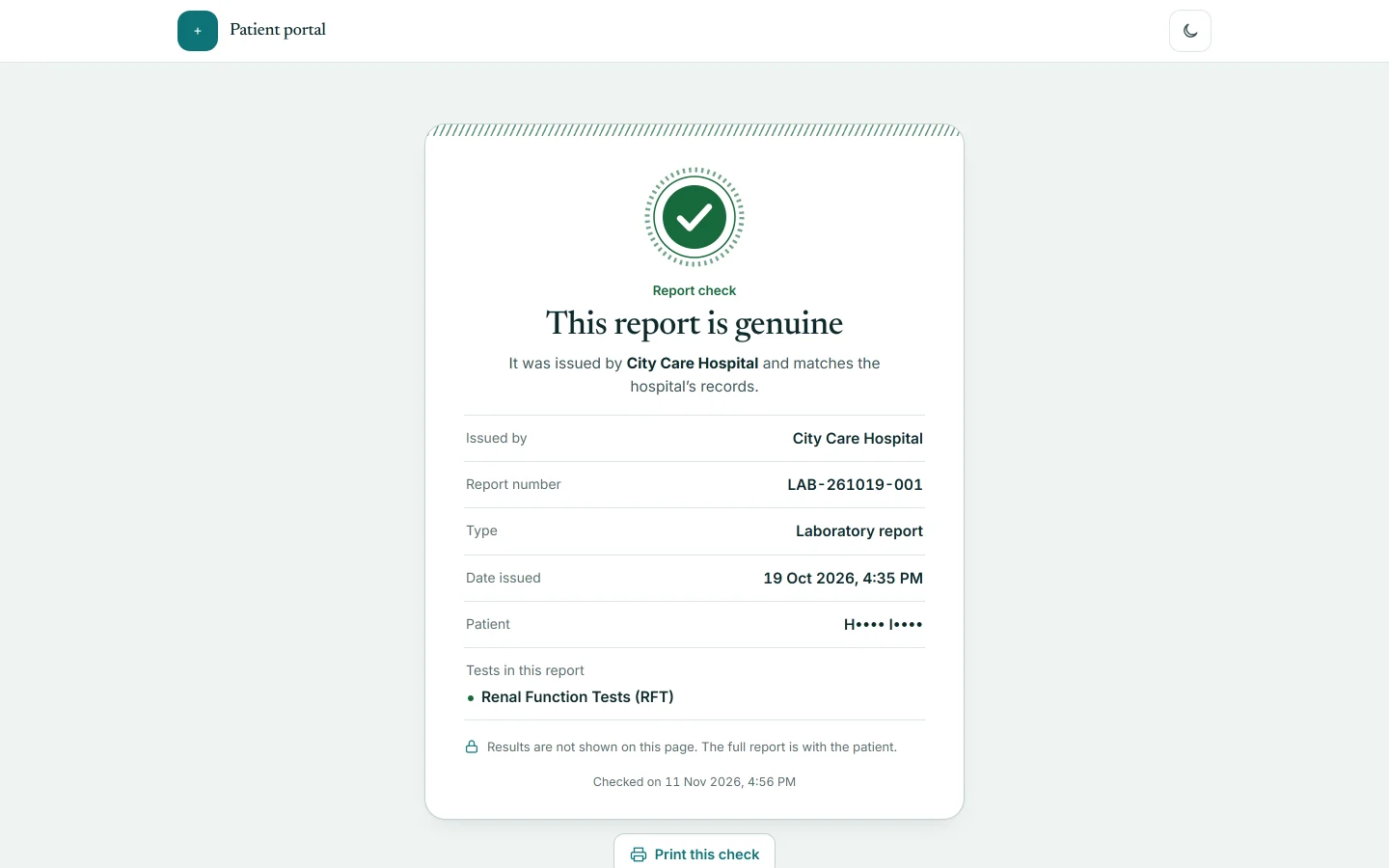
What a scan shows
The page says This report is genuine and lists:
- Issued by, Report number, Type and Date issued.
- Patient as initials only, for example S•••• K•••.
- Tests in this report, without any result.
If the report was corrected after it was issued, it adds This report was amended. When the order number is unknown or not released, it says This report could not be verified.
Common questions
The link was sent but the message had no address. The template does not carry @Report_Link, or the switch was off when the report was released.
A patient changed their phone number. The code goes to the number on file. Update it at the reception, then the patient asks for a new code.
Does the QR page need the portal switched on? No. It answers whenever QR verification code is ticked on the report template.
I left Verify URL empty. The QR code then holds only the order number, and a scan opens nothing. Type the address.
Can someone guess other reports from the QR page? They would see only initials, test names and a date, never results.
谢谢。 如果仍需帮助,请发邮件至 info@eloerp.net。