Wholesale trade ordering
Let the shops and dealers you supply sign in to your online store, see their own prices and credit, and order on account; every order arrives as a Sales Order for you to approve.
Trade ordering is for a distributor or wholesaler. The customers you allow sign in to your online store with a code, see their own prices and credit, and order on account. Each order arrives in Sales Orders waiting for your approval, and nothing moves in stock or the books until you turn it into an invoice.
Before you begin
- Your online store is set up. See Online Store. You are a company administrator.
- Sign-in codes can be sent: a WhatsApp, SMS or Email channel in Notification Channels.
- Each trade customer has a ledger account (Create Ledger in Accounts) in your own currency, and the phone or email they sign in with is on their record. See All Customers.
- Their prices are set: a Default Pricing Setup on the customer, and any Customer Pricing. See Price Lists.
- The people who approve orders have the sale order approve permission.
Where to find it
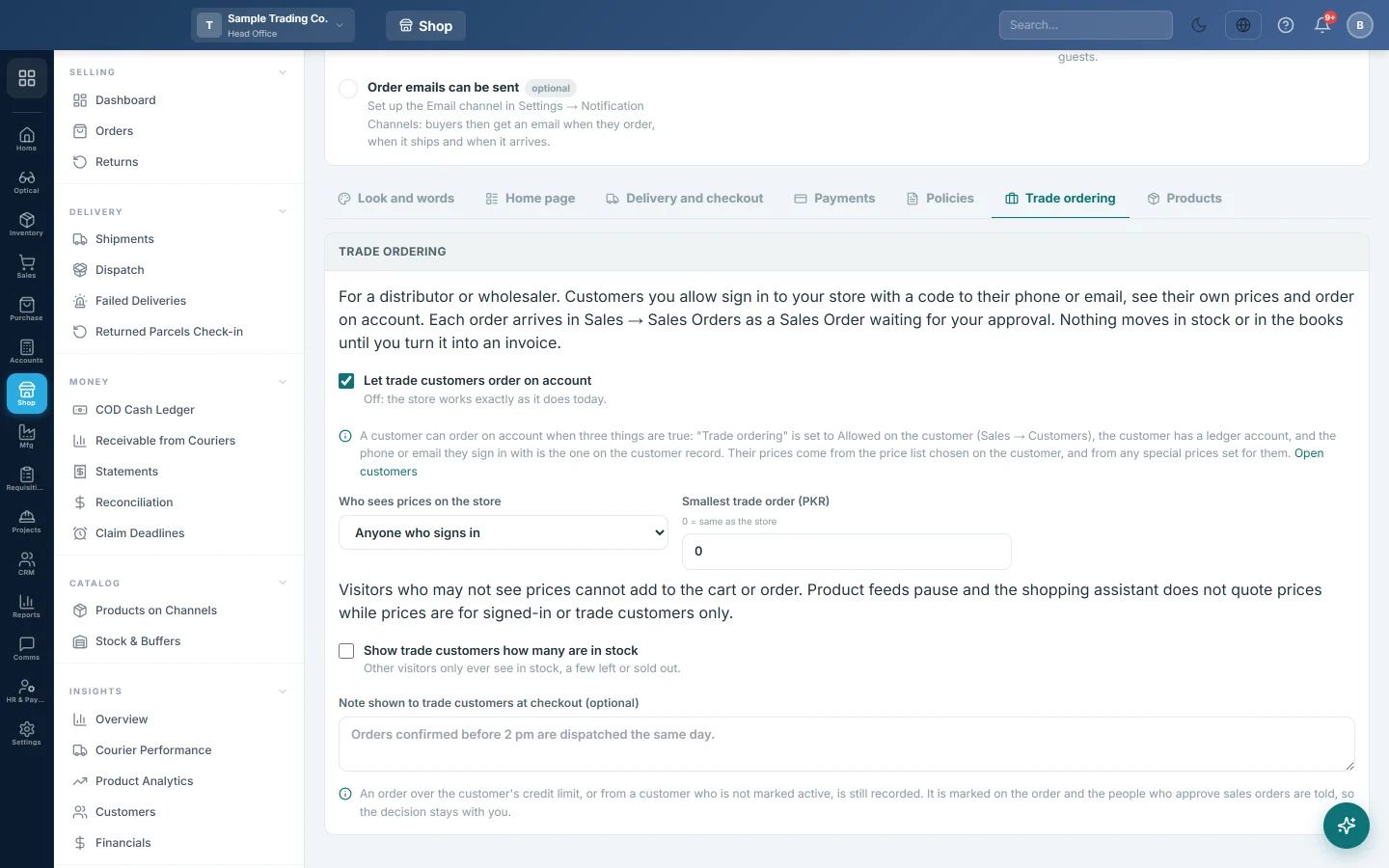
Open Online shop → Online Store → Online Store and click the Trade ordering tab.
Switch trade ordering on
Trade ordering is off until you tick it. While it is off, the store works exactly as before.
- Tick Let trade customers order on account.
- Choose Who sees prices on the store:
- Everyone: prices are public, as today.
- Anyone who signs in: visitors must sign in to see prices.
- Trade customers only: only trade customers see prices.
- Type the Smallest trade order, or leave 0 to use the store's own minimum.
- Tick Show trade customers how many are in stock to show them the quantity. Other visitors only see in stock, a few left or sold out.
- Optionally type a Note shown to trade customers at checkout (optional), for example Orders confirmed before 2 pm are dispatched the same day.
- Click Save changes at the top of the page.
Allow a customer to order
- Open Sales → Customers → All Customers and click the pencil on the customer.
- In the Online Store box, set Trade ordering to Allowed.
- Check that Create Ledger in Accounts is on. Without a ledger the form warns you, and the customer cannot order on account.
- Click Save Customer.
The Trade ordering tab shows how many customers are allowed now.
What your trade customer does
- They sign in to your store with the mobile number on their record. A strip shows Trade account, their Price list and Credit left.
- The home page asks What do you need today?: a box to Find a product by name, code or barcode, Paste a list, Your last order and Your usual.
- On Quick order, they type a name or code and press Enter, scan barcodes, or paste a list such as WHO-0004, 10. Each line shows Your price and price breaks by quantity.
- They click Add all to cart, then Check out on account.
- They see their Credit limit, Balance owing, This order and Credit left after this order, add Your PO reference (optional) and a note, and click Place order on account.
- They see Order sent for approval. Under Trade orders they follow it from Awaiting approval to Approved, Delivered and Invoiced, and can Order again or Change and order again.
Prices always come from EloERP: the customer's price list and special prices, worked out when the order is placed.
Approve and invoice a trade order
- Open Sales → Sales Documents → Sales Orders. A trade order has the Online tag next to the customer, and Pending approval.
- Open the order. Its note starts Online trade order (placed by the customer in the online store), then the PO, the delivery address and the customer's note.
- Check the lines and quantities. Change them and click Update if needed.
- Click ✔ Approve.
- Click 📄 Convert to Invoice when you deliver. See Sales Orders.
A trade order always needs approval, whatever your Sale Order approval threshold. Converting it before approval is refused with Approve it before converting it to an invoice.
The people who approve sales orders get a bell message, New trade order, with the order number and total.
What happens in the books
Nothing, until you convert the order. The sale invoice then debits the customer's ledger and takes the stock out, as any invoice does. The customer's statement shows the invoice from then on.
Common questions
A customer signs in but sees "not set up for trade ordering". Trade ordering is not Allowed on their record, they have no ledger, or they signed in with a number that is not on their record.
Where are trade orders on the Pending Approvals page? They show there only when the order total is at or above your sale order approval threshold. Use the Pending approval filter on Sales Orders to see every one.
Can a trade customer pay online? Not at checkout: trade orders are on account. They can pay from their statement in the customer portal. See Let customers pay from their statement.
Do ordinary shoppers still use the store? Yes, unless you chose Trade customers only. They buy at your normal prices, with cash on delivery or online payment.
Who appears as the maker of the order? Nobody on your staff. Any approver can approve it, even with maker-checker on.
Vielen Dank. Wenn Sie weitere Hilfe brauchen, schreiben Sie an info@eloerp.net.