Let customers pay from their statement
Let customers pay an invoice, or any amount they owe, from their statement in the customer portal, by bank transfer with a receipt photo or through JazzCash, Easypaisa, Stripe or PayPal.
With payments on, a Pay now button appears on your customers' statement in the customer portal and on the statement links you send. The customer pays one invoice, or any amount up to what they owe. Nothing reaches your books until one of your staff confirms the payment.
Before you begin
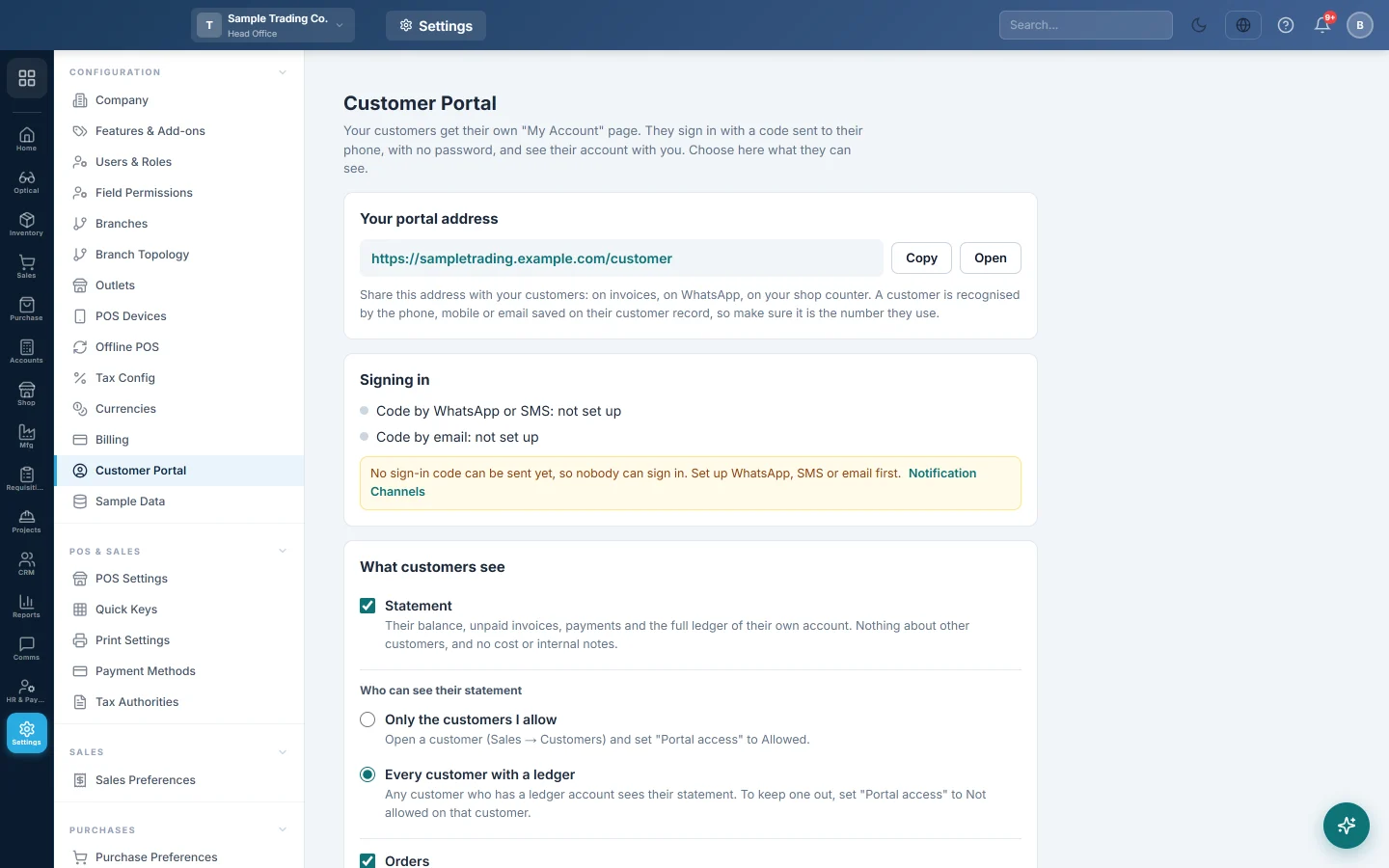
- The customer portal is switched on for your company, and you are a company administrator. See Customer Portal.
- The Statement card is ticked. Customers pay from their statement.
- For bank transfer: your bank account number or IBAN.
- For online payment: the gateway's keys entered and switched on in Online shop → Online Store → Online Store, on the Payments tab. See Take card and wallet payments.
- A payment method linked to the bank or wallet account the money arrives in, for your staff to confirm into. See Payment Methods.
Where to find it
Open Settings → Configuration → Customer Portal and go to the Payments section.
Switch payments on
- Tick Accept payments on the statement.
- Under Bank transfer, fill in the Bank name, Account title, Account number, IBAN and Branch. The account number or the IBAN is enough to offer bank transfer.
- Optionally type a Note for customers (optional), for example Write your invoice number in the transfer remarks.
- Under Online payment, tick each gateway you want to offer. Only gateways whose keys are in are listed.
- Under Smallest payment, type the Smallest amount a customer can pay, or leave it at 0 to take any amount. A payment that clears everything the customer owes is always taken.
- Click Save.
If you tick Accept payments on the statement with no bank details and no gateway, the save stops with To accept payments, add your bank account number or IBAN, or choose an online gateway.
What the customer does
- Bank transfer: the customer sees your account details, sends the money from their own bank, uploads a screenshot or photo of the receipt and taps I have paid, send receipt.
- Online: the customer taps the pay button, for example Pay Rs 5,000 with JazzCash, pays on the gateway's own page and comes back to their statement.
Either way the customer sees We received your payment and the amount as being checked. Their balance does not change until your staff confirm it.
An online payment the customer never finishes is closed after 24 hours, and nothing is added to their account.
Confirm the payments
Every payment waits in Sales → Customers → Portal Payments. The people who can make receipt vouchers are told in the bell. See Portal Payments.
Common questions
Is a gateway payment posted automatically? No. A payment the gateway says is paid still waits for your staff, so you check it in the gateway's dashboard first.
Can a customer pay more than they owe? No. The most they can pay is what they owe, less any payment already being checked.
The Pay now button is missing for a customer. Check that Accept payments on the statement is ticked and saved, and that the customer can see their statement.
No gateway is listed under Online payment. No gateway has its keys in yet. Add them on the online store's Payments tab, then come back.
Can I stop taking payments for a while? Yes. Untick Accept payments on the statement and click Save. Payments already sent stay in Portal Payments for you to confirm or reject.
Teşekkür ederiz. Hâlâ yardıma ihtiyacınız varsa info@eloerp.net adresine yazın.