Documents
Keep the project's drawings, contracts, permits, letters, reports and site photos in one register, with revisions, and see files attached to its purchases and sales.
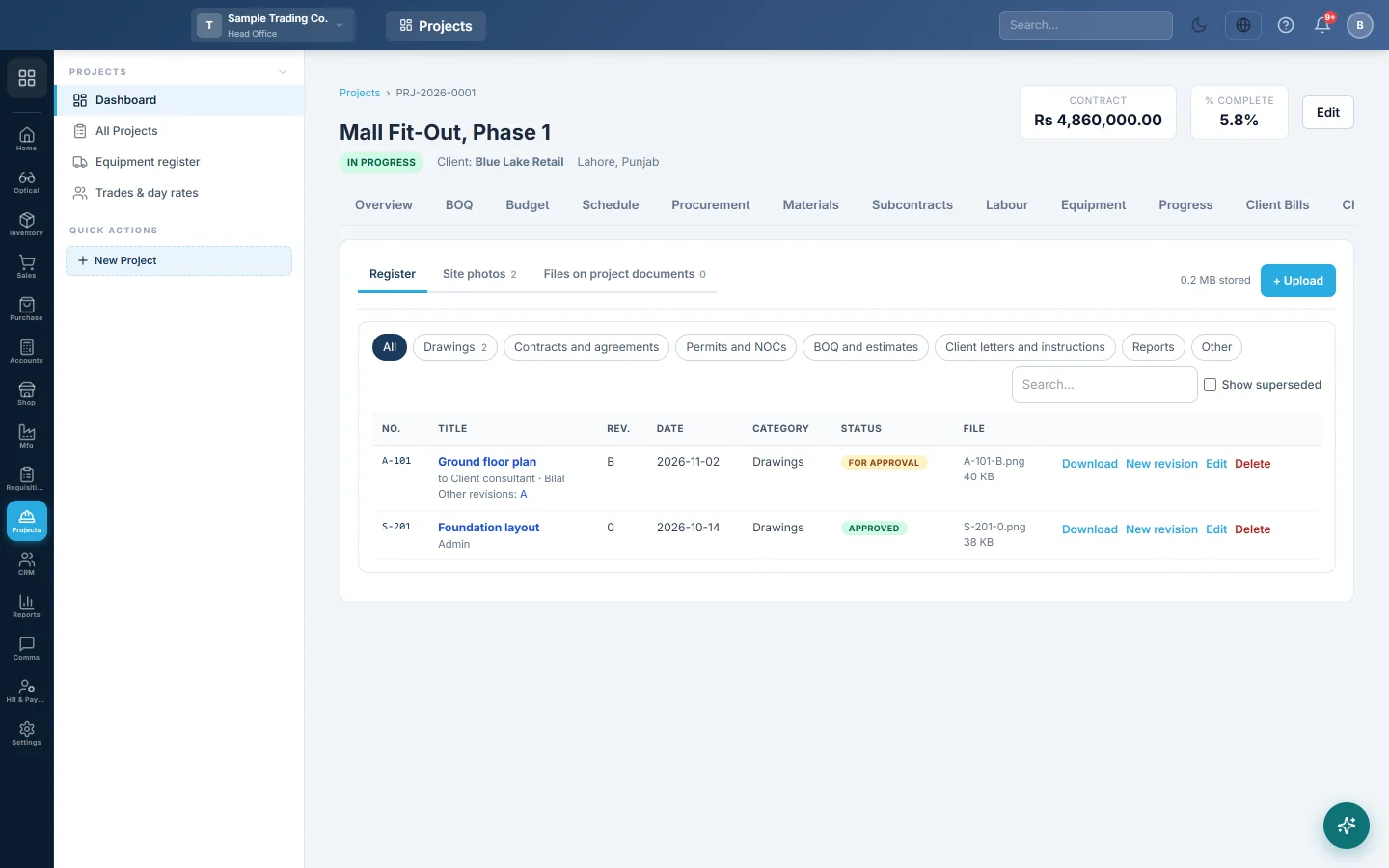
The Documents tab is the project's document register. It holds drawings, contracts, permits, letters, reports and site photos, keeps every revision, and lists files already attached to the project's other documents.
Before you begin
- Your role needs View Project Documents to see and open files. Upload Project Documents lets you upload and edit. Delete Project Documents lets you delete. See Users & Roles.
- Files can be PDF, pictures, Word, Excel, CSV or text, up to 10 MB each.
- A company on trial can store up to 200 MB of project documents. The top of the tab shows how much is used.
Where to find it
Open Projects → Projects → All Projects, click the project, then open the Documents tab.
Upload documents
- Click + Upload, or drag files onto the tab.
- Choose the files.
- Pick the Category, such as Drawings, Contracts and agreements or Permits and NOCs.
- Type the Title and the Date.
- Type the Document no., such as A-101, and the Revision.
- Pick the Status: For information, For approval or Approved.
- Type Issued to, pick the Phase and add Notes if needed.
- Click Upload.
When you upload several files at once, each keeps its own name and has no document number.
Add a new revision
- Find the document in the Register and click New revision.
- Choose the new file. The title, number and category are filled in.
- Leave Revision blank to take the next one, or type your own.
- Click Upload.
The older revision is marked Superseded and stays downloadable. Tick Show superseded to list old revisions. Other revisions under a title links to each one.
Find, open and change documents
- Click a category chip or type in Search… to narrow the register.
- Click a title to open the file. Click Download to save it.
- Click Edit to change the title, category, number, revision, date, status, issued to or notes.
- Click Delete to remove the file for good. If it was the latest revision, the previous one becomes current again.
Keep site photos
Upload pictures with the category Site photos. The Site photos view groups them by date. A photo dated the same day as a daily progress report also shows on that report. See Progress.
See files on project documents
Files on project documents lists files attached to the project's purchase invoices, orders, GRNs, sale invoices and vouchers. They are read-only here. Open the document they belong to if you need to change them.
Common questions
Who can open the files? Only signed-in users whose role has View Project Documents. Files are stored privately, never on a public link.
What revision comes next if I leave it blank? A number goes up by one, a letter goes to the next letter. A first revision with no letter is followed by B.
Why was my upload refused? The file type is not allowed, the file is over 10 MB, or the trial storage is full.
Can I bring back a deleted file? No. Deleting removes the file itself.
Terima kasih. Jika masih butuh bantuan, kirim email ke info@eloerp.net.