Change Orders
Raise variations to the contract, approve them internally and record the client's approval, so the BOQ, budget, contract value and end date change together.
The Change Orders tab records every change to the agreed work: extra items, more or less quantity, a new rate or work taken out. Once applied, a change order updates the BOQ, the budget, the contract value and the end date in one step.
Before you begin
- The project has a BOQ. Most change lines adjust an existing BOQ line.
- Your role needs View Change Orders (Variations) and Create Change Orders (Variations). Approve Change Order lets you approve or reject. Record Client Approval of Change Order lets you apply a chargeable one. See Users & Roles.
Where to find it
Open Projects → Projects → All Projects, click the project, then open the Change Orders tab.
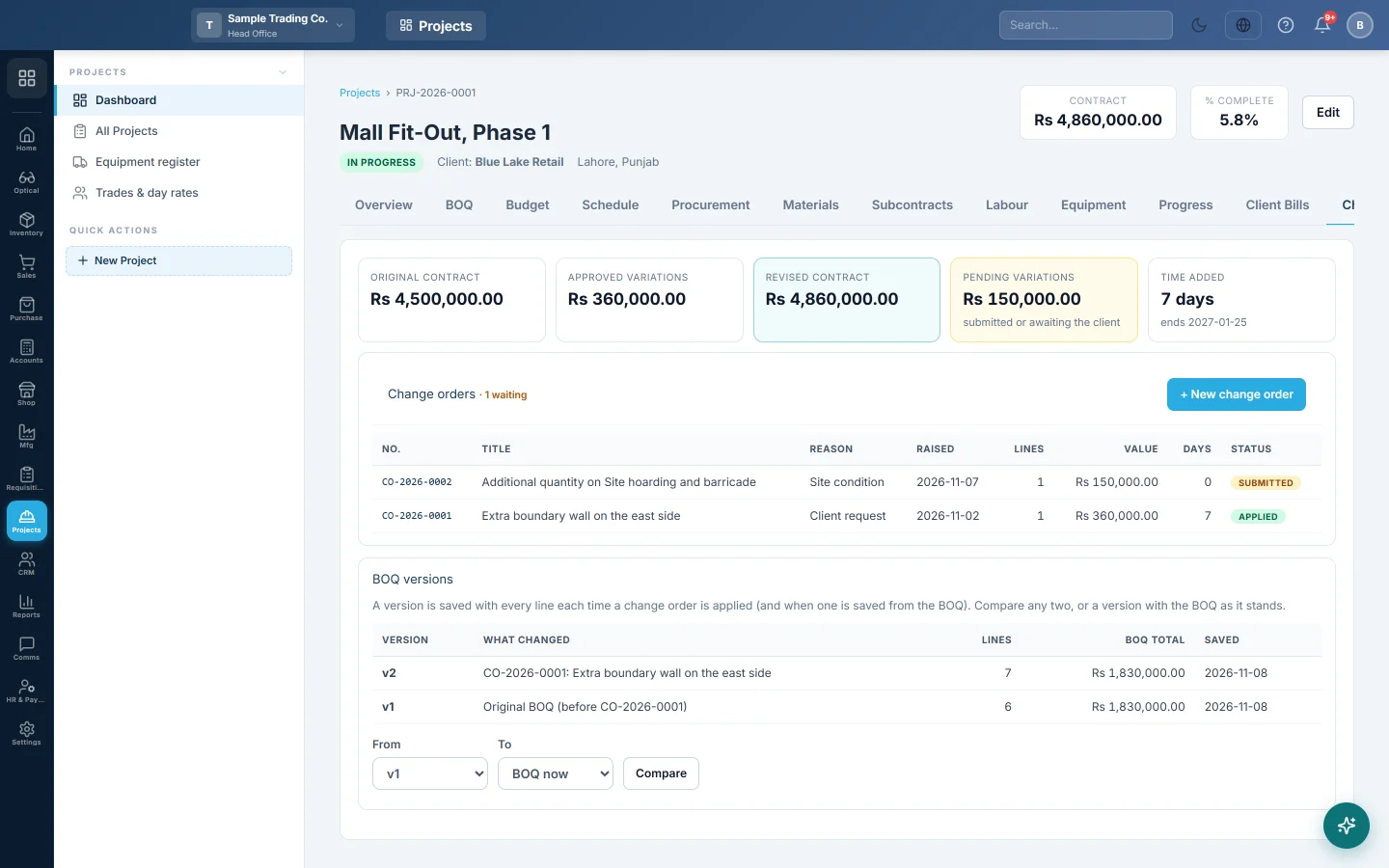
Read the contract strip
- Original contract: the contract value before any approved variations.
- Approved variations: the total of chargeable change orders the client approved.
- Revised contract: the contract value now.
- Pending variations: chargeable orders submitted or awaiting the client.
- Time added: extra days from applied orders, and the new end date.
Raise a change order
- Click + New change order.
- Type the Title, for example Extra boundary wall on the east side.
- Pick the Reason, such as Client request, Design change or Site condition.
- Set Raised on, the Client's instruction / letter ref. and the Extra days to finish.
- Leave Chargeable to the client ticked if the client pays for it. Untick it for an internal change the company absorbs.
- Add the lines with + New item, + Change quantity, + Revise rate or + Omit (cut back).
- Click Save, then Submit for approval.
Value of this change shows the total as you type.
Fill in each line type
- New item: type the Description, pick the Phase and Unit, and type Qty and Rate. The optional rate split (Material, Labour, Equipment, Overhead, Profit) feeds the budget.
- Change quantity: pick the BOQ line and type the Qty change. Use a minus to reduce. It cannot go below what is already done or billed.
- Revise rate: pick the BOQ line and type the New rate. Only the part not yet done or billed moves to the new rate.
- Omit (cut back): pick the BOQ line. It is cut back to what is already done or billed.
Approve and apply
- Open the change order and click Approve.
- For an internal (not chargeable) order, that is all. It is applied at once.
- For a chargeable order, click Client approved… once the client agrees.
- Type Approved by (client side), the Date and the Letter / reference.
- Click Record and apply.
To turn one down, click Reject and give the reason. Withdraw takes back a submitted or approved order. Only a draft can be deleted.
What applying a change order does
- New items become BOQ lines marked as variations.
- Quantity changes and omissions change the BOQ line's quantity.
- A rate revision keeps the done part at the old rate. The rest moves to a new line at the new rate, such as Brickwork (rate revised, CO-2026-0003).
- Phase budgets and the project's budget cost follow the new BOQ.
- A chargeable order adds its value to the contract value. Extra days to finish move the expected end date.
- A new BOQ version is saved.
No voucher is posted. The extra value reaches the books when you bill it on a client bill.
Compare BOQ versions
BOQ versions lists every saved version with what changed, its line count and total. Pick From and To (or BOQ now) and click Compare. Each line shows as added, removed or changed.
Common questions
Why did the contract value not change after I approved? The order is chargeable. Click Client approved… and record the client's approval.
Can I edit an applied change order? No. Raise a new change order to correct it.
Why can I not cut a line below a certain quantity? That quantity is already done on approved progress reports or billed to the client.
What does internal mean in the list? The order is not chargeable. It changes the BOQ and budget but not the contract value.
Спасибо. Если помощь всё ещё нужна, напишите на info@eloerp.net.