Ask on WhatsApp
Let the owner or a manager ask about the books from their own WhatsApp, and record a sale, payment or expense with a voice note confirmed by replying HAAN or NAHI.
The owner or a manager can message your company's WhatsApp number from their own phone and get answers from the books, just like the Ask panel. They can also send a voice note to record an entry, and confirm it with one word.
Before you begin
- Your company needs the AI add-on. See Switch AI on for your company.
- Your company's WhatsApp number must be connected under Settings → Notifications → Notification Channels, through a provider that passes incoming messages to EloERP. If the AI page asks you to connect a number first, ask your service provider which provider to choose. See Notification Channels.
- Only a company administrator can set this up.
Where to find it
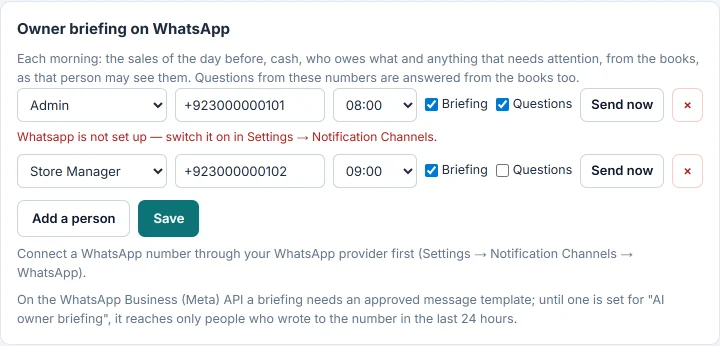
Open Settings → Notifications → AI and scroll to Owner briefing on WhatsApp.
Let a person ask questions
- Add the person and their WhatsApp number, as in Get a daily briefing on WhatsApp.
- Tick Questions on their row.
- Click Save.
- Under the list, click Turn on.
The page then says Questions sent to your number from these people are answered. Click Stop answering to switch it off for everyone.
Ask a question
- From the registered phone, send a WhatsApp message to your company's number, for example Aaj kitni sale hui?
- Read the reply. It answers from the books, as that person's role sees them, in a few short lines.
Ask in English, Urdu or Roman Urdu. A voice note with a question is answered too.
Record an entry with a voice note
- From the registered phone, send a voice note, for example Received Rs 20,000 from Sara Khan.
- Read the reply: I heard: what you said, the entry, its lines and the total.
- Reply HAAN to post it, or NAHI to cancel it.
After HAAN the reply says Done. and the document number. After NAHI it says Cancelled. Nothing was posted.
You can also type a request, such as record an expense of Rs 2,000 for fuel. The reply says it is waiting for approval in the AI inbox; reply HAAN or NAHI the same way.
HAAN also works as haan, han, ji, yes, ok or theek. NAHI also works as nahin, no, cancel or mat.
What happens in the books
HAAN approves the entry in that person's name, exactly as in the AI Inbox. If it cannot be posted, the reply starts Not posted: with the reason, for example a role that may not make that entry. The entry then stays waiting in the AI Inbox.
Common questions
I replied HAAN much later and nothing happened. A reply counts for two hours after the entry. After that, approve it in the AI Inbox.
Someone else messaged our number. Did the AI answer them? No. Only numbers on this list with Questions ticked get answers from the books. Your online store's shopping assistant, if you have one, answers shoppers separately.
The reply did not come. A message is answered within a few minutes. If the AI cannot answer within 30 minutes, the message is left for your staff instead.
Do these questions use the allowance? Yes. Each question counts toward Questions, and voice notes toward Voice minutes.
Can staff at the counter use this? It is meant for owners and managers away from the shop. At the counter, use the Ask panel. See Ask a question about your business.
Obrigado. Se ainda precisar de ajuda, escreva para info@eloerp.net.