Connect Claude or ChatGPT to your books
Link your own Claude or ChatGPT to EloERP with the connector address, so it can read your books as you and prepare entries for you to approve, and disconnect it at any time.
If you already use Claude or ChatGPT, you can let it read your books. You then ask it about your business in the app you know, and it can prepare entries for you to approve in EloERP. Your own Claude or ChatGPT plan pays for the AI; EloERP does not charge for the connector.
Before you begin
- Connect Claude / ChatGPT must be switched on for your company by your service provider. Until then the page says it is not switched on.
- You need your own Claude or ChatGPT account, on a plan that allows custom connectors.
- Each person connects their own app. It works as that person, with that person's role.
Where to find it
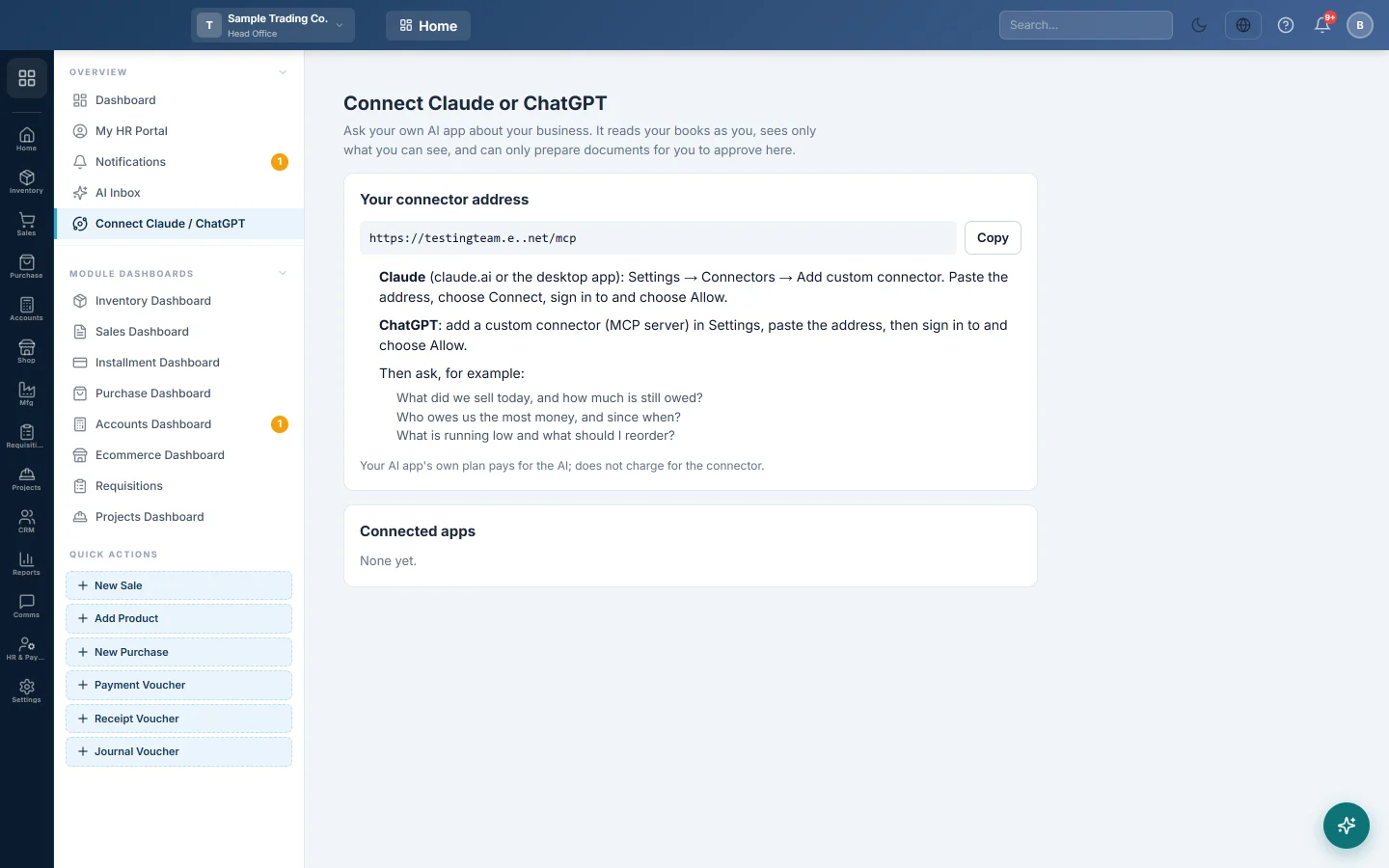
Open Home → Overview → Connect Claude / ChatGPT.
Copy your connector address
- Open Home → Overview → Connect Claude / ChatGPT.
- Under Your connector address, click Copy. The button shows Copied.
The address is your company's own web address followed by /mcp.
Connect Claude
- Open Claude on claude.ai or in the desktop app.
- Go to Settings → Connectors.
- Choose Add custom connector.
- Give it a name, for example My shop books, and paste the connector address.
- Choose Connect. A EloERP page opens.
- Sign in to EloERP if it asks.
- Read what Claude will be able to do, then click Allow.
You return to Claude. Ask, for example, What did we sell today, and how much is still owed?
Connect ChatGPT
- Open ChatGPT and go to Settings.
- Add a custom connector (an MCP server). Where this is depends on your ChatGPT plan; on some plans you first switch on developer mode.
- Paste the connector address. If it asks how to sign in, choose OAuth.
- Choose to connect. A EloERP page opens.
- Sign in to EloERP if it asks.
- Click Allow.
You return to ChatGPT. In a new chat, turn the connector on and ask your question.
What the connected app can do
Once you click Allow, the app works as you, and only within what you can already see. It can:
- read your sales, purchases, stock, customers, suppliers, cash and bank, profit, expenses and payroll;
- find a customer, supplier, product or document by its number;
- check which invoices a tax authority accepted or rejected;
- prepare a sale, purchase bill, payment or expense for you to approve in the AI Inbox.
It cannot post anything by itself, change settings, or see more than your role allows. Entries it prepares show From Claude / ChatGPT in the AI Inbox.
The connector also offers three ready questions in your app: How is the business doing today?, Who owes us money? and What should I reorder?
Disconnect an app
- Open Home → Overview → Connect Claude / ChatGPT.
- Under Connected apps, find the app. It shows when it was connected and last used.
- Click Disconnect.
- Click OK to confirm.
The app can no longer reach your books. Removing the connector inside Claude or ChatGPT alone does not cut the link; disconnect it here too.
Common questions
Does this use our AI allowance? No. Your Claude or ChatGPT plan pays for the AI. The connector is free.
Can my staff connect their own apps? Yes. Each person connects from their own login and sees only their own connected apps.
How long does the connection last? While you use it. A connection not used for 90 days stops, and you connect again.
The page says connecting AI apps is not switched on. Ask your service provider to switch on Connect Claude / ChatGPT.
Is every question I ask recorded? Each lookup the app makes in your books is written to the Audit Log. The chat itself stays in Claude or ChatGPT, under their terms.
Where is my data sent? Only to the app you connected, and only the figures it asks for. See Your data and the AI.
شكرًا لك. إذا كنت لا تزال بحاجة إلى مساعدة، راسلنا على info@eloerp.net.