Approve AI suggestions in the AI Inbox
Check the sales, bills, payments, expenses and suggested orders the AI prepared, then approve and post them, decline them, or undo one that was posted.
The AI Inbox holds every entry the AI prepared. They come from the Ask panel, voice notes, captured bills, your own Claude or ChatGPT, and the weekly suggested orders. Nothing reaches the books until a person approves it here.
Before you begin
- Any AI feature must be on for your company. See Switch AI on for your company.
- To approve an entry, your role needs the right to make that kind of entry:
- a sale: create sale invoices;
- a purchase: create purchase invoices;
- a payment: receive payments, or make payments;
- an expense: create payment vouchers;
- a suggested order: create purchase orders.
Where to find it
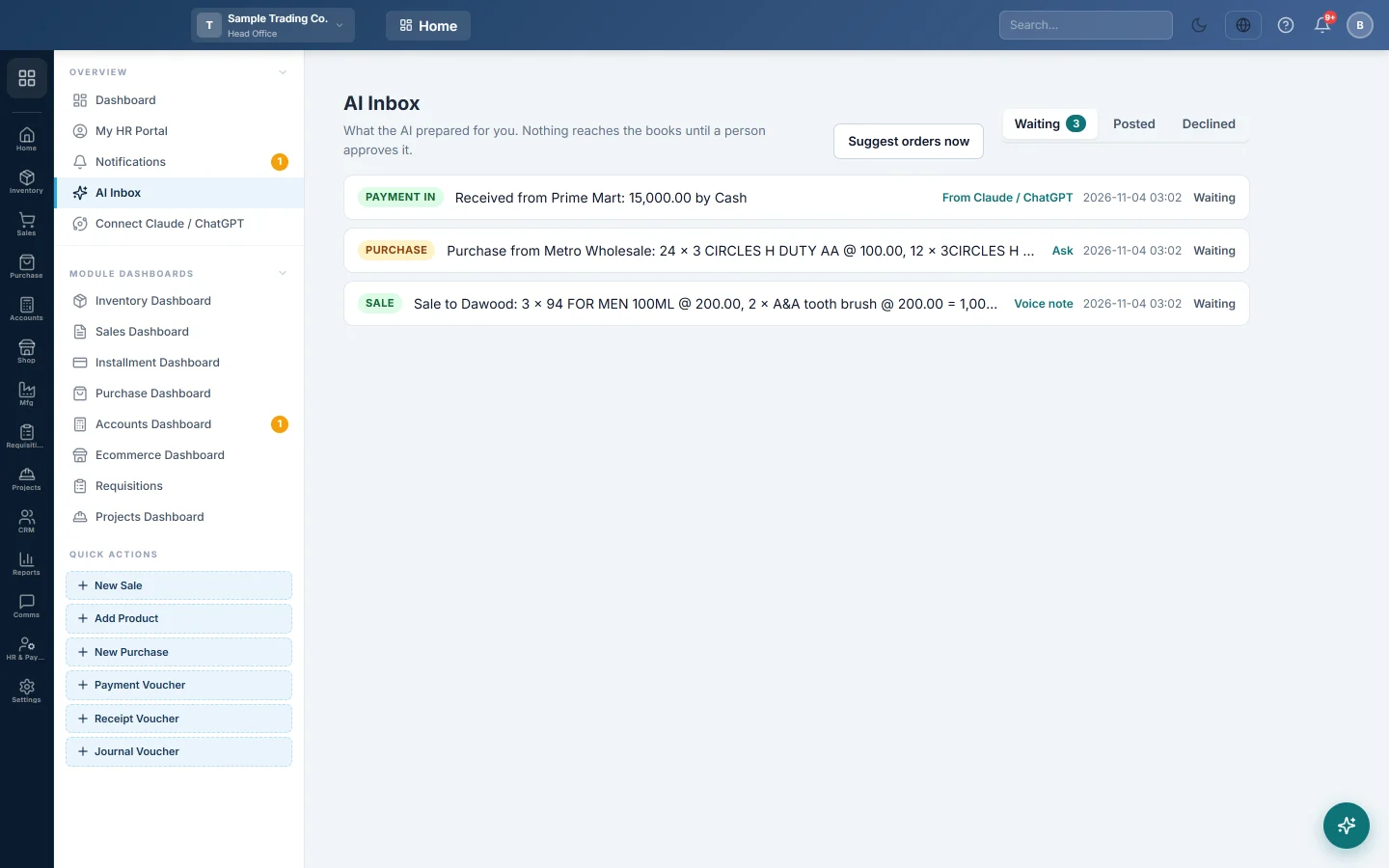
Open Home → Overview → AI Inbox. Each Waiting for approval line in the Ask panel opens it too.
Read the inbox
The inbox has three tabs:
- Waiting: entries still to decide, with a count.
- Posted: entries that were approved, including ones later undone.
- Declined: entries someone declined, and ones that expired.
Each row shows the kind (Sale, Purchase, Payment in, Payment out, Expense or Suggested order), a one-line summary, where it came from, when, and its status.
You see the entries you may approve, in the branches you work in, and the ones prepared for you.
Check an entry
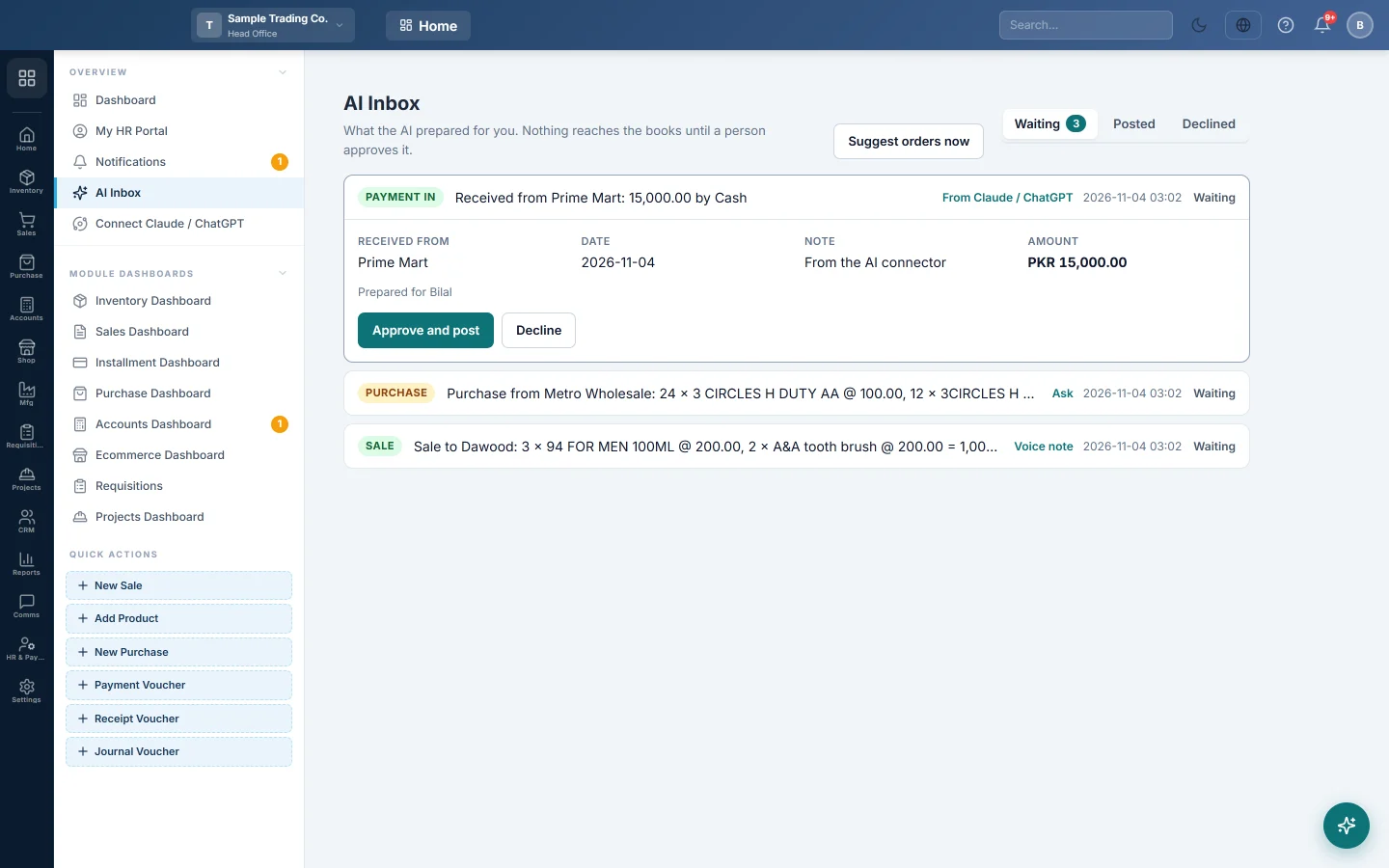
- Click the row. It opens.
- Read the facts: the Customer or Supplier, Date, Terms, Paid now, Warehouse, Note and Amount. Warehouse is where the stock leaves or arrives.
- Read the lines: Item, Qty, Rate and Amount. A bill with tax also shows a Tax % column.
- For a captured bill, click View the document to see the photo. The document says shows the bill's own total.
- For a voice note, read What was said.
Approve and post
- Open the entry.
- Switch to the entry's branch in the top bar, if you are in another one.
- Click Approve and post (for a suggested order, Create draft order).
- Click OK on Post this to the books?.
The entry posts, and the row shows Posted as with a link to the document. If it could not be posted, the status says Not posted with the reason. Fix the cause, for example a missing product, then approve it again or decline it.
Decline an entry
- Open the entry.
- Click Decline.
- Type why, for example wrong customer. The reason helps the AI get it right next time.
- Click OK.
Nothing is posted. The entry moves to Declined.
Undo a posted entry
- Open the Posted tab and click the entry.
- Click Undo.
- Type the reason and click OK.
The document is reversed the normal way. A sale invoice, purchase bill or draft purchase order is cancelled; an expense voucher is removed. The status changes to Undone.
What happens in the books
Approving posts through the same screens your staff use, in your name:
- Sale: a confirmed sale invoice. Stock leaves the branch's default warehouse, or the one named on the entry. Your default bill taxes are added and a cash sale is paid in full in cash.
- Purchase: a confirmed purchase invoice, with stock received into the warehouse shown on the entry and each line's Tax % posted as tax.
- Payment in or Payment out: a payment on the named invoice, or on the oldest unpaid invoices first.
- Expense: a payment voucher that debits the expense account and credits the method named, or your default payment method.
- Suggested order: a draft purchase order. See Get suggested purchase orders.
The document's note starts with AI proposal # and the entry number, so you can find it later.
Common questions
Who prepared this entry? The open entry says Prepared for and the person's name, and where it came from, such as Voice note, Document or From Claude / ChatGPT.
It says "This proposal belongs to Main Branch. Switch to that branch to approve it." Choose that branch in the top bar, then approve again.
The Approve and post button is grey. Your role cannot make that kind of entry. Someone with the right role must approve it.
Two people clicked Approve at once. Only one posting happens. The other person sees Someone else has just decided this one.
How long does an entry wait? 14 days. After that it expires and moves to Declined. Ask the AI again for a fresh one.
Can the AI approve its own entries? No. Only a signed-in person can approve, here, on the voice card or by replying HAAN on WhatsApp.
Terima kasih. Jika masih butuh bantuan, kirim email ke info@eloerp.net.