Send a message automatically when something happens
Set up an SMS, email or WhatsApp message that goes out by itself, for example to the customer each time a sale invoice is confirmed.
Automatic messages need three things: a channel to send through, a template with the wording, and a rule that says when to send. This page sets up an SMS to the customer each time a sale invoice is confirmed. Other events work the same way.
Before you begin
- An account with an SMS provider, or a WhatsApp or email account, and its login details.
- A role that can edit company settings and notification templates and rules. See Users & Roles.
- Customers with phone numbers, including the country code.
Where to find it
All three steps are under Communication → Notification System: Channels, Templates and Rules.
1. Connect the channel
- Open Channels.
- On the SMS tab, tick Enable SMS Notifications, pick your provider and fill in its details.
- Click Save, then send yourself a test.
See Notification Channels for each provider's fields.
2. Write the template
-
Open Templates and click New Template.
-
Name it Invoice confirmed – SMS.
-
Choose Channel SMS, Event Type Sale invoice confirmed and Recipient Type Customer.
-
Write the SMS Body, clicking variables to insert them:
Dear @Customer_Name, thank you for your purchase. Invoice @Invoice_No, total @Invoice_Total. @Company_Name
-
Click Create.
See Templates.
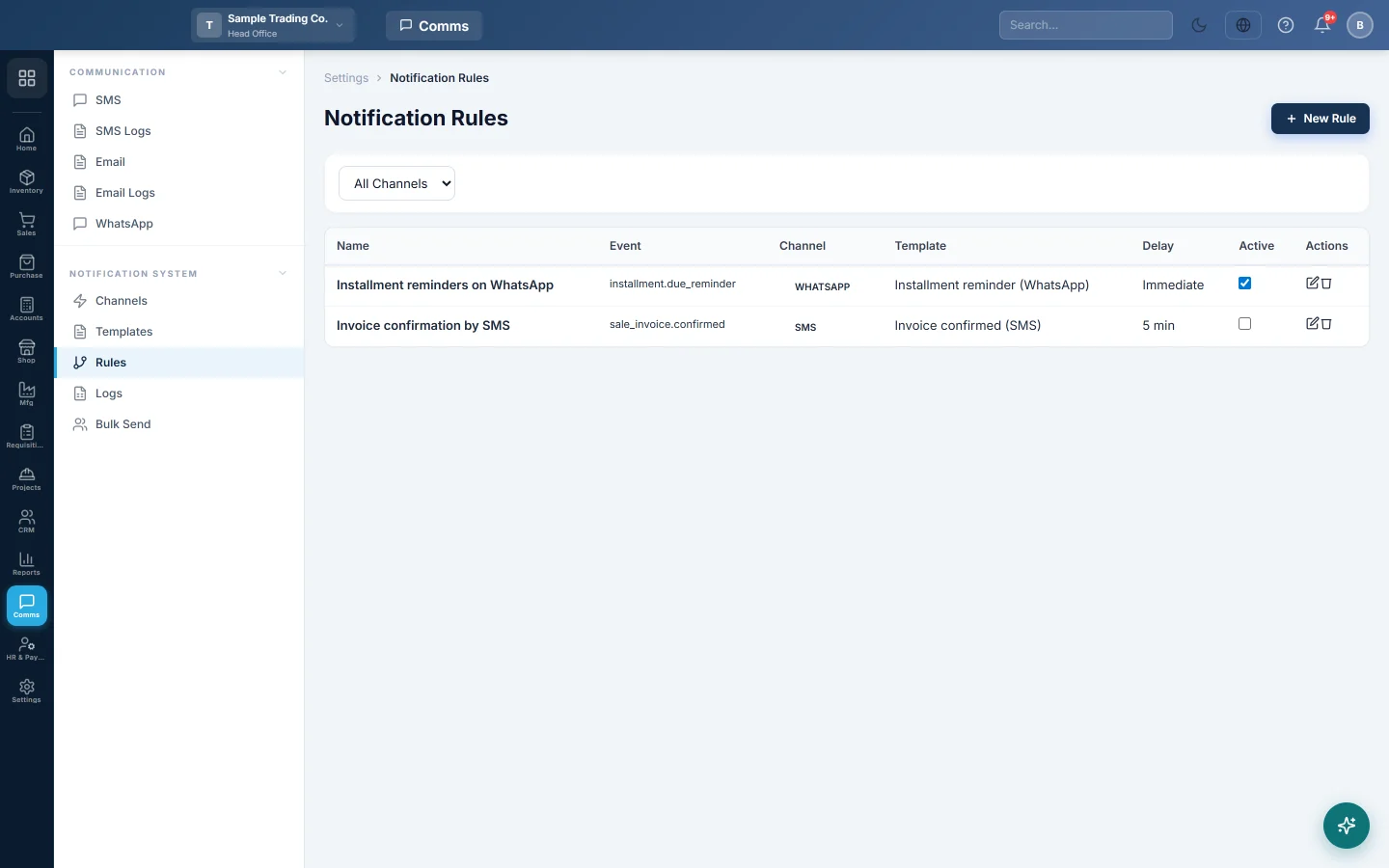
3. Add the rule
- Open Rules and click New Rule.
- Type the Rule Name SMS on Invoice Confirmed.
- Choose Event Type Sale invoice confirmed and Channel SMS.
- Pick the template you wrote.
- Leave Delay (minutes, 0 = immediate) at 0 and Active ticked.
- Click Create.
See Rules.
4. Check it works
- Confirm a test invoice for a customer with your own mobile number.
- Open Logs. The message shows as Queued, then Sent within a minute or two.
If it shows Failed, click View and read the Error. See Logs.
Common questions
Can I send WhatsApp instead of SMS? Yes. Set up the WhatsApp channel, write a WhatsApp template, and pick WhatsApp in the rule. For Meta's official API, the template must first be approved by Meta.
How do I stop the messages? Untick Active on the rule. The template and channel stay as they are.
Will it send to walk-in cash customers? Only if the invoice's customer has a phone number. A plain Cash Sale has none, so nothing is sent.
Obrigado. Se ainda precisar de ajuda, escreva para info@eloerp.net.