Match a courier COD statement
Import the settlement file your courier sends, check which parcels match your orders, and post the cash-on-delivery payment to the bank in one go.
When a courier pays you the cash it collected, it sends a statement listing each parcel, the COD and what it kept. Import that file and EloERP matches each line to your order, shows any difference and posts the payment.
Before you begin
- The courier is set up on Courier Accounts. Its Tolerance ±% decides how big a difference still counts as a match.
- The orders were dispatched with that courier, so each has a sale invoice and a tracking number. See Dispatch.
- You have the courier's statement as a CSV or Excel (XLSX) file. It needs a tracking (CN, AWB) or order number column.
- Your role needs Perform Reconciliation. See Users & Roles.
Where to find it
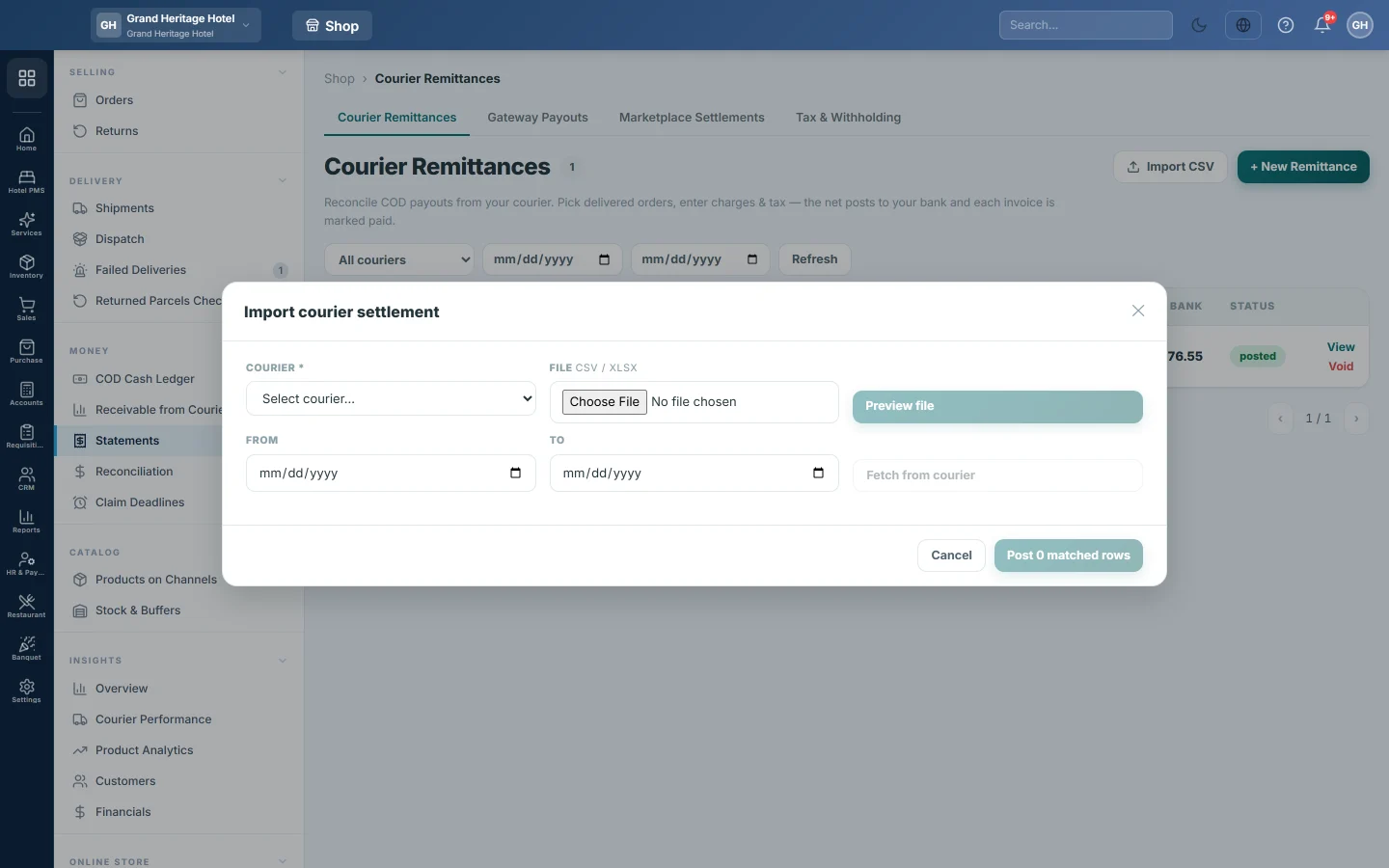
Open Online shop → Money → Statements, stay on the Courier Remittances tab and click Import CSV.
Import the file
- Choose the COURIER the statement is from.
- Under FILE, pick the statement.
- Click Preview file. EloERP finds the columns for tracking number, order number, COD, delivery fee, COD fee, withholding tax, other deductions and net.
- Read the chips at the top: matched, amount mismatch and unmatched, with the Net of the file.
Or fetch it from the courier
For couriers whose connection supports it, you can skip the file.
- Choose the COURIER.
- Set FROM and TO to the dispatch dates the payment covers.
- Click Fetch from courier. The courier's settled payments load into the same preview. Nothing is posted yet.
Check the lines
Each line shows the Tracking / Order, the Matched Invoice, the COD, the Charges, the Net and the Match result.
- matched: the COD agrees with your order within the courier's tolerance. It is ticked.
- mismatch: the COD differs. The difference shows next to the invoice as Δ. It is not ticked; tick it only once you agree with the courier's figure.
- unmatched: none of this courier's open orders has exactly that tracking number, or that order number. It cannot be posted.
Post the payment
- Set the PAYMENT DATE, the day the money reached you.
- Choose the DEPOSIT ACCOUNT the courier paid into.
- Click Post {n} matched rows.
The remittance appears in the register with its number, and each order's invoice is marked paid.
What happens in the books
One voucher posts the remittance. Your bank is debited with the net received. The courier's Delivery Charges account is debited with the delivery fee, COD fee and other charges. WHT Receivable is debited with the withholding tax. The courier's COD Clearing account is credited with the gross COD. See Statements.
Common questions
The import says it could not detect a tracking number or order number column. Rename the column in the file to something like Tracking, CN or Order Number, and import again. The Reconciliation page also lets you map the columns by hand.
Excel file shows no rows. Save it as CSV from the courier's portal and import that.
Fetch from courier says there is no payment API. That courier cannot send statements to EloERP. Use the file import.
All the lines are unmatched. Check the COURIER at the top: a statement matches only parcels shipped with that courier, by the exact CN. Then check that the orders were dispatched with the courier's tracking number and invoiced. Orders already on a remittance are not matched again.
I posted the wrong file. Open the remittance and click Void, then import the right one.
Thank you. If you still need help, write to info@eloerp.net.