Complete a job and collect payment
Work a job card from check-in to payment, adding services, parts and labour, assigning staff, moving it to done and billing the client in one window.
A job card holds one client's work: the intake details, the lines to charge, the staff on it and its history. When the work is done you complete it and bill the client from the same card.
Before you begin
- The job exists: check the client in on the Booking Desk, or click New Job on Jobs List.
- Parts you use are products in stock. See All Products.
- Editing needs Edit Service Jobs; moving it along needs Move Jobs Through the Status Pipeline; billing needs Collect / Invoice Completed Jobs.
Where to find it
Open Services → Jobs → Jobs Board or Jobs List and click the job. Checking in from the desk opens it too.
Fill in the intake and checklist
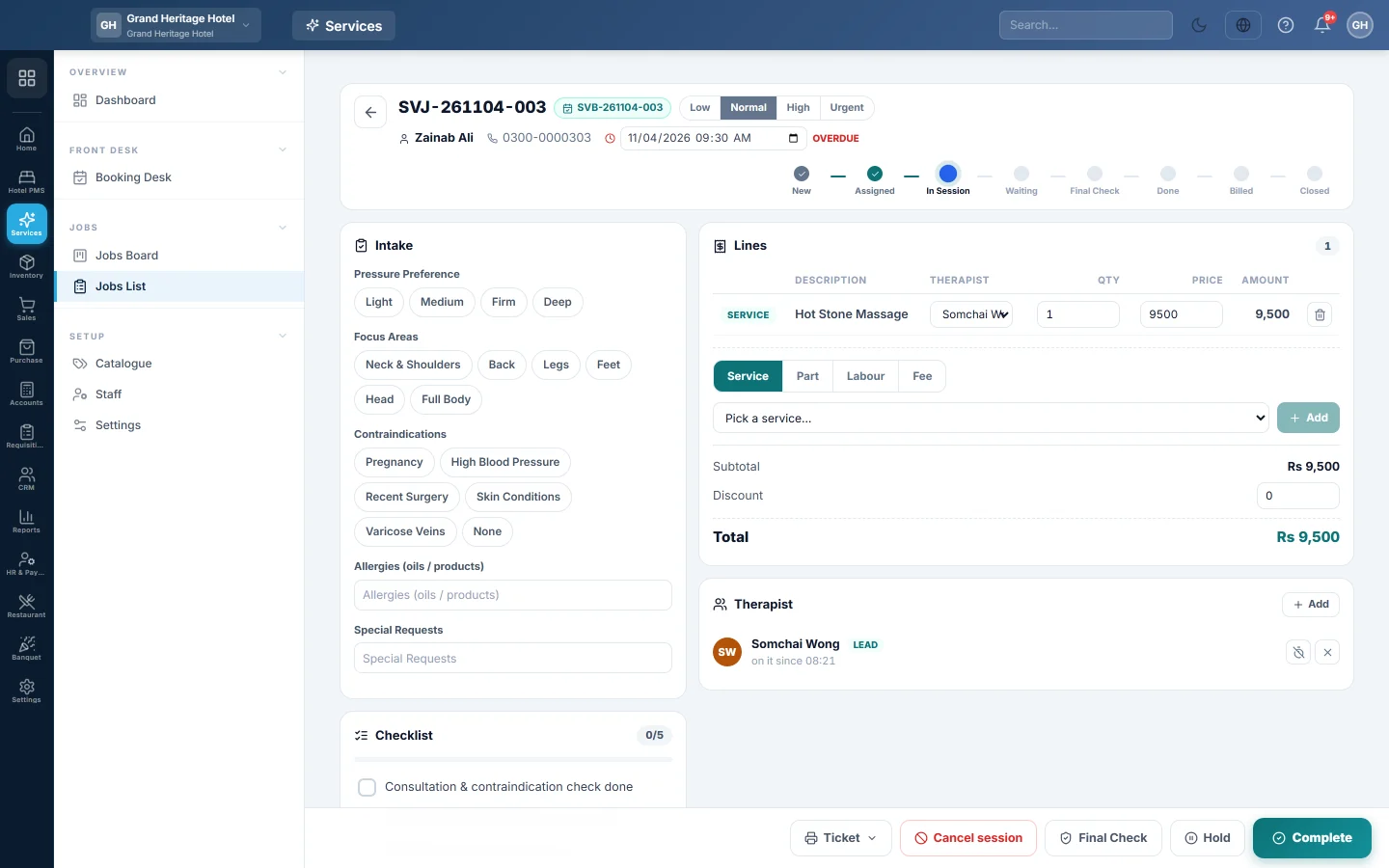
- Under Intake, fill in the details your preset asks for, such as the device, its fault and accessories for a repair, or the hair type for a salon.
- Click Save in the Intake heading.
- Tick the Checklist steps as you do them.
Add what you charge
- Under Lines, choose Service, Part, Labour or Fee.
- For a service, pick it under Pick a service…. For a part, search under Search product / SKU…; the stock on hand shows. For labour or a fee, type a description and a price.
- Type the quantity and click Add.
- Type a Discount under the lines if you give one.
The Total updates as you go.
Put staff on the job
- In the staff panel, click Add and pick a person. The first one is the Lead; others Assist.
- The card shows how long each one has been on it. Click the stop-clock button when they finish.
Move it to done
Use the buttons in the bar at the bottom:
- Click Start when work begins.
- Optionally click Final Check (or your preset's word) for a quality check. Rework sends it back.
- Click Complete, or Pass — complete after the check.
Use Hold while you wait for a part or the client's approval, and Resume to carry on. Cancel Job takes it off the pipeline with a reason.
Bill and collect
- On the completed job, click Bill & collect.
- Check the lines and the discount. Under Tax, pick the tax that applies, or No tax.
- Pick the Payment method and type the Amount received. The Change to give shows.
- Click Bill & collect. If the client pays part, the rest stays due on their account. Bill on account takes nothing now.
- Click Print receipt if needed, then Done.
The job becomes Billed. Later payments: open the job and click Take payment. Close w/o invoice closes a completed job you will not charge for.
Print the ticket
Click Ticket and choose A4 Work Order or 80mm Slip. The slip carries a QR code the client scans to check the status of their job.
What happens in the books
- On completion: parts leave stock, and their cost is debited to Cost of Goods Sold and credited to Inventory.
- On billing: a sale invoice is made and confirmed. The client's ledger, or cash, is debited; Sales Revenue and the tax account are credited. Service lines take no stock.
- On payment: cash or bank is debited and the client's ledger is credited.
Common questions
Bill & collect is missing. The job is not completed yet, was already billed, or was charged to a hotel room.
A line cannot be added. The job is done or billed. Lines can be changed only before it is completed.
The client came back with the same fault. Open the original job and click Warranty Claim. Describe the issue and click Create Claim. A free re-repair job opens.
Vielen Dank. Wenn Sie weitere Hilfe brauchen, schreiben Sie an info@eloerp.net.