Take a lab sample and enter results
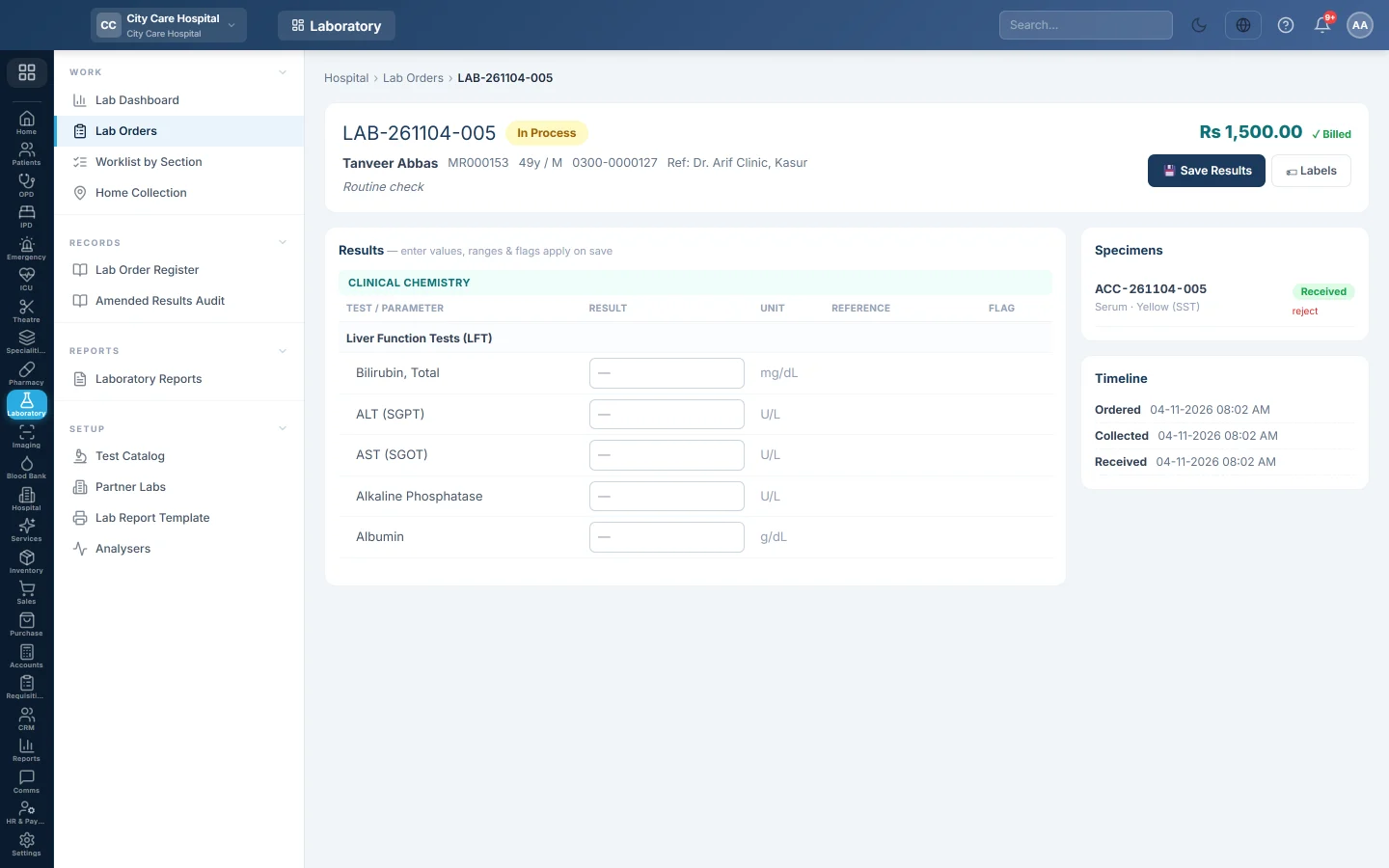
Collect the specimens for a lab order, print the tube labels, receive them in the lab, reject a bad sample and type in the results.
After an order is booked, the lab collects the specimens, receives them on the bench and enters the results. All of this happens on the order itself.
Before you begin
- The order exists. See Lab Orders.
- Collecting and receiving needs Collect Samples / Phlebotomy. Typing results needs Enter Lab Results. See Users & Roles.
- Reference ranges are set on each parameter in the Test Catalog, so results are flagged as you save.
Where to find it
Open Laboratory → Work → Lab Orders and click the order. You can also click a test on the Worklist by Section.
Collect the samples
- Open an order at To Collect.
- Click 🏷 Labels to print one barcode label per tube. Each label shows the patient, the specimen and its accession number.
- Draw the samples and stick the labels on.
- Click 🧪 Collect Samples. The order moves to Collected.
The Specimens box lists each tube with its accession number, container and status.
Receive the samples in the lab
- Open the order at Collected.
- Click 📥 Receive in Lab. The order moves to In Process and the result boxes open for typing.
Reject a bad sample
- In Specimens, click reject next to the tube.
- Choose the Reason, for example Haemolysed, Clotted or Insufficient volume. For Other, describe it.
- Click Reject & Recollect.
EloERP creates a new specimen with a new accession number and prints its label. The order goes back to To Collect until the new tube is collected. Any results typed against the old tube are cleared, because they must be run again. Every rejection is listed in the Sample Rejection Log. See Laboratory Reports.
Enter the results
- Open the order at In Process.
- Under Results, type a value for each parameter. Results are grouped by section and test.
- Click 💾 Save Results.
On save, EloERP looks up the reference range for the patient's age and sex. It shows it in Reference and sets the Flag: H or L for high or low, HH or LL for a critical value, A for an abnormal text answer. You can save part of the results and finish later.
A result that came from a connected analyser shows the analyser's name next to it. See Analysers.
When every line has a value, the order moves to Resulted. Next, the results are verified and released. See Verify and sign out a lab report.
Culture and narrative results
A culture test opens its own editor: pick the growth, add each Organism isolated and mark each Antibiotic as Sensitive, Intermediate or Resistant. A histopathology or cytology test has a free-text report box.
Common questions
The result boxes are greyed out. The samples have not been received yet, or your role cannot enter results. Click Receive in Lab first.
Saving says the specimen was rejected. The screen is out of date. Reload the order and type the results against the new specimen.
A critical value was saved. Who is told? If the Critical lab result alert is switched on in Alerts, the ordering doctor, the ward nurses for an admitted patient and the pathologists are told. The pathologist must also confirm the clinician was told before release.
There is no range in the Reference column. No range matches the patient's age and sex. Add one on the parameter in the Test Catalog.
Can I change a result after saving? Yes, until the report is released. Type the new value and click Save Results again.
Thank you. If you still need help, write to info@eloerp.net.