Use the waiter app
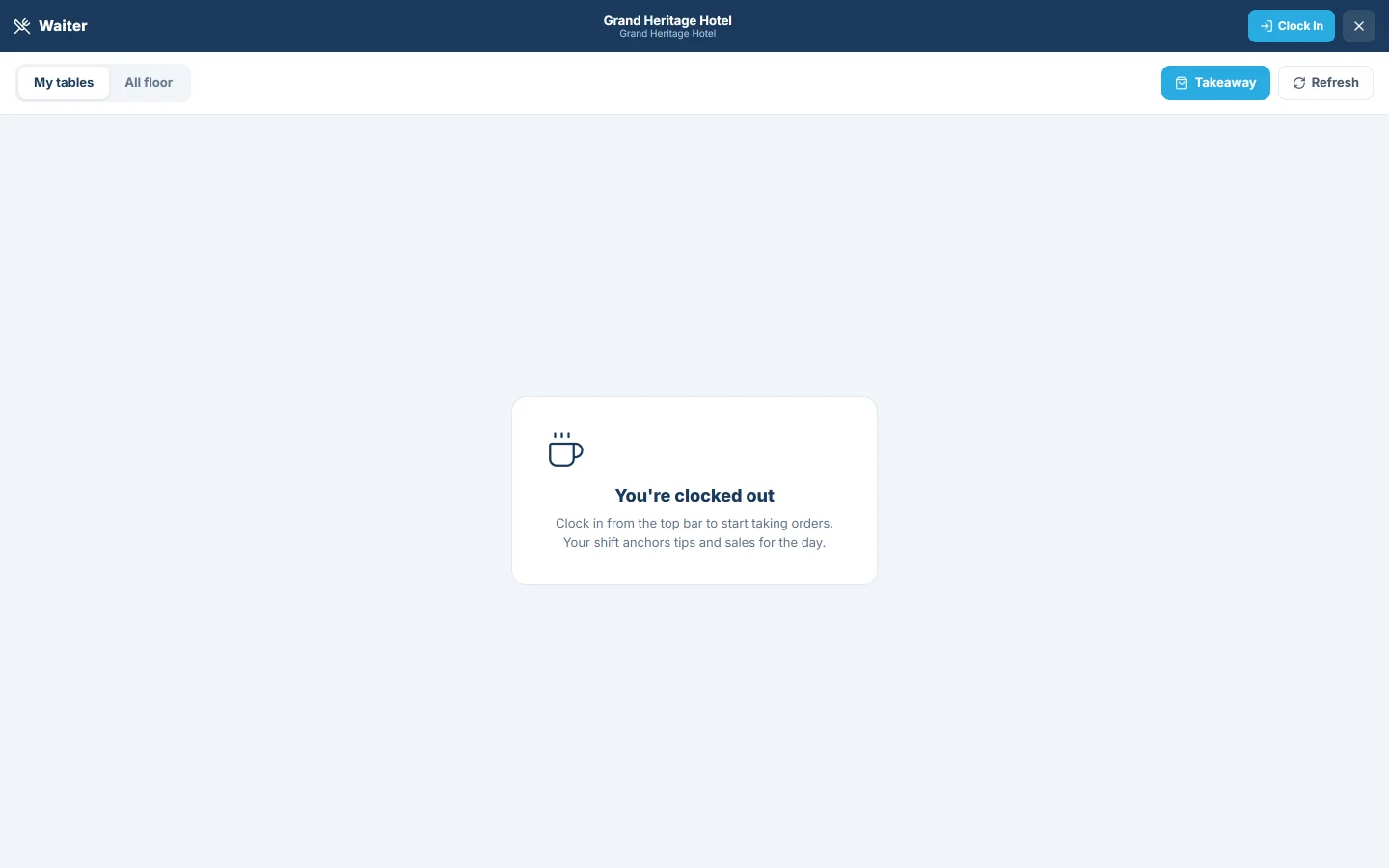
The tablet or phone screen for waiters: clock in, seat a table, take the order, fire courses, mark dishes served, record a tip and ask the cashier for the bill.
The waiter app lets waiters take orders at the table on a tablet or phone. Orders go straight to the kitchen and appear on the cashier's till, where the bill is settled.
Before you begin
- The waiter has a user with the Waiter role. That role opens the waiter app at sign-in. See Users & Roles.
- Your tables exist on Floor & Tables. The app shows the designed floor from Floor Plan when there is one, and table cards otherwise.
- The menu is set up, see Menu Items.
- To void, comp or write off a dish, the waiter needs the permission or a manager's PIN.
Where to find it
Sign in as a waiter; the app opens by itself. The top bar shows Waiter, the waiter's name and branch, and the time on shift. The X button leaves the app.
Clock in
- Tap Clock In at the top right.
Until then the screen says You're clocked out and no order can be taken. Sales and tips are credited to the waiter's shift. Tap Clock Out at the end of the day.
Seat a table and take the order
- Choose My tables or All floor. If your manager has not assigned tables to you, every table counts as yours.
- Tap a free table. Seat Table asks How many guests?.
- Set the number and tap Take Order.
- Tap the dishes. Use the category buttons or Search menu… to find them. Dishes with sizes, options or combo choices open a picker first.
- On a line, tap Add note, Set course or Set seat as needed.
- Tap Send to Kitchen.
The order is saved and the kitchen gets its tickets. A toast says Sent to kitchen ✓. For a takeaway, tap Takeaway on the home screen instead of a table.
Add dishes later
- Tap your table on the home screen. The order opens.
- Add the new dishes.
- Tap Fire New Items. Only the new dishes go to the kitchen.
A table that belongs to another waiter cannot be opened; the app says whose table it is.
Serve in courses
When dishes have a course, a chip for each course appears above the totals.
- Before sending, tap Hold on a later course, for example Dessert. It is kept back when you send.
- When the guests are ready, tap 🔥 Fire on that course. It goes to the kitchen now.
While the guests eat
- Served: marks the dishes served and moves ready kitchen tickets to served.
- Tip: opens Add Tip. Tap 5%, 10% or 15%, or type an amount, pick Cash, Card or Room and tap Save Tip. See Tips & Service Charge.
- Move: moves the order to a free table under Transfer to…. Kitchen tickets are not affected.
- 🔔 at the top: Call for help sends an alert for a Manager, a Runner or Cleanup.
Void, comp or write off a dish
- On a dish already sent to the kitchen, tap Void / Comp.
- In Manage line, choose Void (remove it from the bill), Comp (free of charge) or Wastage (spoiled or dropped).
- Pick the Reason, such as Customer changed mind or Staff meal, and add a Note if you like.
- Tap Confirm.
If the waiter's role cannot do this, Manager approval asks a manager to enter their PIN and tap Authorize. Managers set their PIN on the 86 Board.
Ask for the bill
- Tap Request Bill.
The cashier's till shows Bill requested with a chime, and the order is marked 🔔 under 📋 Open. The cashier settles it, see Take a dine-in order at the table.
To let each guest pay their own share, tap Split Bill. See Split a bill or move a table.
Common questions
The app says "Clock in first." Tap Clock In in the top bar.
I see table cards instead of the floor. Reload the page. The floor drawing loads when the app opens with the waiter already clocked in.
Send to Kitchen is greyed out. Every dish on the order was already sent. Add a dish first.
Can a waiter take the payment? Not for the whole bill; the cashier settles it on the till. Split Bill does let the waiter take payment cheque by cheque. A cheque is a till payment, so a cashier shift must be open, or the waiter must be a cash-register user; otherwise the app says to open the shift first or ask the cashier.
How do other staff open the waiter app? A user without the Waiter role can go to the /waiter address of your EloERP site, if their role can view restaurant orders.
Merci. Si vous avez encore besoin d’aide, écrivez à info@eloerp.net.