Split a bill or move a table
Pay one restaurant bill with two or more tenders, give each guest or seat their own cheque, and move a running order to another table.
There are two kinds of split. On the till, Split Bill takes one bill in several tenders, such as part cash and part card. In the waiter app, Split Bill gives each seat or group of dishes its own cheque, paid separately.
Before you begin
- The order exists on the restaurant till or in the waiter app. See Take a dine-in order at the table.
- The tenders you take are set up as Payment Methods and assigned to your user.
- Splitting by seat or by item needs the Split / Bill-by-Seat permission. The Waiter role has it. See Users & Roles.
Where to find it
- Split payment and moving a table: the restaurant till, Restaurant → Quick Links → POS Terminal.
- Split by seat or by item: the waiter app, see Use the waiter app.
Take one bill in several tenders
- Load the order onto the bill: 📋 Open, then Open on the order.
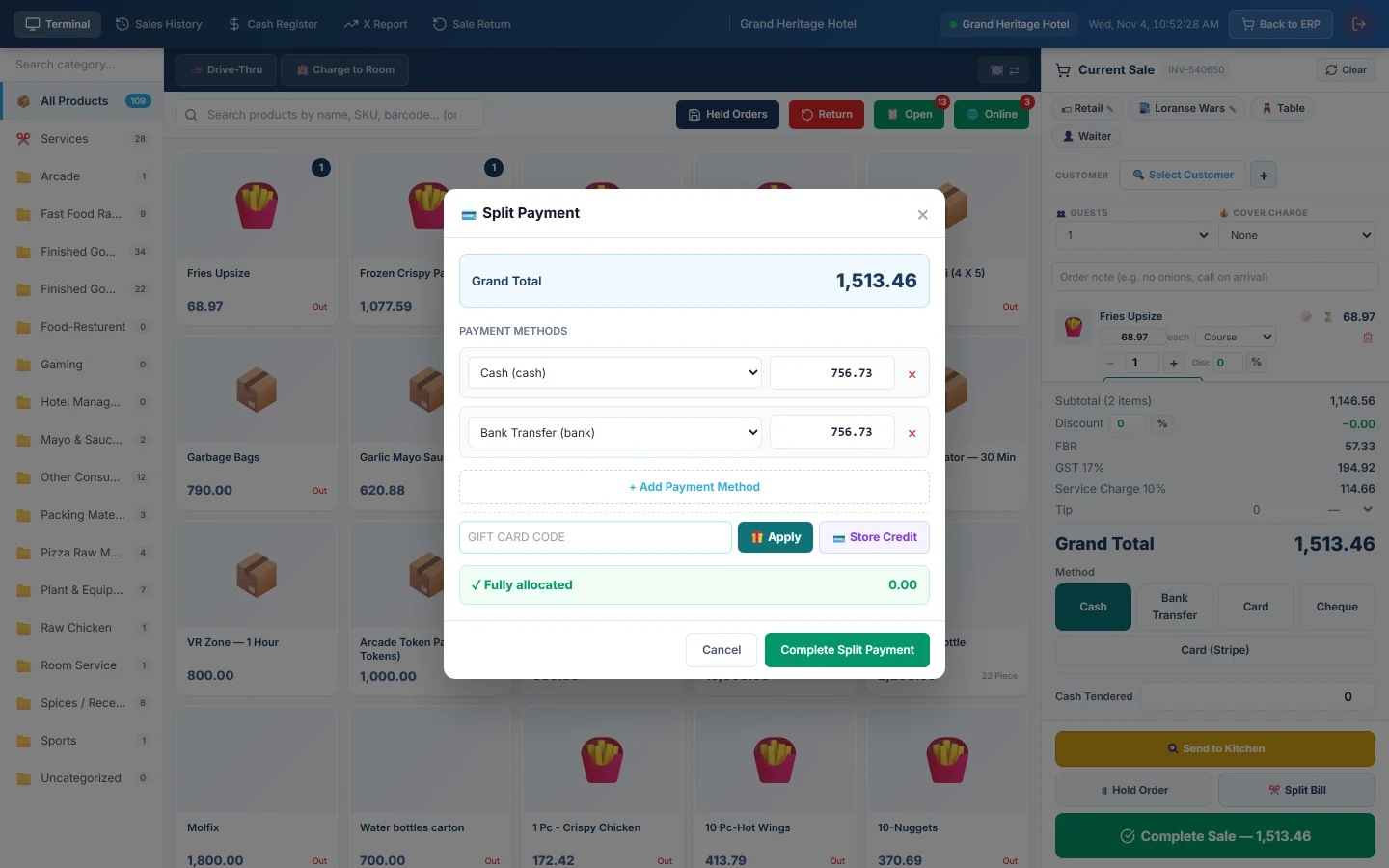
- Click ✂️ Split Bill. The Split Payment window opens with the Grand Total.
- In the first row, pick the method and type the amount.
- Click + Add Payment Method for each further tender.
- To use a gift card, type the Gift card code and click Apply. Store Credit uses the customer's credit balance.
- Check the bar at the bottom says Fully allocated. It says Remaining or Over-allocated until the amounts add up.
- Click Complete Split Payment.
One sales invoice is saved with all the tenders, and the table is freed.
Give each guest their own cheque
Do this in the waiter app, on an order already sent to the kitchen.
- To split by seat, tap Set seat on each dish and pick the seat number.
- Tap Split Bill. The Split the bill window shows what is left to pay.
- Choose By seat, or By item.
- For By item, set the number of Cheques with − and +. Tap a dish to move it to the next cheque.
- On each cheque, pick the tender and tap Pay with its amount.
Each paid cheque turns green with ✓ Paid. When the last one is paid, the window says All cheques paid — order settled. and the table is freed.
Move an order to another table
On the till:
- Click 📋 Open.
- On the order, open the Move → list and pick a free table.
In the waiter app, tap Move on the order and pick a free table under Transfer to…. On the Floor Plan board, use Transfer to another table….
The order and its kitchen tickets move with it; nothing is sent to the kitchen again. The old table is freed.
Merge two tables
The till has no merge. Do it on the Floor Plan board: click the occupied table, click Merge with another table… and tap the second table. The second table is held and shows With T…; both tables open the same order. Unmerge tables separates them, and paying the bill releases the merge.
What happens in the books
A split payment posts one sales invoice with a receipt for each tender: each payment method's account is debited with its share.
A cheque split posts one sales invoice per cheque. Each one takes its own dishes out of stock and carries its share of the tax, service charge and cover charge. The last cheque takes whatever tax and cover charge is left, so the cheques add up to the order exactly.
Each cheque is a till payment, so the waiter needs an open cashier shift, or a cash-register user, for the money to land in a drawer.
Common questions
Complete Split Payment stays greyed out. The amounts do not add up to the Grand Total. Fix the rows until the bar says Fully allocated.
The Move → list is empty. Every other table is occupied or reserved. Free or add a table first.
The waiter's Split Bill button is greyed out. The order has not been sent to the kitchen yet. Tap Send to Kitchen first.
Can I undo a paid cheque? Not from the split window. Cancel or return that cheque's invoice like any other sale. See Sales Returns.
Vielen Dank. Wenn Sie weitere Hilfe brauchen, schreiben Sie an info@eloerp.net.