Send and reprint a KOT
Send an order's dishes to the kitchen as KOTs from the restaurant till, read the KOT number, and print a kitchen slip again when one is lost.
A KOT (kitchen order ticket) tells the kitchen what to cook. EloERP cuts one ticket for each kitchen department in the order, so the grill and the bar each get only their own dishes.
Before you begin
- Your kitchens are set up on Kitchen Departments, and each dish has its department on Menu Items.
- Each kitchen shows its tickets on the Kitchen Display System, or prints them on the KOT Print Station.
- Enable KOT (Kitchen Order Ticket) is on in POS Settings, so the till shows Send to Kitchen.
Where to find it
On the restaurant till: Restaurant → Quick Links → POS Terminal.
Send an order to the kitchen
- Add the dishes to the bill, with any notes and courses.
- Click 🍳 Send to Kitchen.
EloERP saves the order and cuts the tickets at once. Only dishes not sent before go, so you can send the same order again after adding dishes. The order then waits under 📋 Open.
The online till does not print the slip itself. The kitchen sees it on its screen, or its PC prints it with the KOT Print Station or the screen's 🖨 Auto-print. The offline till can print kitchen slips by itself on the kitchen's printer.
When the kitchen gets a ticket without Send to Kitchen
- A bill paid straight away. A walk-up order paid with Complete Sale, without sending it first, gets its tickets at payment. Only dishes marked Kitchen Item go; drinks and packaged goods do not.
- A saved order paid later. Any dish on it that was never sent goes to the kitchen when you settle the bill.
If sending fails at payment, the sale is still saved and the till warns you. Tell the kitchen what to cook.
Read the KOT number
Each send gets one order number, such as O-169. Each department's slip adds its own index: O-169-1 for the grill, O-169-2 for the bar. Tickets from the offline till start with F- instead of O-.
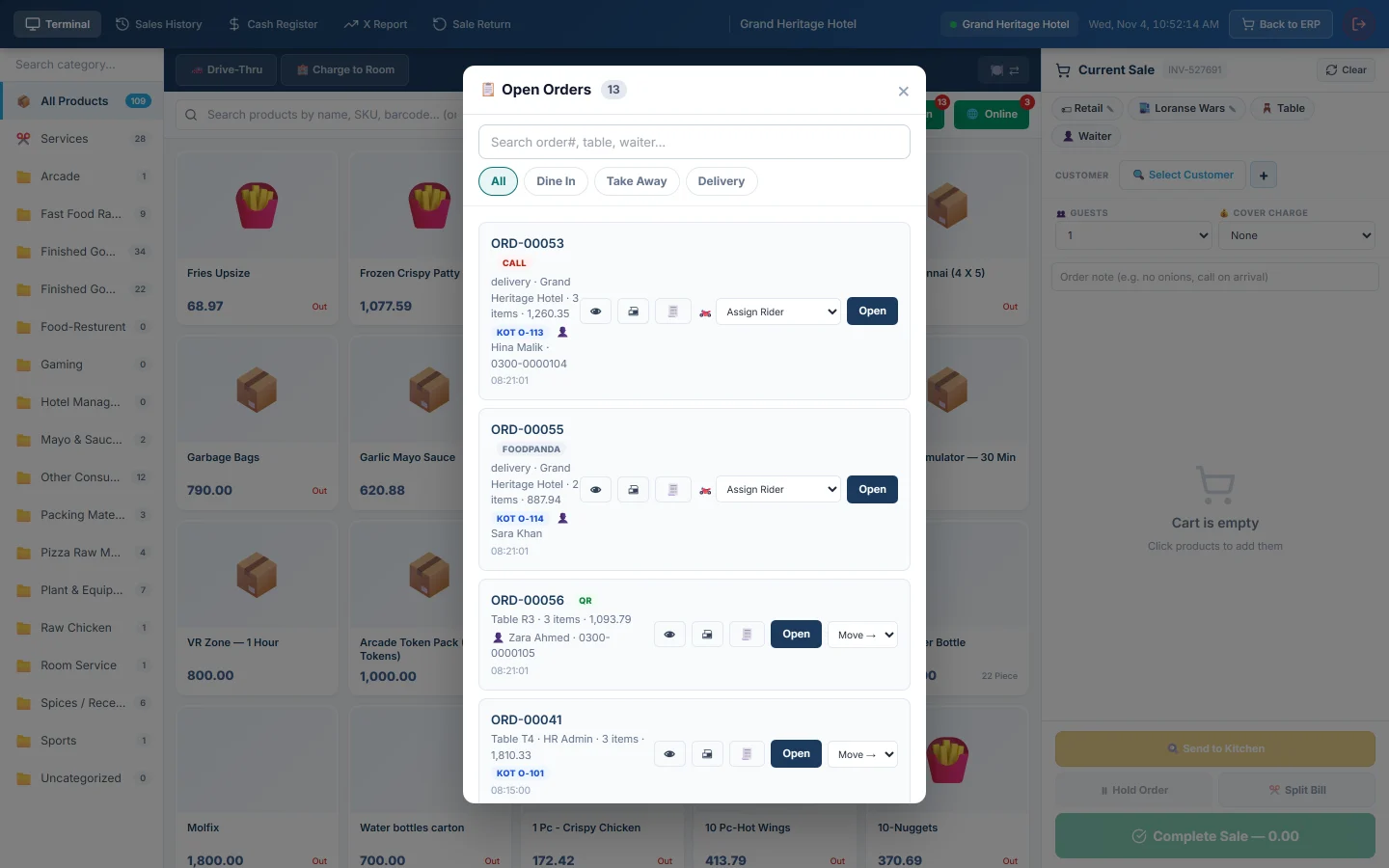
The same number shows on the order in 📋 Open as KOT O-169, and on the guest's receipt as Order No., so a slip can be matched to its bill. A second send for the same order gets the next number, and the kitchen screen marks it · Fire 2.
Numbers start at 101. With Reset KOT Number Daily on Kitchen Departments, they start again each day, for each branch.
Reprint a KOT
From the till:
- Click 📋 Open.
- Find the order and click 🖨 (Print KOT).
This prints the whole order as one slip on the till's own printer, headed with the table number. To look first, click 👁 (Quick view) and then 🖨 Print KOT. Orders parked with Hold Order have the same 🖨 button under Held Orders.
From the kitchen: click 🖨 on the ticket on the Kitchen Display System. This prints that department's slip only.
To look up an old ticket, see KOT History.
Common questions
The Send to Kitchen button is missing. Enable KOT (Kitchen Order Ticket) is off in POS Settings. Kitchen tickets are still cut when a bill is paid.
A dish went to the wrong kitchen. Check the dish's Kitchen Department for this branch on Menu Items. The change applies to the next ticket.
The till says "Failed to send to kitchen: No items to send to kitchen". Every dish on the order was already sent. Add the new dishes first.
The kitchen did not get the slip. Check the kitchen screen or the KOT Print Station is open and connected. Then reprint from 📋 Open with 🖨.
How many copies print? Number of KOT Prints in POS Settings sets it.
Terima kasih. Jika masih butuh bantuan, kirim email ke info@eloerp.net.