Move, unpair or remove the offline till
Move an offline till to another branch or PC, unpair it, retire it or remove the POS app completely, in the order that keeps every unsynced sale.
A till is linked to one company and one branch from the day it is paired. To change that, unpair it on the PC, or remove the app, and pair it again. Always let it upload its sales first.
Before you begin
- You can open the Manager Console on the till and know the Manager PIN. See The Manager Console on the offline till.
- Your role can manage POS devices online.
- Close the open shifts on the till. See Shifts, X and Z reports on the offline till.
Where to find it
- On the PC: Manager Console → Reset & Data.
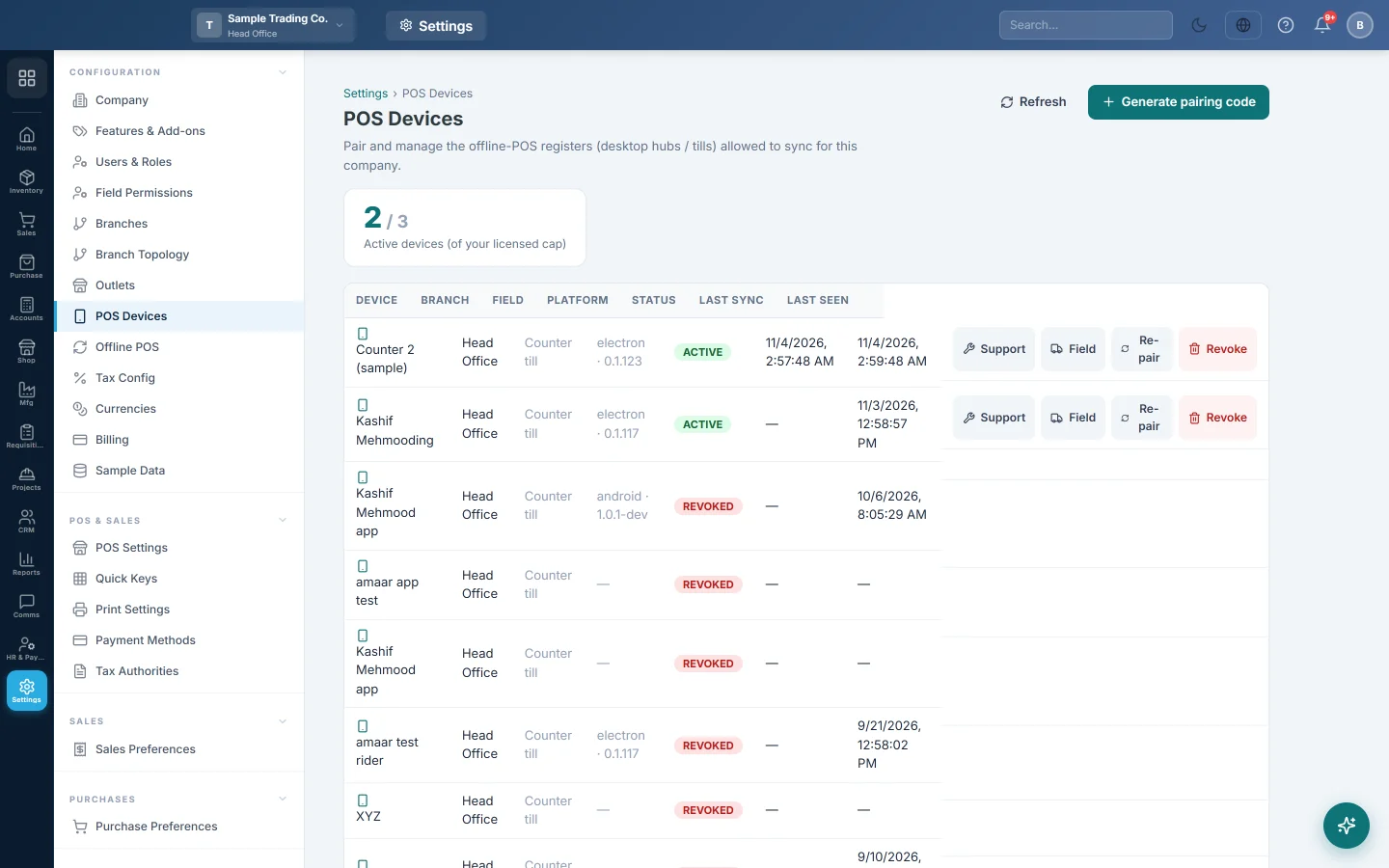
- Online: Settings → Configuration → POS Devices.
Pick the right action
| Situation | What to do |
|---|---|
| The till shows Connect this register after a reinstall or a Windows reset | Click Re-pair on the device in POS Devices and type the new code on the till. It keeps the device's number band and shift history. |
| The till shows Connect this register because it was revoked | A revoked device has no Re-pair. Click Generate pairing code and pair it as a new device. |
| Move the till to another branch, or give the PC to someone else | Unpair it on the PC, revoke the old device, then pair it with a code made in the right branch. |
| Retire the till for good | Sync it, revoke it in POS Devices, then remove the app. |
| A new install comes back linked to the wrong company or branch | Remove the POS app completely, then install and pair again. |
Unpair the till on the PC
- In the Manager Console, check that Waiting to sync is 0. Click Sync now if not.
- Open Reset & Data and click 🔌 Unpair this device.
- Type the Manager PIN. Leave Discard unsynced records too unticked.
- Click Unpair.
- Close the till window and open POS Hub again.
The Connect this register screen opens with "This device was unpaired from the Manager Console." The till's old data is kept aside on the PC, not deleted. Unpair refuses while sales are still waiting to sync.
Revoke the old device
- In POS Devices, click Revoke on the device.
- Confirm.
Its slot is freed at once. If the till still has an open shift or unsynced sales, EloERP warns you first. Do not revoke anyway unless the PC is gone for good.
Pair it again
- Switch to the right branch in the top bar.
- Click Generate pairing code and pick that Branch.
- Type the store address and the code on the till's Connect this register screen.
The steps are in Install the POS app on a PC and pair it.
Remove the POS app completely
Uninstalling from Windows leaves the saved pairing on the PC. A new install would come back linked to the old company or branch. The uninstaller clears it for every Windows user.
- On the till, sync until Waiting to sync is 0, then close the POS window.
- In POS Devices on that PC, click Download uninstaller (Windows). It is also on the PC already; Reset & Data in the Manager Console says where.
- Run it. Allow it when Windows asks, type YES and press Enter.
- Revoke the device in POS Devices, so it stops using a slot.
- To use the PC again, install the POS app and pair it with a new code made in the right branch.
The uninstaller moves the till's own data to a backup folder on drive C:, so unsynced sales can still be recovered.
Common questions
What is the difference between Re-pair and Revoke? Re-pair keeps the same device, its number band and its shift history, and issues a new code. Revoke retires the device and frees its slot.
Re-pair says the till has a shift still open. Close the shift on the till and let it sync first. Re-pairing stops the till's old link, so anything not yet uploaded could no longer arrive.
I revoked a till that is still selling. When it next reaches EloERP, it is told it was revoked. At its next start it shows Connect this register. Generate a new pairing code and pair it as a new device. Sales it could not upload stay in the folder kept aside on the PC; ask your service provider to recover them.
Do I lose the till's sales history when I unpair? Uploaded sales are safe online. The till's own copy is kept aside on the PC; the new pairing starts empty.
Can I move the POS app to a new PC? Yes. Sync and unpair or remove it on the old PC, revoke the old device, then install on the new PC and pair it. Copying files between PCs does not work.
Obrigado. Se ainda precisar de ajuda, escreva para info@eloerp.net.