Install the POS app on a PC and pair it
Install the POS app on a Windows PC at the counter, pair it with a one-time code from POS Devices and open the offline till for the first time.
You set up each offline till once. Install the POS app on the PC, generate a pairing code in EloERP and type it on the PC. After that the PC opens straight to the till.
Before you begin
- Offline POS is switched on for your company and you have a free device slot. The box on POS Devices shows Active devices (of your licensed cap).
- Your role can manage POS devices. See Users & Roles.
- The branch the till sells in exists. See Branches.
- The cashiers who will use the till have Allow Offline POS Login ticked. See Sign in on the offline till.
- You have the POS app installer. Your service provider gives it to you.
- The PC runs Windows and has internet for the set-up.
Where to find it
- The pairing code: Settings → Configuration → POS Devices, in a browser.
- The installer and the Connect this register window: on the counter PC.
Install the POS app
- Copy the POS app installer to the counter PC.
- Double-click it. When Windows asks whether the app may make changes, click Yes.
- Wait. The installer asks no questions. It installs the app and opens it.
- The Connect this register window opens.
The installer adds a POS Hub shortcut to the desktop and the Start menu.
Generate a pairing code
- In EloERP, switch to the branch the till will sell in, using the top bar.
- Open Settings → Configuration → POS Devices.
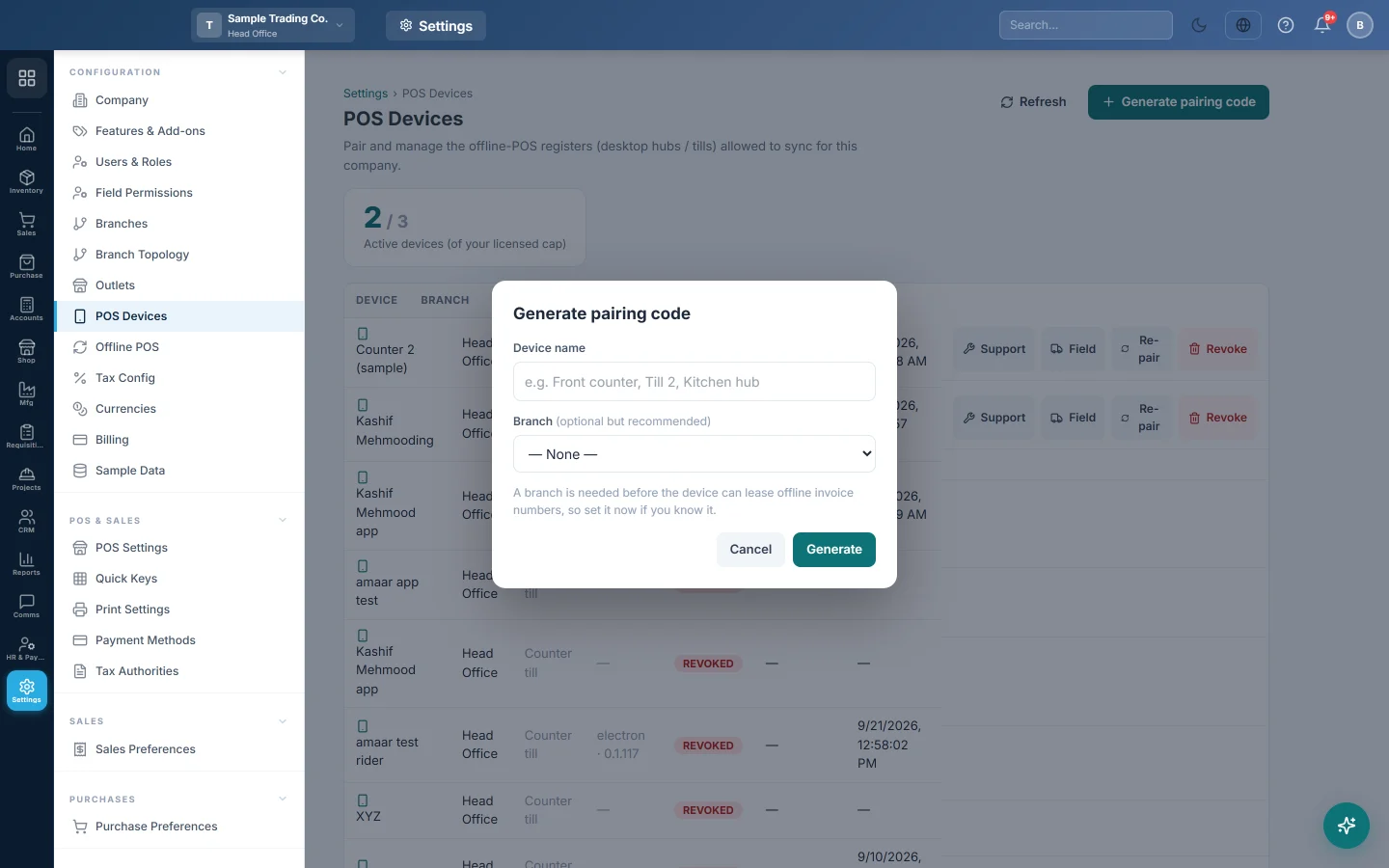
- Click Generate pairing code.
- Type a Device name, for example Counter 1.
- Pick the Branch. A till needs a branch before it can take offline invoice numbers.
- Click Generate.
The code appears under Pairing code ready, with Expires in and the time left. It works once and lasts 15 minutes. Click the copy icon to copy it.
Pair the PC
- On the PC, type your Store address. This is the web address you sign in at, without /login. A pasted sign-in address works too; the app drops /login and what follows.
- Type the Pairing code.
- Click Connect & open POS.
- The message reads Connected. Opening your POS… and the till opens.
In POS Devices, click Refresh. The device now shows active, with its Last seen time.
Open the till for the first time
- Wait while the till downloads your products, customers and settings. A large catalogue can take a few minutes.
- On the Who is working? screen, click your name, type your password and click Sign in.
- If your user has Enable Cash Register, type the Opening Balance and click Open Register & Start.
- Ring a small test sale and print the receipt.
- In a browser, check that it arrived under Sales → Sales Documents → Sales Invoices.
Before the first busy day, set a Manager PIN and the receipt printer on the till. See The Manager Console on the offline till and Printers, cash drawer and scale on the offline till.
Common questions
The till says "Offline POS isn’t enabled for your store yet." Offline POS is off for your company, or you have no free slot. Ask your service provider, or revoke a till you no longer use.
The till says "That pairing code didn’t work — it may be expired." Codes last 15 minutes and work once. Click Generate pairing code again.
The till says "Couldn’t reach that store address." Check the address you typed and the PC's internet, then try again.
The product grid says No products found. The first download has not finished, or the internet dropped. Wait a minute, or open the Manager Console and click Pull data.
Does the app start by itself when Windows starts? No. Open POS Hub each morning. Closing the window does not stop the app; open the shortcut again to bring the till back.
I paired it to the wrong branch. Unpair it and pair it again with a code generated in the right branch. See Move, unpair or remove the offline till.
Terima kasih. Jika masih butuh bantuan, kirim email ke info@eloerp.net.