Your first month end
A checklist for the end of the month: match the bank, count stock, check who owes what, then read the trial balance, profit and loss and balance sheet.
At the end of each month, take an hour to check that the books match the real world, then read the month's results. Do the steps in this order: each one cleans up the figures the next one reads.
Before you begin
- All of the month's sales, purchases, receipts and payments are entered and confirmed.
- Every shift of the month is finalized on the Z-Report. See Close the day: shift and reports.
- Your bank statement for the month is at hand.
- Your role can open the Accounts reports. Some reports also need their feature switched on under Settings → Configuration → Features & Add-ons.
Where to find it
Most of the screens are in Accounts → Reports. Bank reconciliation is in Accounts → Banking, and stock valuation in Inventory → Stock.
1. Match the bank
- Open Accounts → Banking → Bank Reconciliation.
- Choose the Bank Account, set Status to Unreconciled, enter the month in From Date and To Date, and click Load.
- Tick off each line against your bank statement: click Reconcile, enter the Clearance Date from the statement and click Confirm.
- For bank charges or interest that are on the statement but not in the books, click + Add Entry. Choose Bank Charge (Credit Bank) or Interest Received (Debit Bank), pick the Contra Account, enter the Amount and click Save Entry.
When you finish, Book Balance should equal the statement balance, less any items still unreconciled. See Bank Reconciliation.
2. Check the stock
- Count the shelves, or at least your fast-moving items. See Stock Count (Physical).
- Open Inventory → Stock → Stock Valuation, set As Of to the last day of the month and note the Total Inventory Value.
See Stock Valuation.
3. Check who owes what
- Open Accounts → Reports → Receivables Aging (AR). It splits what each customer owes into Current, 1-30 Days, 31-60 Days, 61-90 Days and 90+ Days.
- Follow up the customers in the older columns. See Receivables Aging (AR).
- Open Accounts → Reports → Payables Aging (AP) to see which supplier bills fall due. See Payables Aging (AP).
4. Read the trial balance
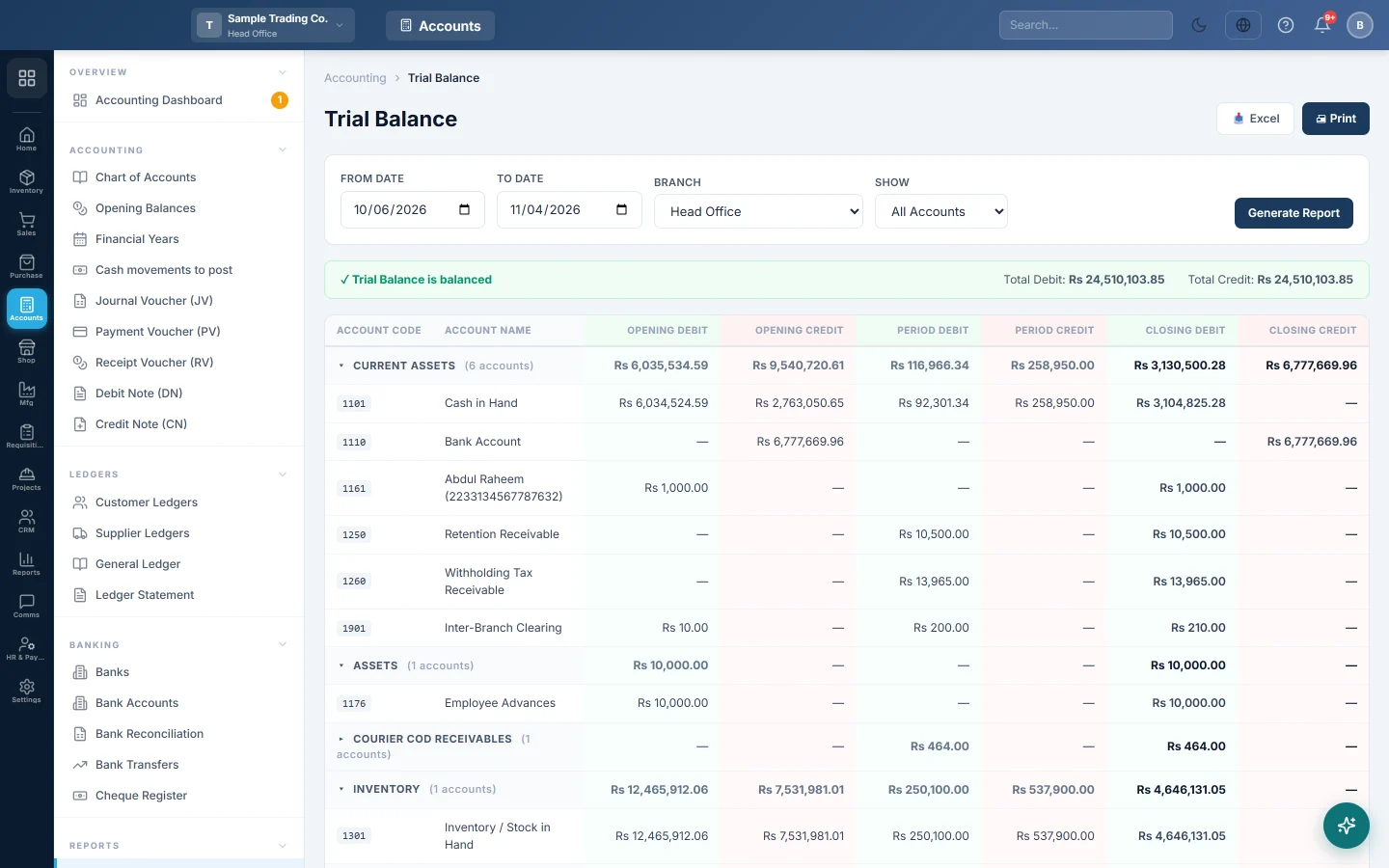
- Open Accounts → Reports → Trial Balance.
- Set From Date to the first day of the month and To Date to the last.
- Set Show to Non-Zero Only to hide empty accounts.
- Click Generate Report.
The top line should read Trial Balance is balanced. If it says Trial Balance is NOT balanced, the Likely cause(s): box points at what to look at. See Trial Balance.
5. Read the results
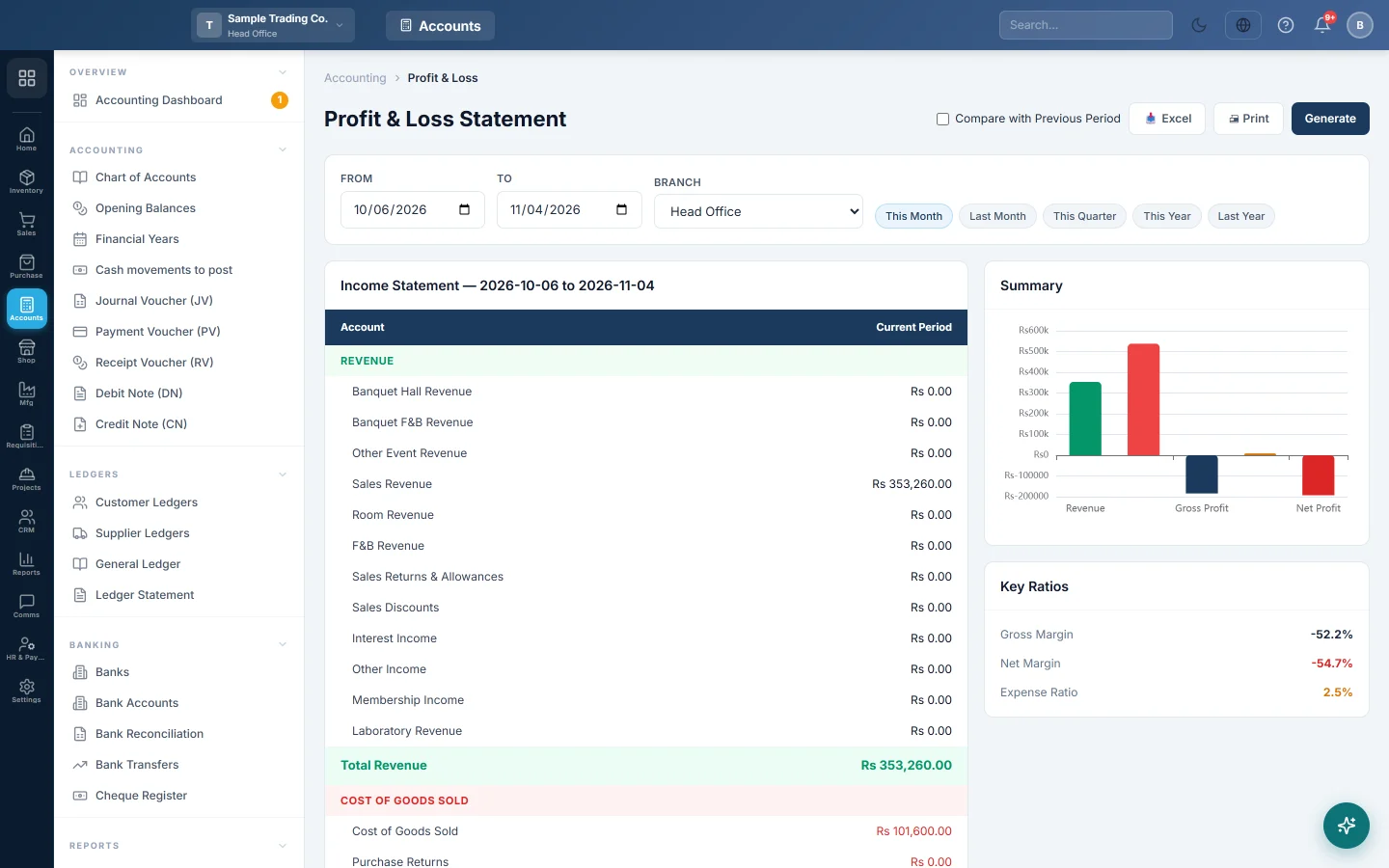
- Open Accounts → Reports → Profit & Loss, set From and To to the month and click Generate. Tick Compare with Previous Period to see the change from last month. See Profit & Loss.
- Open Accounts → Reports → Balance Sheet, set As of Date to the last day of the month and click Generate. It should read Balance Sheet is balanced (Assets = Liabilities + Equity). See Balance Sheet.
If you have several branches, each report has a Branch filter. Choose All Branches (Consolidated) for the whole company.
What happens in the books
Nothing posts at month end unless you add bank charges or interest in step 1; each of those posts an entry between the bank and the contra account. The monthly reports only read what is already there. You close the year itself once a year, from Accounts → Accounting → Financial Years with Close year…. See Financial Years.
Common questions
The trial balance is not balanced. Read the Likely cause(s): box first. Then look at accounts highlighted as orphan or inactive.
The profit looks too high. Check that every purchase of the month is entered, and that products have a cost. A sale of a product with no cost shows as all profit.
The bank does not match after reconciling. Look for receipts or payments posted to the wrong bank account, or cheques entered but not yet cleared.
Do I have to lock the month? No. There is no month lock; you close only the financial year. Change older documents with care, because the month's reports change with them.
Can I export the reports? Yes. Each report has Excel and Print buttons.
谢谢。 如果仍需帮助,请发邮件至 info@eloerp.net。