KOT History
Look up past kitchen order tickets by date and status, to see what was sent to the kitchen, for which table and when.
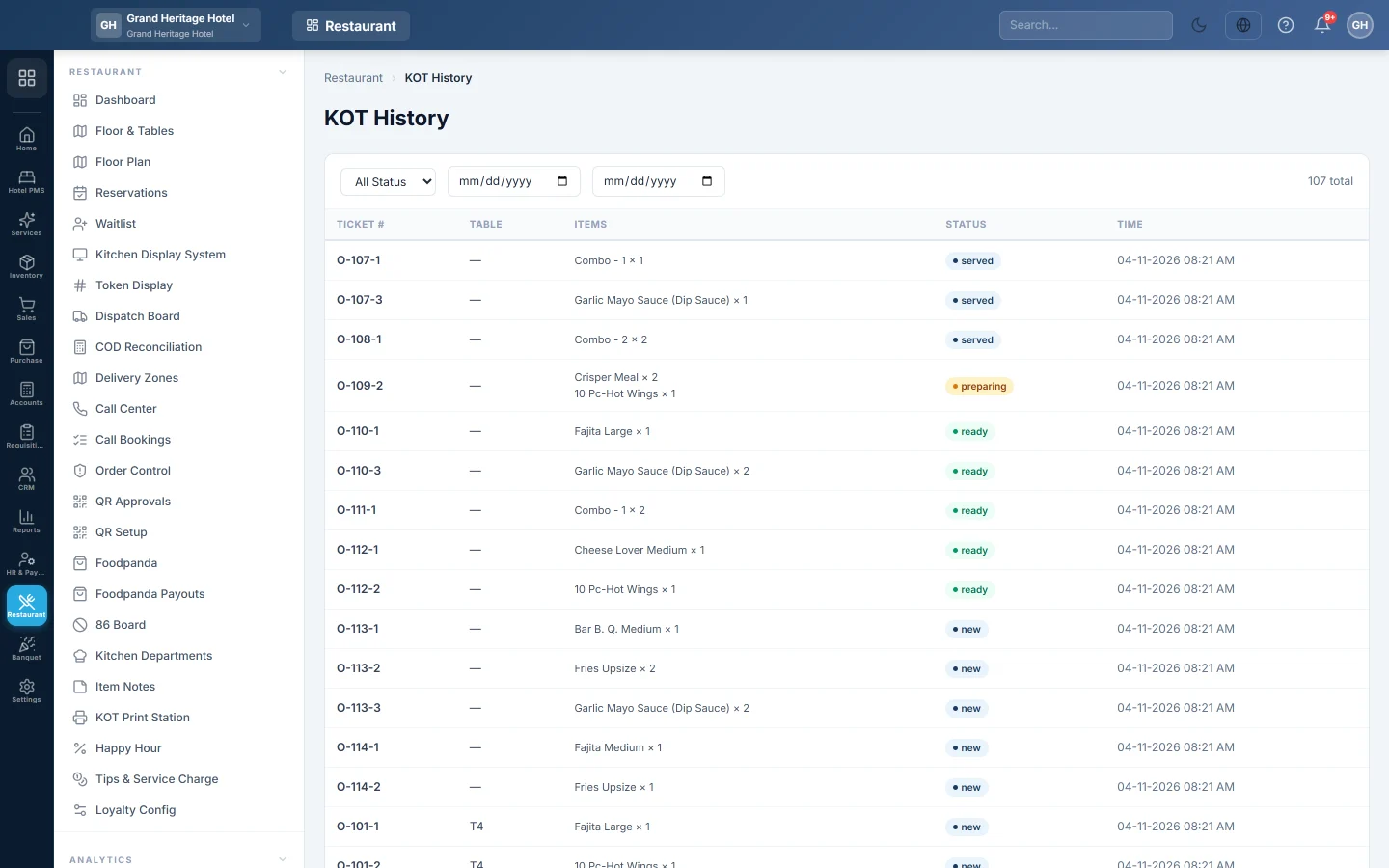
KOT History lists every kitchen order ticket (KOT) your branch has sent, newest first. Use it to check what went to the kitchen and when, for example when a guest says a dish never arrived.
Before you begin
- Your role needs View KOT History. The Kitchen / KDS role has it. See Users & Roles.
- The list shows the branch you are signed in to.
Where to find it
Open Restaurant → Analytics → KOT History.
Find a ticket
- Pick the first and last date in the two date boxes. The list updates as you pick.
- Optionally pick a status in All Status: New, Preparing, Ready, Served or Cancelled.
- Read the total on the right, and use the page numbers under the list. Each page shows 50 tickets.
| Column | What it shows |
|---|---|
| Ticket # | The KOT number with its department suffix, for example O-105-2. |
| Table | The table number, or — for a take-away or delivery order. |
| Items | The first three dishes and quantities, and how many more. |
| Status | Where the ticket is: new, preparing, ready, served or cancelled. |
| Time | When the ticket was sent. |
Common questions
The status filter finds nothing. No ticket in those dates has that status. Widen the dates, or go back to All Status and read the Status column.
Can I reprint an old KOT here? No. Open tickets can be reprinted from the Kitchen Display System.
Why are tickets from the desktop till missing? KOTs made by the offline POS (the desktop till, numbered F-) are printed there and do not appear in this list.
Which tickets are still open now? See the Kitchen Display System.
Terima kasih. Jika masih butuh bantuan, kirim email ke info@eloerp.net.