Happy Hour
Set time-limited discounts on the menu price, for all items, a category or one dish, by branch, day and time.
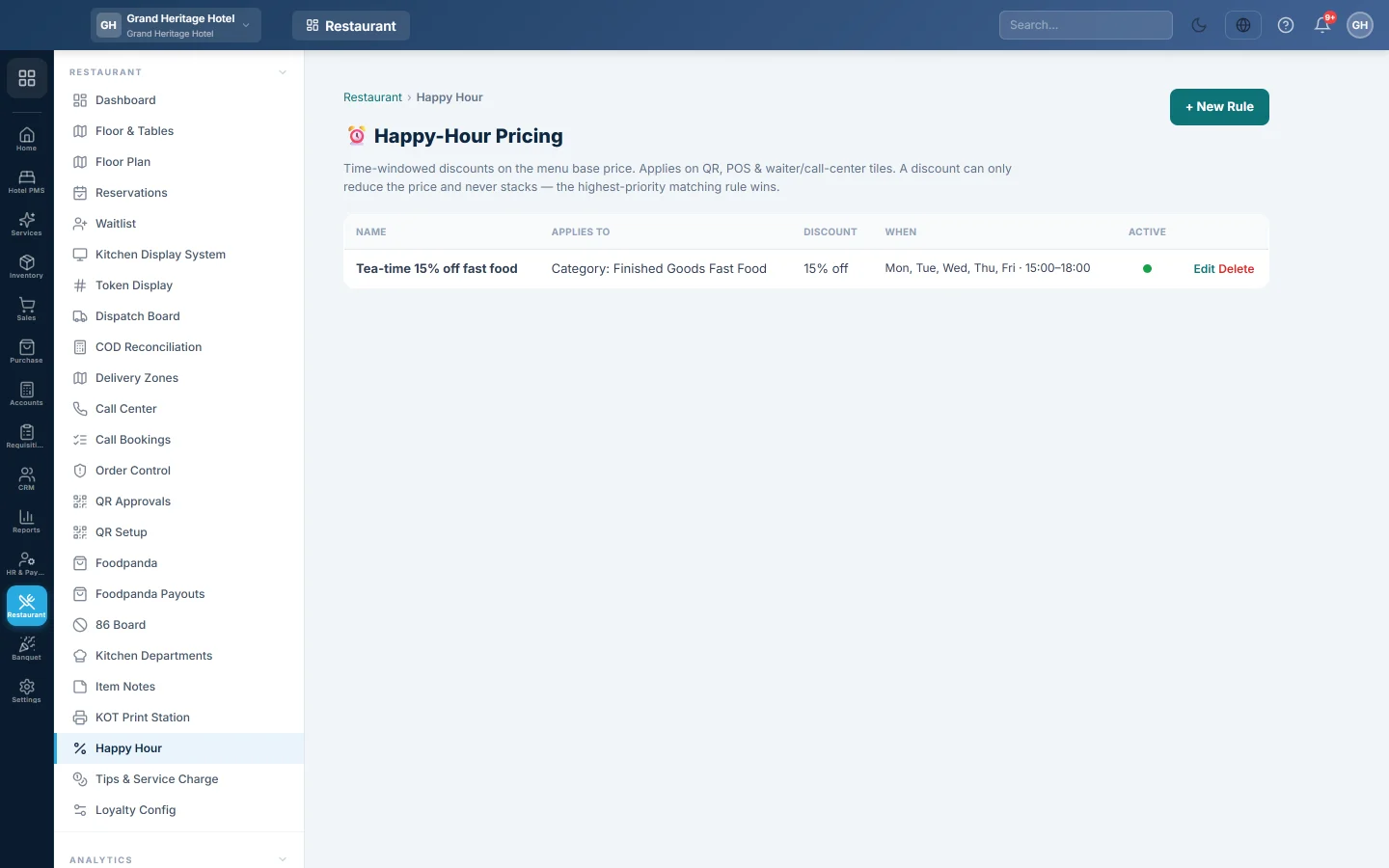
A happy-hour rule lowers the menu price during set days and times, for example 20% off all drinks from 4 to 7 pm. The discounted price shows by itself on the till, the waiter app, the call centre and the QR menu.
Before you begin
- Your role needs Manage Happy-Hour Pricing. See Users & Roles.
- The items or categories you want to discount exist. See Menu Items and Categories.
- With more than one branch, switch the top bar to the branch the rule is for. A new rule starts on that branch.
Where to find it
Open Restaurant → Restaurant → Happy Hour.
Add a rule
- Click + New Rule.
- Type a Name, for example Weekday Lunch Special.
- With more than one branch, check the Branch. Pick All branches only if every branch should sell at the discount.
- Under Applies to, choose All menu items, A category or A single item, then pick the Category or Item.
- Under Discount, choose % off or Amount off, and type the Value. A percentage cannot be more than 100.
- Click the Days the rule runs. All seven are on by default.
- Set From (time) and To (time). Leave both blank for all day. A window such as 22:00 to 02:00 runs past midnight.
- Optionally set Valid from (date, optional) and Valid until (optional) for a campaign.
- Leave Active ticked and click Save.
When two rules match
Discounts never add up. When more than one rule matches an item, only one applies:
- The rule with the higher Priority wins.
- With equal priority, the most specific wins: a single item beats a category, and a category beats all items.
A discount can only lower the price. Amount off larger than the price makes the item free, never negative.
Change, pause or delete a rule
- Click Edit to change a rule, then Save.
- Untick Active to pause it without losing it. The Active column shows a green or grey dot.
- Click Delete and confirm to remove it.
Offline tills pick up a new, changed or deleted rule on their next sync.
Where the discount shows
- On the till, the item tile carries a Happy Hour badge, with the normal price struck through next to the lower one. See POS Terminal.
- On the QR menu, guests see the lower price and a Happy hour saving line. See QR Setup.
- In the waiter app and the Call Center, the lower price is used when the item is added.
Common questions
The discount does not show on the till. Check the rule's Branch, Days, times and dates, and that Active is ticked. The rule uses the branch the till is selling in.
Another branch is selling at the discount. The rule is set to All branches. Edit it and pick the one branch.
Can I give 2-for-1 or a free item? No. A rule lowers the price of each item by a percentage or an amount. For a set meal at a fixed price, make a combo. See Make a combo or meal deal.
Does the discount show as a discount on the bill? No. The line is sold at the happy-hour price, so it is not added to the bill discount.
Merci. Si vous avez encore besoin d’aide, écrivez à info@eloerp.net.