Item Notes
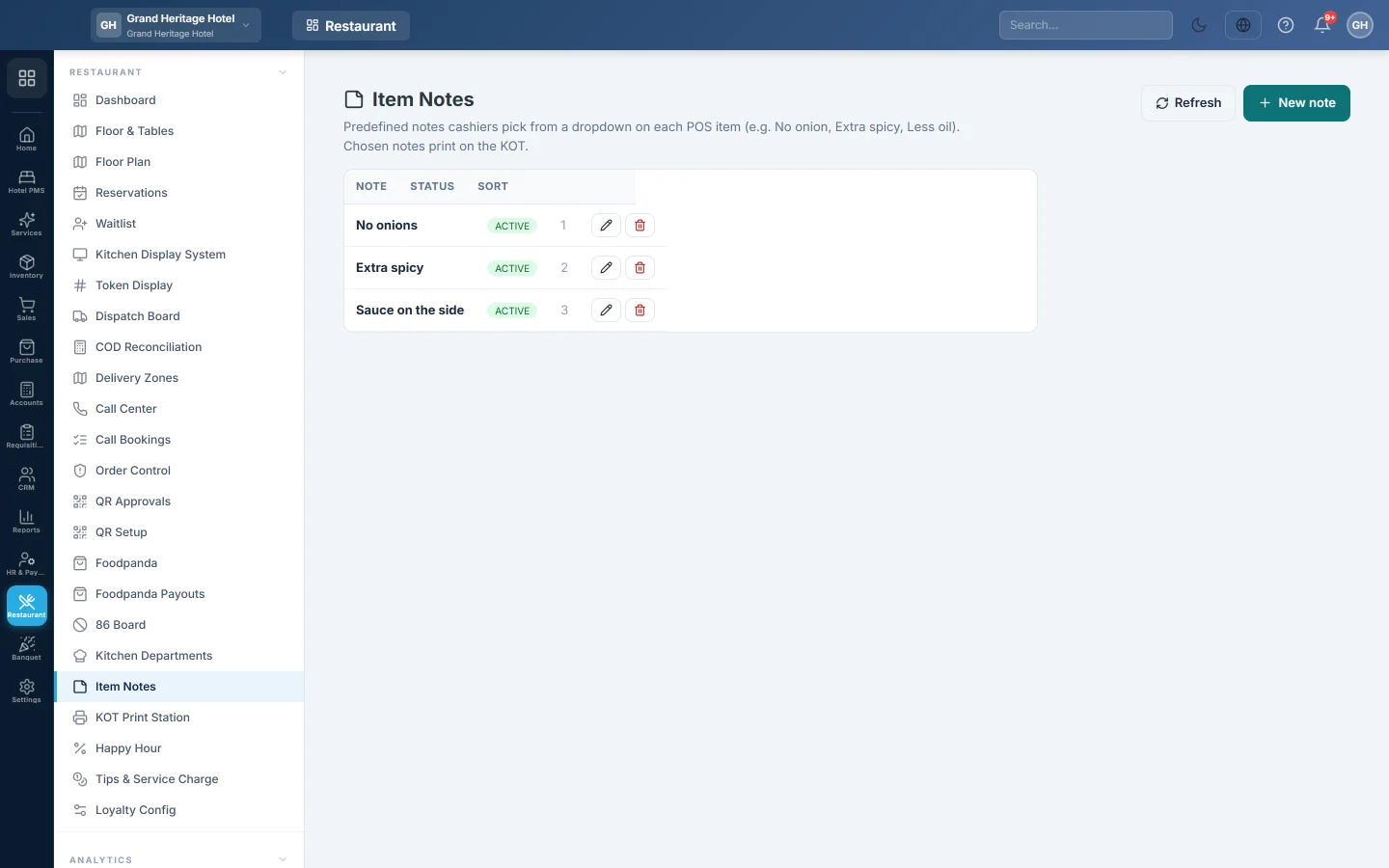
Keep a list of ready-made cooking instructions (No onion, Extra spicy, Less oil) that cashiers tap on a bill line instead of typing, so they print the same way on every KOT.
Item notes are short instructions for the kitchen, such as No onion or Extra spicy. You list them here once, and the cashier taps them on a bill line instead of typing.
Before you begin
- Your role needs Manage Item Notes. See Users & Roles.
Where to find it
Open Restaurant → Restaurant → Item Notes.
Add a note
- Click New note.
- Type the Note text, for example Less oil.
- Set the Sort order. Lower numbers show first on the till.
- Leave Active ticked.
- Click Save.
The same note text cannot be added twice.
Use a note at the till
- On the POS in restaurant mode, click 📝 next to a dish on the bill.
- Tap one or more notes under the text box. Tap a note again to remove it.
- Type anything extra in the box if you need to, for example for the child.
- Click ✓ or press Enter.
The note shows under the dish on the bill. It prints on the KOT and on the guest's receipt, and the kitchen sees it on the Kitchen Display System.
Change or remove a note
- Click the pencil to change the text or the order.
- Untick Active to hide a note from the till but keep it in the list.
- Click the bin to delete it. Notes already on past orders are not changed.
Common questions
The notes do not show on the till. The POS must be in restaurant mode, and the note must be Active. Reload the POS after adding notes.
Can a note add a price, such as Extra cheese? No. A note is text only. For a paid extra, add an option with a price to the dish, see Add options and add-ons to a menu item.
Can each branch have its own notes? Notes made on this screen are shared by all branches.
Obrigado. Se ainda precisar de ajuda, escreva para info@eloerp.net.