Kitchen Departments
Set up the kitchens and counters that cook your menu (Main Kitchen, Bar, Pizza), choose which cooks see each one on the KDS, and set how KOTs are numbered and printed.
A kitchen department is a place that cooks part of the menu, such as Main Kitchen, Tandoor or Bar. When an order is sent to the kitchen, EloERP splits it into one KOT per department, so each one sees only what it cooks.
Before you begin
- Your role needs Manage Kitchen Stations. See Users & Roles.
- Departments belong to a branch. Switch to the branch in the top bar before you add its departments. See Branches.
Where to find it
Open Restaurant → Restaurant → Kitchen Departments.
Add a department
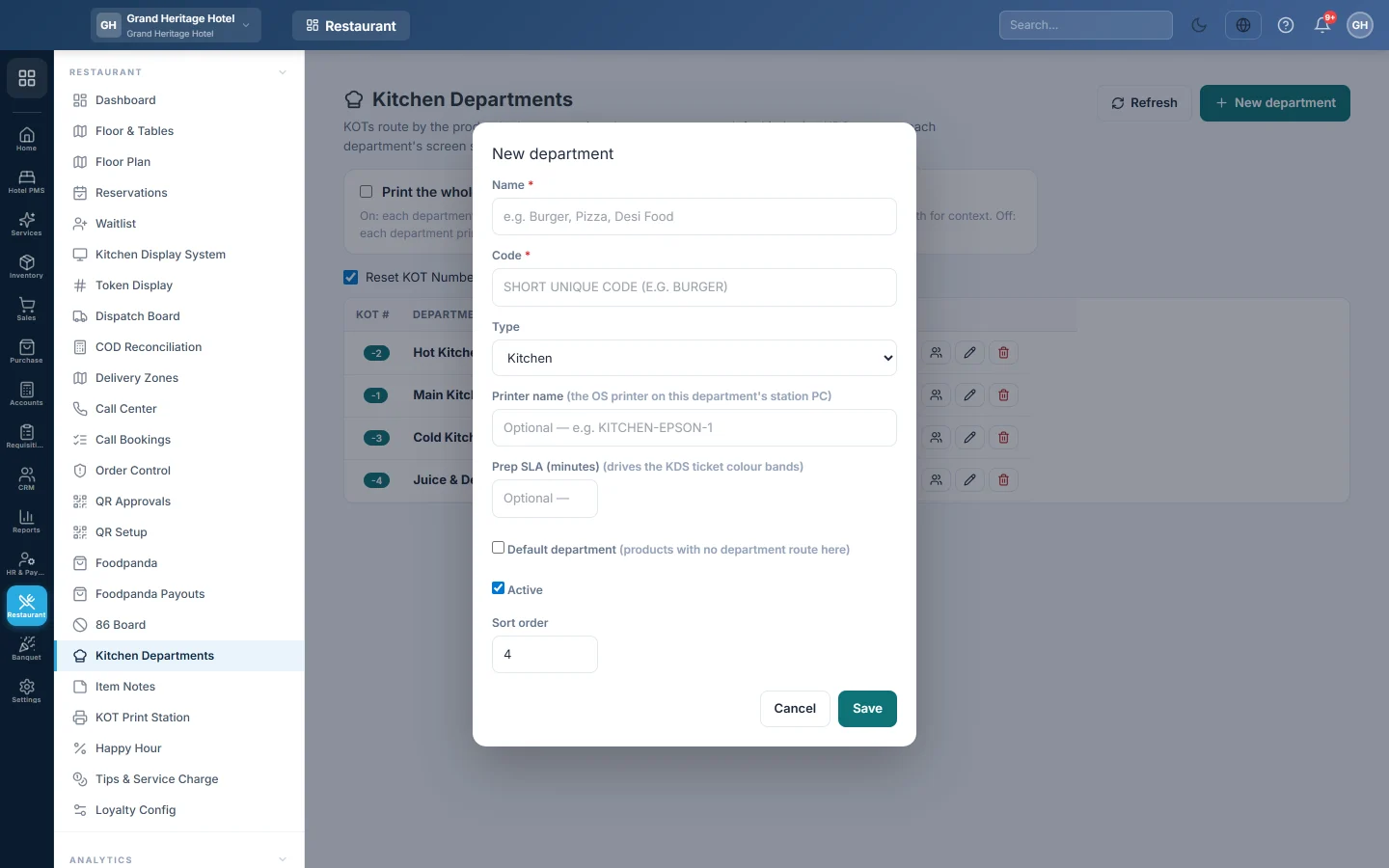
- Click New department.
- Type the Name, for example Main Kitchen. EloERP suggests a Code from it, such as MAIN_KITCHEN.
- Choose the Type: Kitchen, Bar / Drinks, Cold / Salads, Dessert, Packing / Expo or Other.
- Optionally type the Printer name of the printer at this department.
- Optionally set the Prep SLA (minutes): how long a ticket may wait before it turns red on the KDS.
- Tick Default department for the department that gets every dish with no department of its own. A branch has one default.
- Set the Sort order. It decides the department's number on the KOT.
- Click Save.
Then tell each menu item which department cooks it, see Menu Items.
How an order is split
For each dish, EloERP picks the department in this order:
- The department chosen for this branch on the menu item.
- The item's main department.
- The branch's Default department.
Changing a department affects the next tickets only. Tickets already sent keep their department.
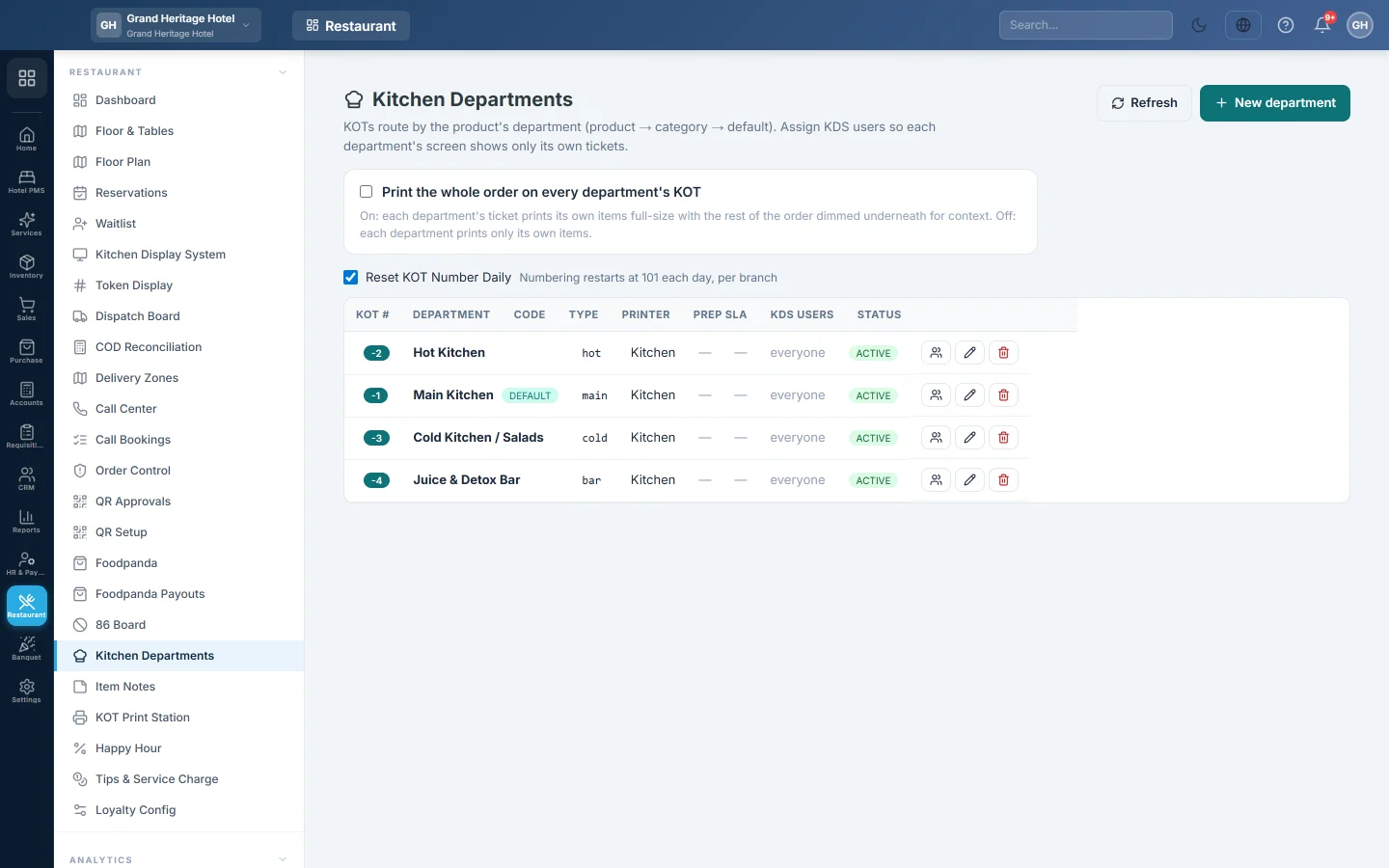
Read the list
| Column | What it shows |
|---|---|
| KOT # | The suffix this department adds to the KOT number. Order O-105 prints as O-105-1 for the first department and O-105-2 for the second. |
| Department | The name, with default on the default department. |
| Code, Type | The short code and the kind of department. |
| Printer | The printer name you typed. |
| Prep SLA | The prep time in minutes. |
| KDS users | The cooks assigned to it, or everyone. |
| Status | active or inactive. |
Choose who sees each department
- Click the people icon on the department's row.
- Tick the users who work there. Only users whose role can view the KDS are listed.
- Click Save assignment.
An assigned user sees only their departments' tickets on the Kitchen Display System and lands on it after signing in. A user can work in several departments. A user with no department sees them all.
Set how KOTs print and number
- Print the whole order on every department's KOT: on, each department's slip shows its own dishes in full and the rest of the order dimmed below. Off, each slip shows only its own dishes.
- Reset KOT Number Daily: on, KOT numbers start again at 101 each day, for each branch. Off, they keep counting up.
Both save as soon as you click them.
Edit or delete a department
- Click the pencil to change a department. Untick Active to stop sending tickets to it.
- Click the bin to delete it. A department that menu items or past tickets use is made inactive instead, so history stays correct.
Common questions
Does the Printer name make the slip go to that printer? Not from the browser. The KDS and the KOT Print Station print to the default printer of the PC they run on. The offline POS hub uses its own printer routing per department.
Why is the KOT # of a department different from yesterday? The suffix follows the Sort order. Changing the order renumbers future slips only.
A cook sees no tickets. Check they are signed in to the right branch, and that they are assigned to the department the dishes go to.
The assign window is empty. No user has a KDS permission yet. Give the cooks a role such as Kitchen / KDS in Users & Roles.
Obrigado. Se ainda precisar de ajuda, escreva para info@eloerp.net.