Call Center
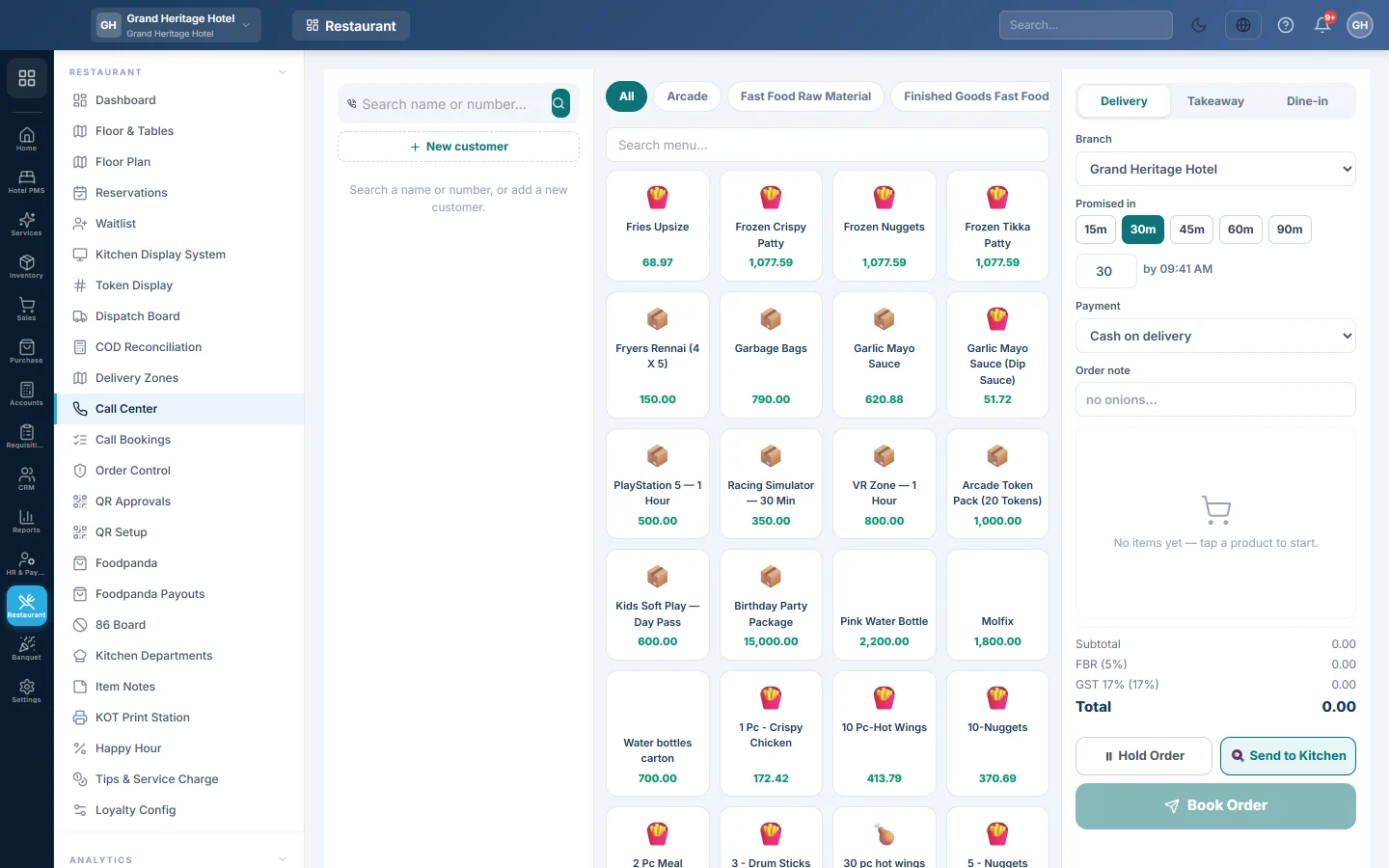
Take phone orders for delivery, takeaway or dine-in, find or add the caller and their address, route the order to the right branch and send it to the kitchen or hold it.
The Call Center is the phone-order desk. The agent finds the caller, picks their address, builds the order from the menu and books it. The order goes to the kitchen at once, or waits in the till's held orders.
Before you begin
- The call centre must be switched on for your company. Your service provider turns on Call centre.
- The agent's role needs Access Call Center and Create Call-Center Order; the ready-made Call Center role has them, plus access to the menu. Adding addresses needs Call-Center Manage Addresses. See Users & Roles.
- Your menu items are set up to show on the POS, see Menu Items.
- For delivery, set up Delivery Zones so the address picks the branch and the fee.
Where to find it
Open Restaurant → Restaurant → Call Center. Users with the Call Center role land here when they sign in.
Find the caller
- Type the caller's number or name in Search name or number…. Results appear as you type.
- If several customers match, click the right one.
- The caller's name, phone and a Repeat badge with their order count appear. Their Addresses and Recent orders are listed below.
Click Change customer to start again with another caller.
Add a new caller
- Click New customer, or search a number that has no match.
- Fill in Name * and Phone 1 *, and if you have them Phone 2, Email, City and Area….
- Type the Address and choose Home or Office. Office adds Landmark, Apartment / Floor and Office Number.
- Click Create customer.
The address becomes the caller's default delivery address.
Add another address
- With the caller selected and Delivery chosen, click Add address.
- Choose Home or Office and type the Address line, Area and City. Type the Area as people say it; it is what picks the delivery zone.
- Add a Landmark, Label, Contact phone or Notes if useful, and tick Set as default to make it the first choice next time.
- Click Save Address. It is selected for this order.
Book the order
- On the right, choose Delivery, Takeaway or Dine-in.
- For delivery, click the caller's address under Addresses, or Add address to add another one. EloERP matches it to a zone, shows Zone and the fee, and picks the Branch.
- Check the Branch. If no zone matched, choose it yourself.
- Add items from the menu. Use the category buttons or Search menu…. Items with options open the modifier, variant or combo picker first.
- In the cart, change quantities or click Add note for a line, for example no onions.
- Set Promised in: click 15m, 30m, 45m, 60m or 90m, or type the minutes. The time beside it shows when that is.
- Choose the Payment: Cash on delivery, Card on delivery, Pay at counter or Prepaid.
- Type an Order note for the whole order if needed.
- Check the totals: Subtotal, tax, Delivery / Shipping and Total.
- Choose 🍳 Send to Kitchen to cook now, or ⏸ Hold Order to park it.
- Click Book Order.
The screen shows the order number with Sent to kitchen ✓ or Held ✓, and the cart clears for the next call. When Book Order is greyed out, hover over it to see what is missing.
To repeat a past order, click Reorder on it under Recent orders. The cart fills with the same items at today's prices; items that are no longer available are left out.
Where the order goes next
- Send to Kitchen prints or shows the KOT in the kitchen, see Kitchen Display System. A delivery order reaches the Dispatch Board when the kitchen marks it ready, with the address you picked here on its card. The delivery fee you booked is the one the rider collects; no zone fee is added on top.
- Hold Order puts the order in the till's Held Orders, where a cashier can recall and change it. It also shows on Call Bookings with a Send to Kitchen button.
- Every booking is listed on Call Bookings.
Booking does not post anything to the books. The sale is posted when the order is paid at the till, or when the rider's delivery is marked delivered.
Common questions
Book Order stays grey. Add at least one item and choose a branch. A delivery order also needs a caller.
The branch is not picked by itself. The address area did not match any delivery zone. Choose the branch, and add the area word to the right zone in Delivery Zones.
The tax looks different from the till. The console uses the same tax rules as the till: the item's own rate, or your first item tax, plus any invoice-level taxes. See Set up taxes.
Can the caller pay in advance? Choose Prepaid as the Payment. The choice is saved with the order for the cashier and the rider; take the payment itself at the till.
Where is the agents' report? Agent bookings, confirm rate and revenue are on the Agent Performance report, see Call Bookings.
Obrigado. Se ainda precisar de ajuda, escreva para info@eloerp.net.