Reservations
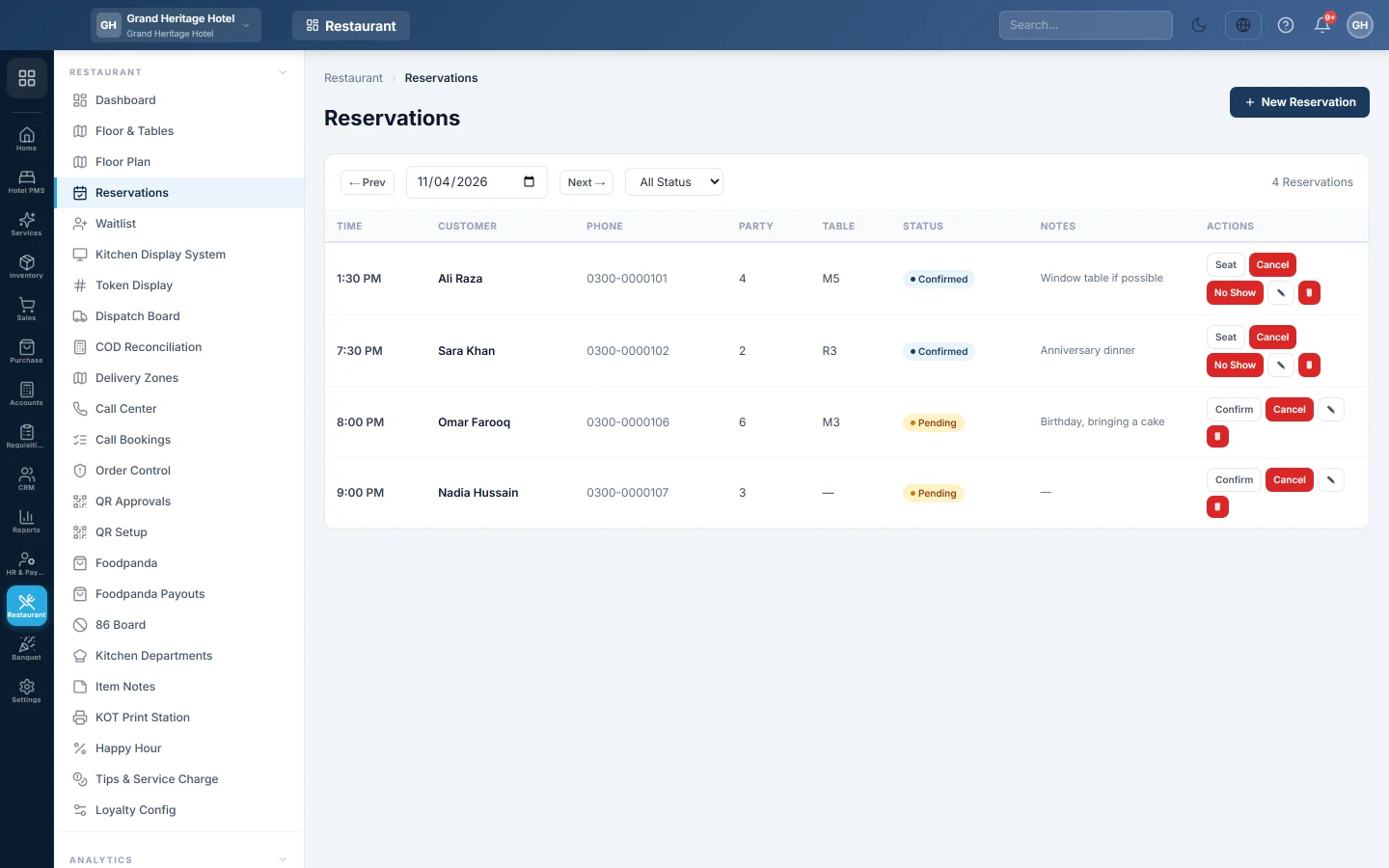
Keep the table booking book for each day, confirm bookings, mark guests seated, cancelled or no-show, and hold a table for a party.
Reservations is the restaurant's booking book. You see one day at a time, with each booking's time, guest, party size and table, and move each booking from pending to seated.
Before you begin
- Add your tables first if you want to book a particular table. See Floor & Tables.
- To see bookings your role needs View Reservations. To add, change or delete them it needs Manage Reservations & Waitlist. See Users & Roles.
- Bookings belong to the branch you are in, so switch branch in the top bar first.
Where to find it
Open Restaurant → Restaurant → Reservations. The Restaurant menu also has a New Reservation quick action.
Add a booking
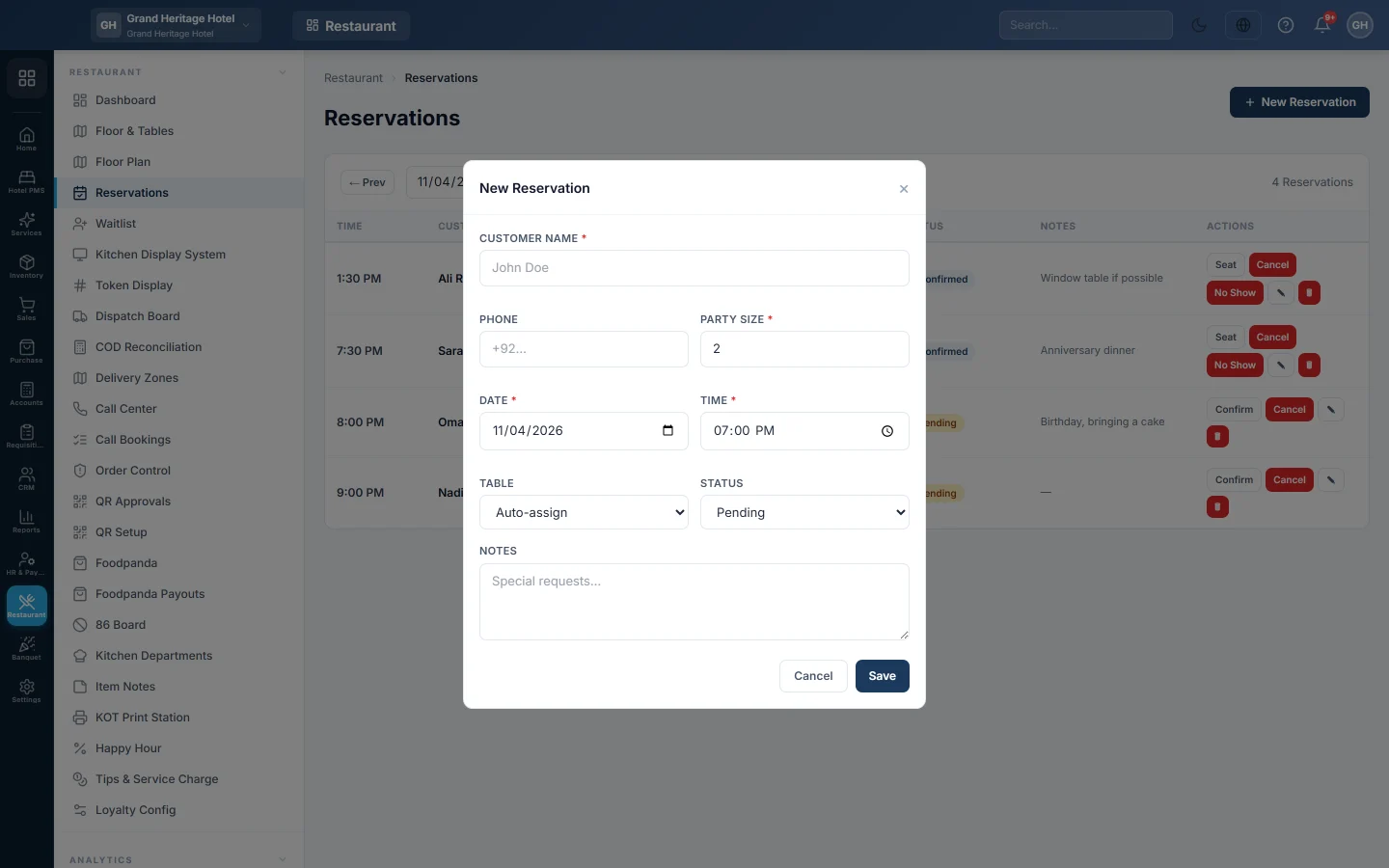
- Click New Reservation.
- Type the Customer Name and the Phone.
- Enter the Party Size.
- Set the Date and Time. The date starts on the day you are viewing.
- Pick a Table, or leave Auto-assign to decide when the guests arrive.
- Leave the Status on Pending, or choose Confirmed if the guest has already confirmed.
- Type any Notes, for example birthday cake, high chair.
- Click Save.
Work through the day
Use ← Prev and Next →, or the date box, to change the day. The status list filters the bookings, and the count on the right shows how many there are.
Each booking moves through the buttons in its row:
| Button | Shown when | What it does |
|---|---|---|
| Confirm | Pending | Marks it confirmed, for example after you call the guest back. |
| Seat | Confirmed | Marks it seated when the party arrives. |
| Cancel | Pending or confirmed | Marks it cancelled. It stays in the book. |
| No Show | Confirmed | Marks it no_show for a party that did not come. |
| ✎ | Always | Opens the booking to change it. |
| 🗑 | Always | Deletes the booking for good, after you confirm. |
Seat only changes the booking. To start the bill, open an order on the table from the till or the Floor Plan.
Hold a table for a booking
A booking does not lock its table. To stop the table being given to walk-ins, set it to Reserved:
- on the Floor Plan board it then shows in blue with Seat party → open order…, or
- edit the table on Floor & Tables and set Status to Reserved.
Common questions
Should I cancel or delete a booking? Cancel it. A cancelled booking stays in the book, so you can see who cancelled. Delete only a booking made by mistake.
Can I see the whole week? No, the list shows one day. Use Next → to step through the days.
Does the guest get a message? No. This page does not send messages. Call or message the guest yourself.
Where are walk-ins without a booking kept? On the Waitlist.
Thank you. If you still need help, write to info@eloerp.net.