Events
Book weddings, receptions, birthdays and conferences in your halls, bill the hall rent, menu and extras, take advances, and settle the event to your accounts.
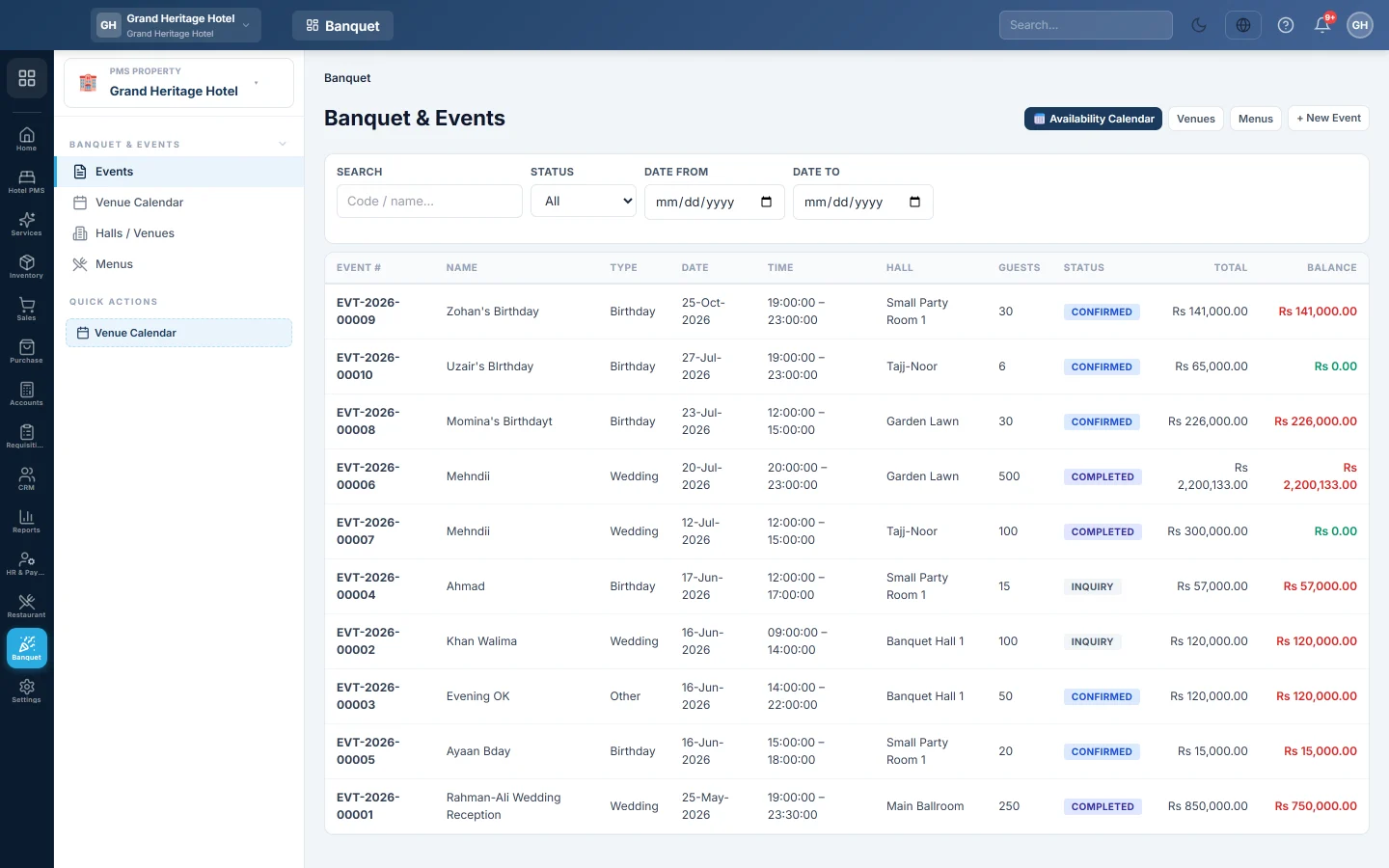
Events is the list of every booking in your halls and party rooms: weddings, receptions, birthdays, conferences and more. Each event carries its own bill of hall rent, menu plates and extras, its advances, and a balance until it is settled.
Before you begin
- Add your halls and their prices, see Halls / Venues, and your menu packages, see Menus.
- Your payment methods are set up, see Payment Methods.
- Your role needs the banquet permissions. Settling an event needs the banquet settle permission. See Users & Roles.
Where to find it
Open Banquet → Banquet & Events → Events. Hotels also find the same screen under Hotel → Operations → Banquet.
Book an event
- Click + New Event.
- Enter the Event name and pick the Event type: Wedding, Engagement, Corporate, Birthday, Conference, Seminar or Other.
- Pick the Event date, Start time and End time.
- Pick the Hall, and a Menu, or No menu (extras only).
- Enter the Guests expected and the Contact person, Contact phone and Contact email.
- Enter Extras (Rs) and the Deposit required, if any.
- Pick the status: Confirmed, or Inquiry for a date the client has not committed to.
- Check the Estimated total at the bottom and click Create event.
The event gets a number such as EVT-2026-00031. A hall that is already booked for an overlapping time is refused. To pick a free slot on a calendar instead, use the Venue Calendar.
Work an event
Click an event in the list to open it.
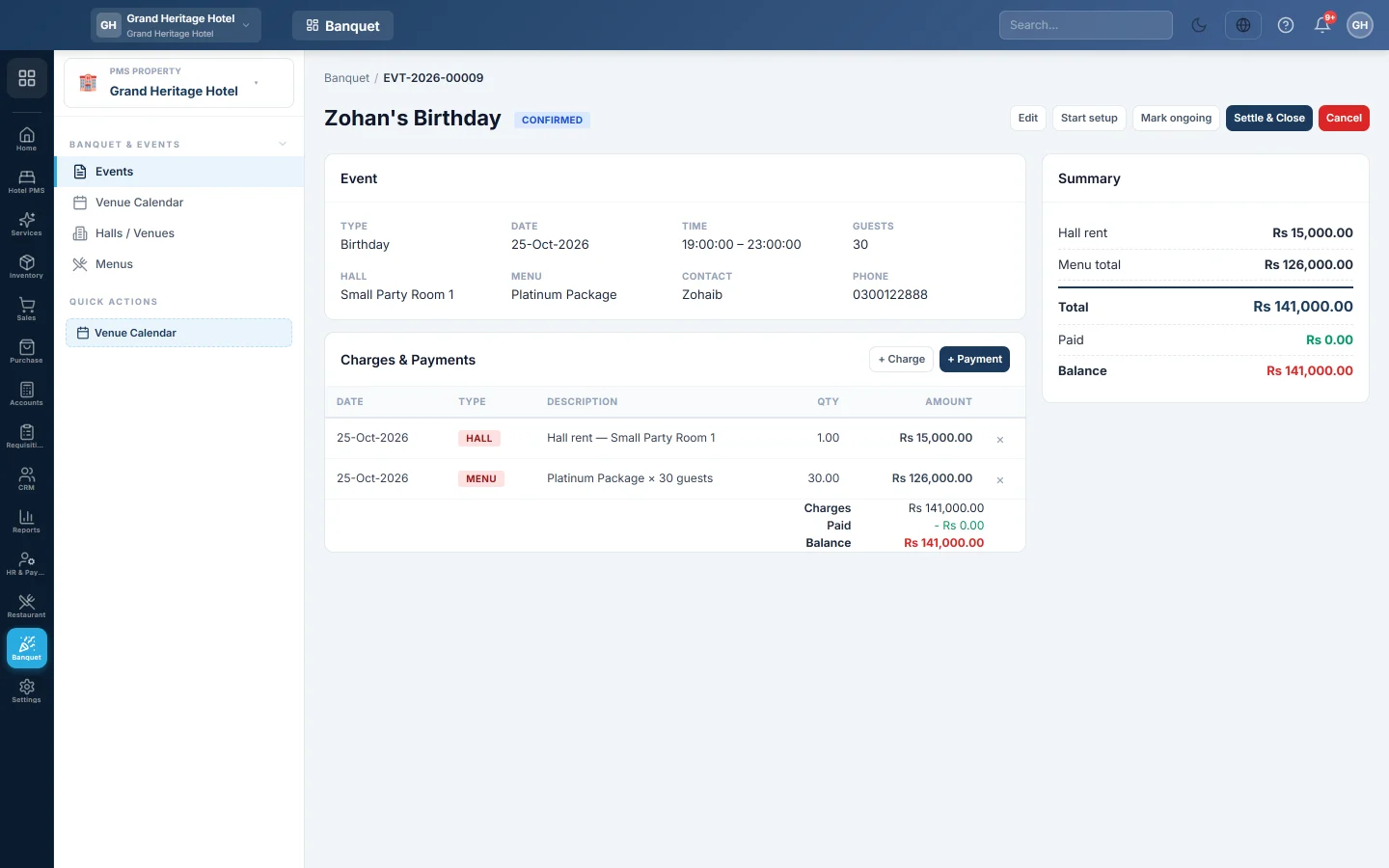
- + Charge adds an extra: pick F&B, Decor, AV / Sound, Service, Transport or Other, enter the description, quantity and Unit price, and click Post.
- + Payment records an advance or payment: pick the Method, enter the amount and a Reference, and click Record.
- The Summary shows the Hall rent, Menu total, Extras, Discount, Tax and Total; Charges & Payments shows each line and the Balance.
- Notes keep the Client requirements and Internal notes.
Edit an event
- Open the event and click Edit.
- In Edit event, change the Date, Start time, End time, Hall, Menu, Guests or the contact details.
- Click Save.
Changing the guests or the menu prices the menu line again; changing the hall prices the hall rent again. A completed or cancelled event cannot be edited.
Move an event through its stages
The buttons at the top move the event one step at a time:
- Confirm booking turns an Inquiry into a confirmed event.
- Start setup marks a confirmed event as being set up.
- Mark ongoing marks it as running, from confirmed or setup.
An event becomes completed only through Settle & Close, and cancelled only through Cancel.
Settle and close the event
- After the event, post any last extras and take the final payment.
- Click Settle & Close and confirm. Any balance still due posts to the client's account as money owed.
The event becomes completed and its voucher number shows on the page. To correct a settled event, a user with the settle permission clicks Reverse Settlement and gives a reason.
Cancel an event or refund an advance
- Cancel cancels the event and frees the hall.
- Refund Deposit pays back part or all of the advance held. Enter the method, the amount and a reference, for example a cheque number, and click Refund.
What happens in the books
Each payment is debited to the cash, card or bank account of its method and credited to Banquet Advance Deposits, a liability, when you record it.
Settling posts one voucher. The advances are taken out of Banquet Advance Deposits, and any balance due is debited to the client's ledger. On the credit side, the hall rent goes to Banquet Hall Revenue, menu and food to Banquet F&B Revenue, decor, sound, transport and other extras to Other Event Revenue, and tax to Sales Tax Payable.
A refund debits Banquet Advance Deposits and credits cash or bank.
Common questions
Settle & Close is missing. The event is still an Inquiry, has no total, or is already settled or cancelled.
The menu charge shows more plates than guests. The menu has a minimum number of plates. See Menus.
Booking says the venue already has a booking that overlaps. Another event in that hall overlaps the start and end times you picked. Pick other hours, or check the Venue Calendar.
Can the cashier's shift include banquet advances? Yes. Cash advances taken while a cashier shift is open count in that shift. See Cashier / Shift.
I cannot delete a hall. A hall with upcoming events cannot be deleted. Move or cancel those events, or mark the hall inactive. See Halls / Venues.
Where are the banquet reports? Banquet events, by hall and menu mix reports are in PMS Reports Hub.
Thank you. If you still need help, write to info@eloerp.net.