Services & Extras
Keep a price list of hotel extras, such as spa treatments, airport pickup, laundry and extra beds, that the front desk posts to a guest's folio in two clicks.
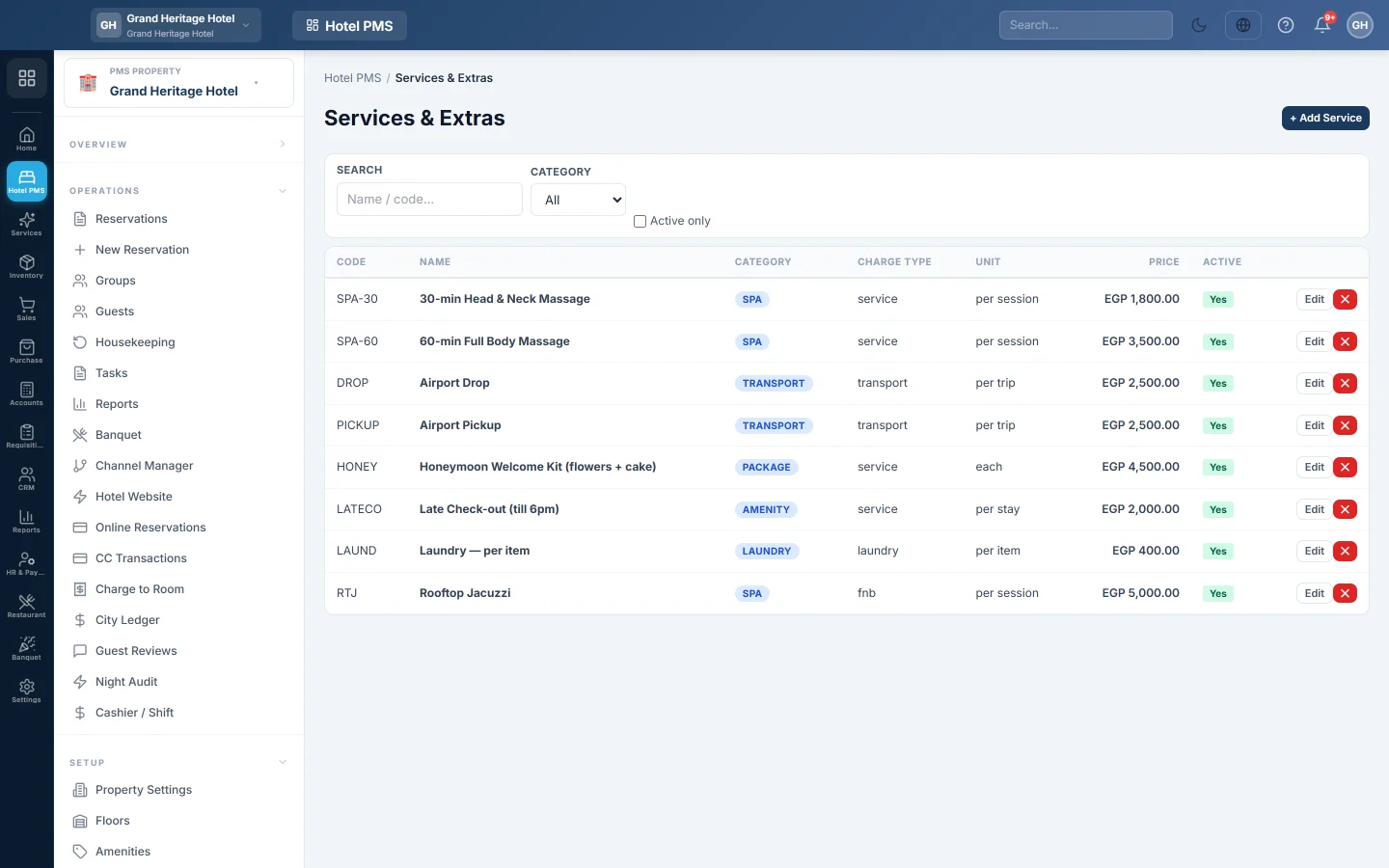
Services & Extras is your price list of things a guest can buy during a stay, such as a spa session, an airport pickup or laundry. The front desk picks a service from this list and posts it to the guest's folio at the listed price.
Before you begin
- Services belong to the hotel picked in the PMS Property box in the side menu.
- Your role needs the services permissions. See Users & Roles.
Where to find it
Open Hotel → Setup → Services & Extras.
Add a service
- Click + Add Service.
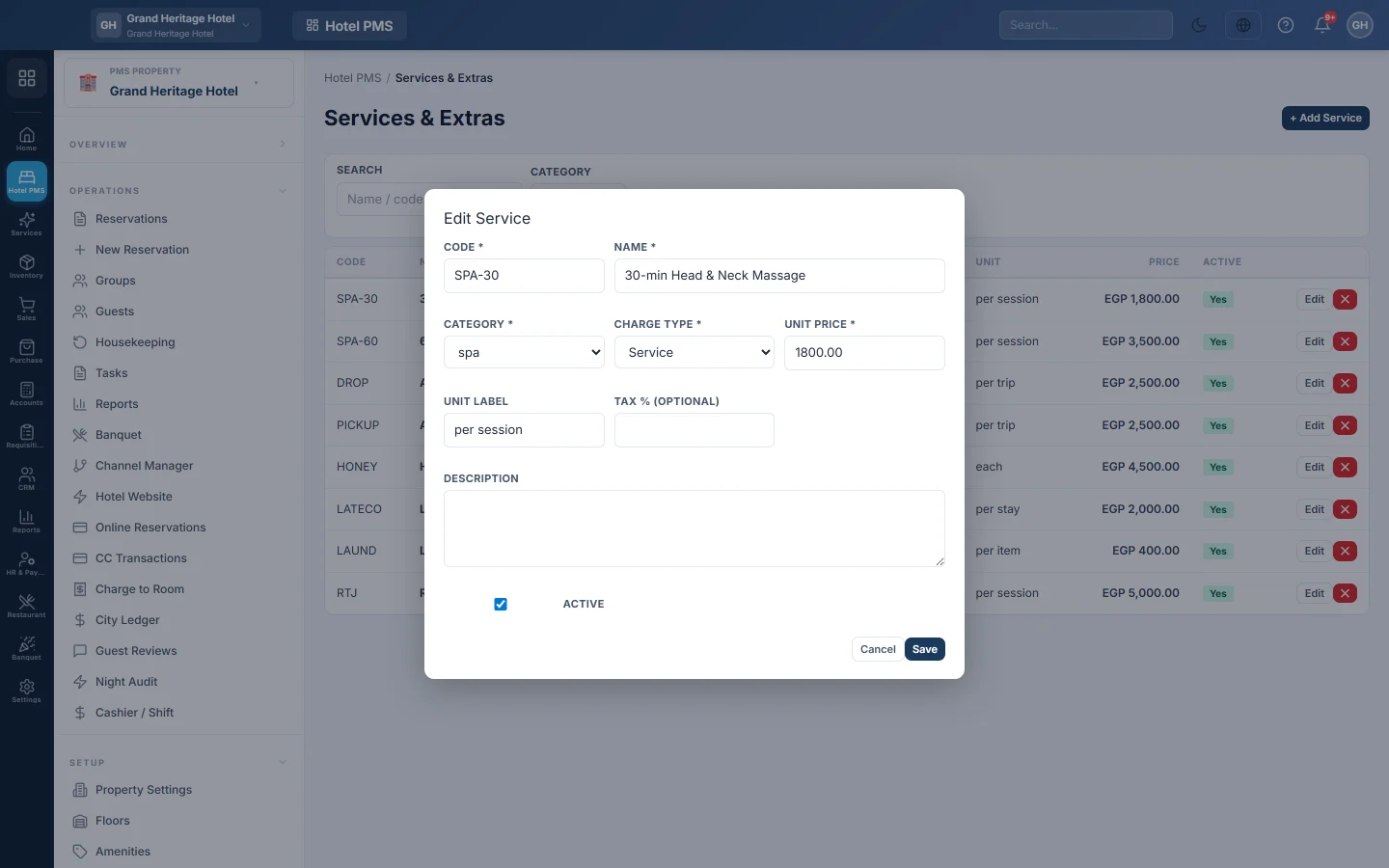
- Enter a Code, for example SPA-60, and a Name, for example 60-minute massage.
- Pick a Category: spa, transport, fnb, business, laundry, amenity, package or other.
- Pick a Charge type: Service, F&B, Transport, Laundry, Extra bed, Mini bar or Other. This is the folio line type the charge posts as.
- Enter the Unit price and a Unit label, for example each, per hour or per person.
- If the service carries tax, enter the Tax % (optional), for example 16.
- Add a Description if you like and keep Active ticked.
- Click Save.
Post a service to a guest
- Open the guest's reservation and go to the folio.
- Click + Service.
- Search for the service, for example spa or pickup, and pick it.
- Enter the quantity. Type a Unit price (override) only if this guest pays a different price.
- Click Post to folio.
See Post a charge to a folio for the other ways to add charges.
Find, edit or hide a service
Use Search, the Category filter and Active only to find a service. Click Edit to change it. Clear Active to hide a service from the desk's picker without losing it, or click the ✕ button to delete it.
Common questions
A service does not appear when the desk clicks + Service. Only active services are offered. Edit the service and tick Active.
Can the desk change the price? Yes, with Unit price (override) on that one posting. The list price does not change.
What is the difference between Category and Charge type? Category groups the list on this page. Charge type decides how the line is grouped on the folio and in revenue reports.
Can I sell a service to a guest without a room? Services post to a reservation's folio. For walk-in sales such as a restaurant bill, use the outlet's POS, see Charge to Room.
Obrigado. Se ainda precisar de ajuda, escreva para info@eloerp.net.