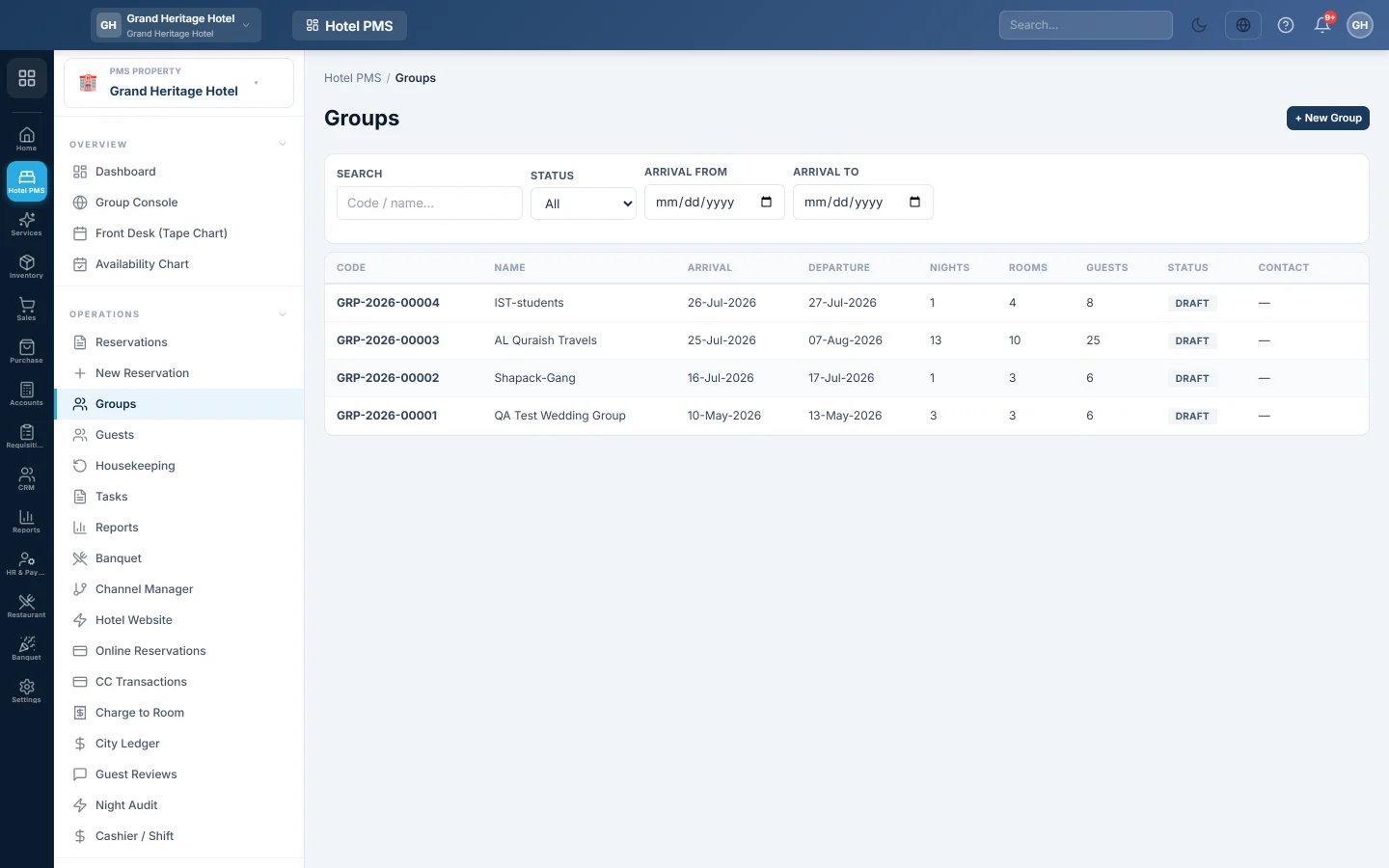
Groups
Keep the rooms of a wedding, conference or tour together as one group, see how many rooms are picked up against the block, check the whole group in or out at once, and read one consolidated balance.
A group ties together the bookings of one party, such as wedding guests, a conference or a tour. Each guest keeps their own reservation; the group shows them together, with one balance, and checks them all in or out at once.
Before you begin
- Your role needs the groups permissions, and the check-in and check-out permissions for the batch actions. See Users & Roles.
Where to find it
Open Hotel → Operations → Groups.
Create a group
- Click + New Group.
- Enter the Group name, for example Khan–Malik Wedding.
- Pick the Arrival and Departure.
- Enter the Rooms blocked and the Expected guests.
- Pick the Source: Wedding, Conference, Tour, Corporate or Other.
- Enter the Agreed rate / night and any Notes.
- Click Create group. The group gets a code such as GRP-2026-00012.
Add the guests' bookings
- Make each guest's booking as usual. See Make a reservation.
- Open the group from the list.
- Under Add a reservation to this group, search by reservation number or guest name and click the booking.
Rooms picked up shows the rooms booked against the rooms blocked, for example 8 / 10.
Check the group in or out
- Check-in all checks in every confirmed member that has a room and arrives today or earlier. Members without a room are listed so you can assign them.
- Check-out all asks first; click Continue. It then asks what to do with members who still owe money: Check out anyway checks them out too, Skip those rooms checks out only the members with nothing to pay. Press Escape to stop without checking anyone out.
- Cancel group cancels every active member booking. If one cannot be cancelled, nothing is cancelled and the message names it.
Read the consolidated folio
Consolidated folio lists each member's Charges, Paid and Balance, with the Group total. The Consolidated balance tile shows what the whole group still owes. Click a member to open their booking.
Common questions
Can a company pay for the whole group? Add a folio billed to the company on each member's booking, or settle each folio to the company. See Post a charge to a folio.
Where do I find the group's code? On the group's Group info card and in the list's Code column.
A member is not checked in by Check-in all. It is not confirmed, has no room or arrives later. The message lists the reason for each.
شكرًا لك. إذا كنت لا تزال بحاجة إلى مساعدة، راسلنا على info@eloerp.net.