Front Desk (Tape Chart)
The front desk's main screen, a calendar of every room by night, where you see who is staying, book a room by clicking a free night, move or extend a stay by dragging, and check guests in and out.
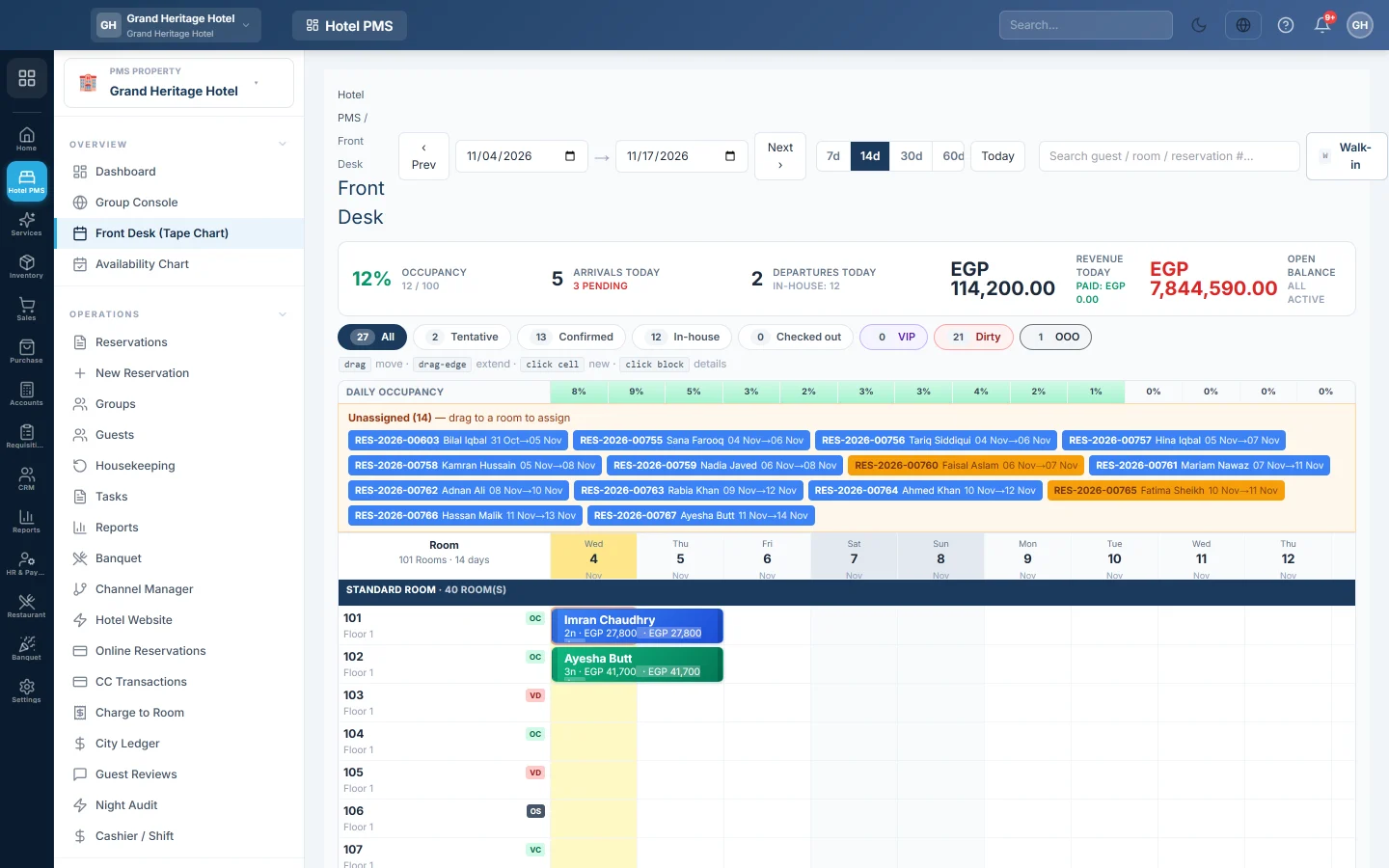
The tape chart shows every room down the side and the nights across the top. Each booking is a coloured bar on its room. The front desk books, moves, extends, checks in and checks out guests from here.
Before you begin
- Your rooms, room types and at least one rate plan exist. See Set up your hotel: rooms and rates.
- Your role needs the tape chart permission, and the reservation, check-in and check-out permissions for the actions you take. See Users & Roles.
Where to find it
Open Hotel → Overview → Front Desk (Tape Chart). The side menu also has an Open Tape Chart quick action.
Read the chart
- The top row shows Occupancy, Arrivals today with how many are pending, Departures today, Revenue today with what was Paid, and the Open balance of all active stays.
- The pills filter the bars by status, for example Confirmed or In-house. VIP, Dirty and OOO count VIP guests, dirty rooms and out-of-order rooms.
- Daily occupancy under the dates shows how full each night is.
- Rooms are grouped by room type. The dot next to a room shows its housekeeping status.
- Each bar shows the guest, the nights, the total and any amount due.
- Unassigned at the top lists bookings that have no room yet.
Use Prev, Next, Today, the date boxes and the 7d, 14d, 30d or 60d buttons to move around. Type in Search guest / room / reservation #… to find a booking.
Book a room
- Click a free night on the room you want. The New Reservation window opens with the room and date filled in.
- Fill in the stay, the guest and the rate plan.
- Click Create.
Click New (or press N) to book without picking a room first, or Walk-in (or press W) for a guest at the desk. See Make a reservation.
Move, assign or extend a stay
- Assign a room: drag a booking from Unassigned onto a room.
- Move a booking: drag its bar to another room or another start date. The number of nights stays the same.
- Extend or shorten: drag the left or right edge of the bar. The stay is priced again for the new dates.
If the room is taken or the dates break a rule, a message explains why and the bar goes back.
Work with a booking
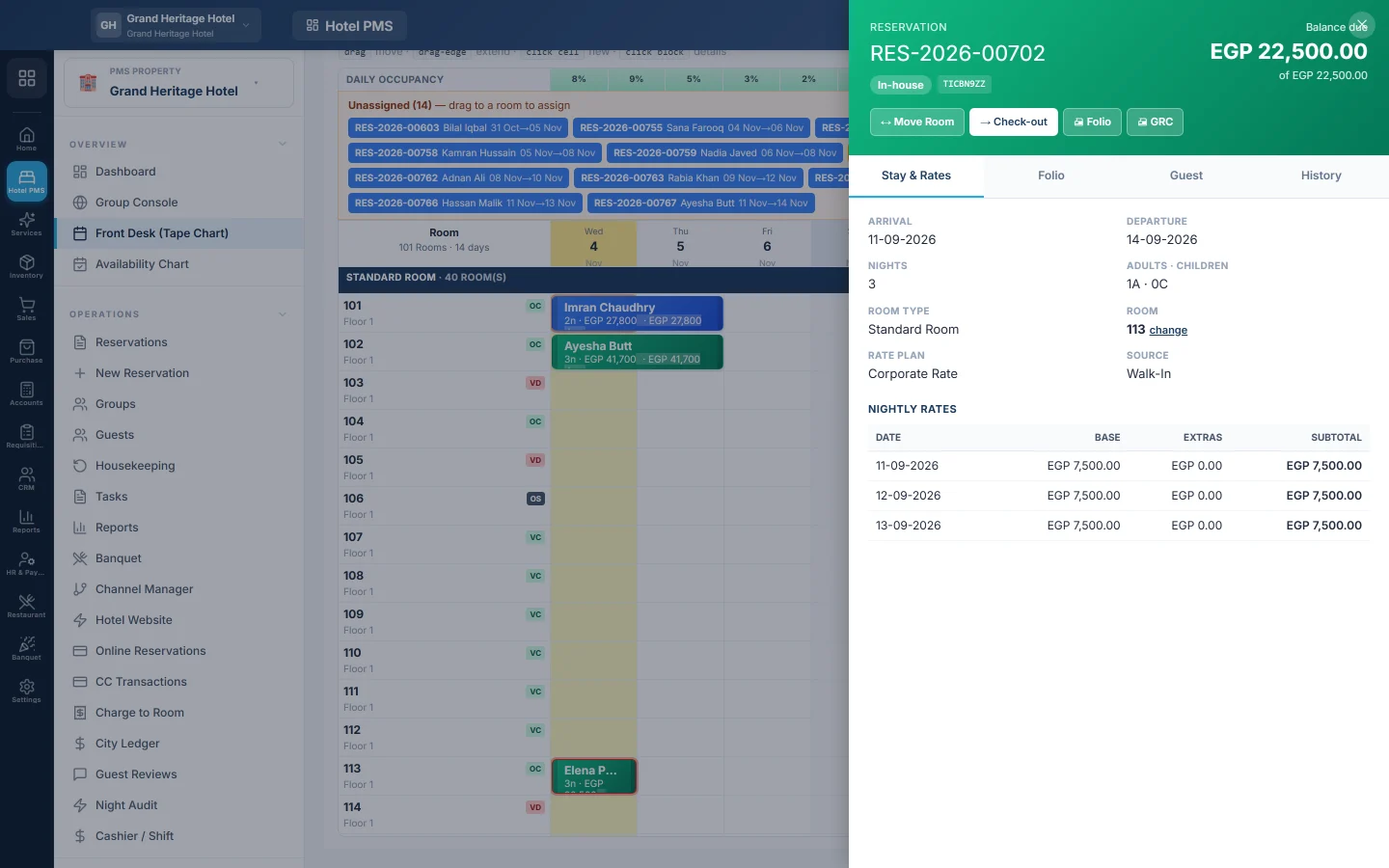
Click a bar to open the booking's side panel. It has the tabs Stay & Rates, Folio, Guest and History, and the buttons Assign Room or Move Room, Check-in, Check-out, Cancel and No-show. The Folio tab is where you post charges, take payments and settle the bill.
Right-click a bar for a short menu: Open details, Check-in, Check-out, Cancel, and print the Folio or the GRC (registration card).
Common questions
The chart says No rooms configured. Add rooms first, see Rooms.
Check-in is missing from the menu. The booking must be Confirmed and have a room. For a tentative booking, right-click the bar and pick Confirm booking. Assign a room first if it has none.
A booking shows Guest instead of a name. The booking has no guest profile linked. Open it and pick the guest.
Can I see another hotel's rooms? Pick the hotel in the PMS Property box in the side menu.
Where do I check a guest out? Right-click the bar and click Check-out, or use the side panel. See Check out and settle a folio.
شكرًا لك. إذا كنت لا تزال بحاجة إلى مساعدة، راسلنا على info@eloerp.net.