AI
See which AI features are switched on for your company and how much you have used this month, add your own AI model key, and set up the owner's morning briefing on WhatsApp.
The AI page shows what the AI does for your company, how much of your monthly allowance is used, and the owner's daily briefing on WhatsApp. If your plan runs the AI on your own model key, you add the key here.
Before you begin
- Your service provider switches the AI features on for your company. Until one is on, this menu item is hidden. See Switch AI on for your company.
- Only a company administrator can open this page.
- For the WhatsApp briefing, connect a WhatsApp number first under Settings → Notifications → Notification Channels. See Channels.
Where to find it
Open Settings → Notifications → AI.
See what is switched on
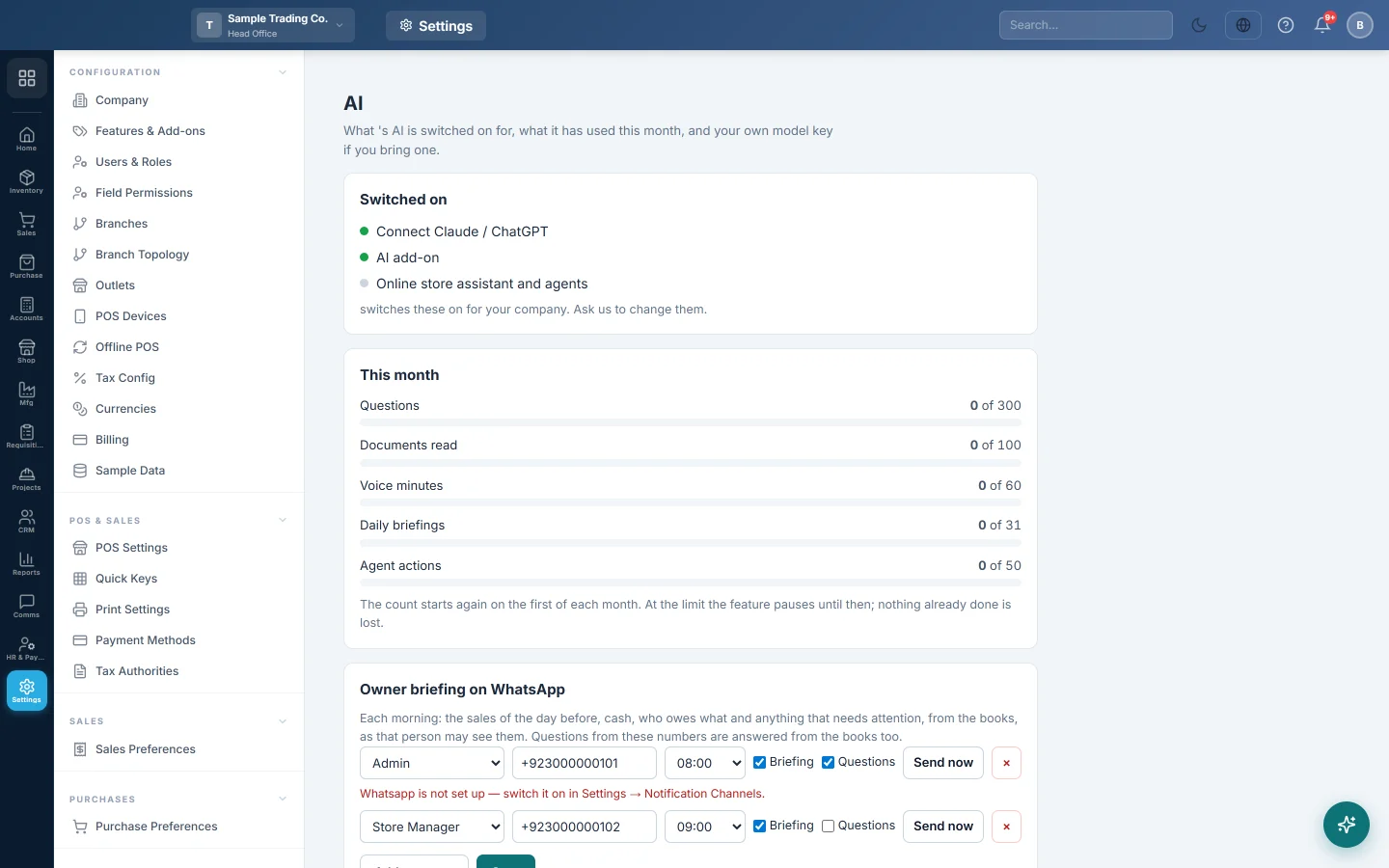
Under Switched on, a green dot marks each feature your company has:
- Connect Claude / ChatGPT: lets an outside AI assistant work with your data.
- AI add-on: the AI assistant in EloERP. It says on your own key when your own key pays for it.
- Online store assistant and agents: the AI on your online store.
Ask your service provider to change these. For what each one does, see What the AI can do for you.
Check this month's usage
This month shows a bar for each kind of use, for example Questions, Documents read, Voice minutes, Daily briefings and Agent actions, with the amount used of your limit.
The count starts again on the first of each month. At the limit, that feature pauses until then; nothing already done is lost. With your own key, nothing is limited and the bars are for information.
Add your own model key
This section appears when your plan uses your own key. The AI stays off until you add one.
- Choose the Provider: Anthropic (Claude) or OpenAI.
- Choose the Model size: Small — fastest, cheapest, Standard or Large — best answers, dearest.
- Paste the API key.
- Click Save and test. The key line shows works, or refused by the provider if the key is wrong.
The key is stored encrypted and nobody can read it back. Use Test to check it again, or Remove to delete it.
Set up the owner briefing on WhatsApp
Each morning the briefing sends the previous day's sales, cash, who owes what and anything that needs attention, from the books, as that person is allowed to see them.
- Under Owner briefing on WhatsApp, click Add a person.
- Choose the Person, type their WhatsApp number and choose Send at.
- Tick Briefing to send the morning message.
- Tick Questions if they may ask questions by WhatsApp and get answers from the books.
- Click Save.
- Click Send now to test it.
To answer questions, the AI must be allowed to read messages sent to your WhatsApp number. Click Turn on under the list; Stop answering switches it off again. See Get a daily briefing on WhatsApp and Ask on WhatsApp.
To give the briefing a template, open Communication → Notification System → Templates and click New Template. Choose Channel WhatsApp and Event Type AI owner briefing (morning, on WhatsApp). The wording can use @Briefing_Text (the briefing itself), @Briefing_Date and @Recipient_Name. See Templates.
Your data
When the AI works for you, the figures it needs are sent to the AI provider to answer, and are not used to train its models. It only reads what the person asking may see. It never posts to your books: a person approves every document in the AI Inbox. See Your data and the AI.
Common questions
I do not see AI in Settings. No AI feature is switched on for your company. Ask your service provider.
The page says "Only a company administrator can change this." The AI page is for company administrators. Other staff use the Ask button and the AI Inbox.
The AI stopped answering this month. The allowance for that kind of use is reached. It starts again on the first of next month.
My key shows "refused by the provider". The key is wrong, expired or has no credit. Create a new key with the provider and save it again.
The owner did not get the briefing. Check the WhatsApp number and Send at, then click Send now. On the Meta API, check the message template is approved.
Teşekkür ederiz. Hâlâ yardıma ihtiyacınız varsa info@eloerp.net adresine yazın.