Alerts
Choose which automatic alerts your staff get (low stock, cheques due, unpaid invoices, pending approvals, offline tills and more), when they run, and the owner's morning briefing.
Alerts tell your staff about things without them going to look: stock running low, cheques falling due, invoices overdue, documents waiting for approval, a till that stopped syncing. You choose which alerts your company uses; each person then gets one summary per alert in their bell.
Before you begin
- You need a role that can edit general settings to switch alerts on or off. Others can see the list but not change it.
- Every alert starts switched off. Only alerts for the modules your company uses are listed.
- For email or WhatsApp copies, set up the channel first under Channels.
Where to find it
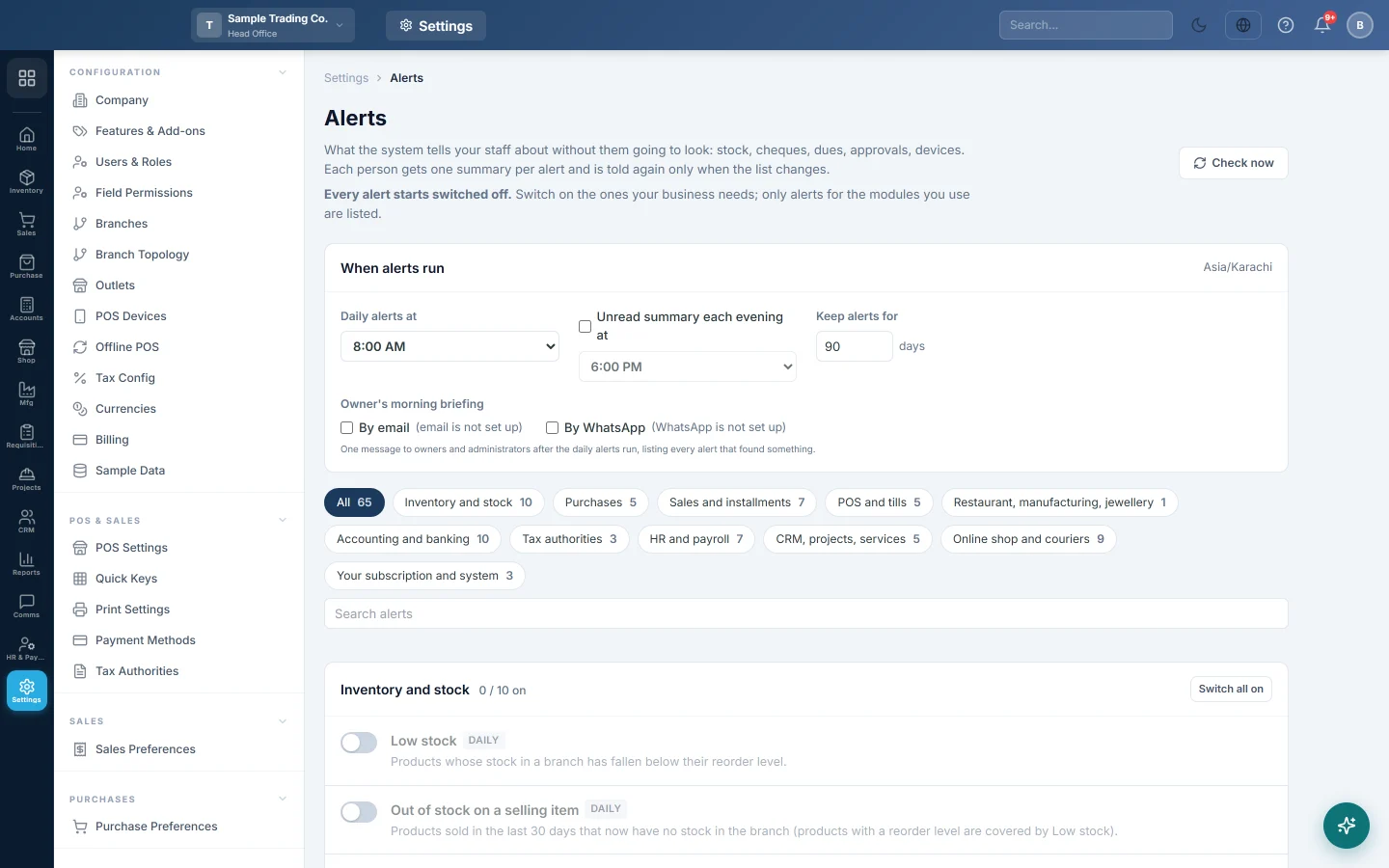
Open Settings → Notifications → Alerts.
Switch on an alert
- Find the alert in its module group, or type in Search alerts.
- Click its switch to turn it on.
- If the alert has its own values, such as a number of days or a quantity, set them in the row. They save as you change them.
- Set Escalate to owners after a number of days if items still open by then should also go to the owners (0 = never).
Each group has Switch all on and Switch all off. The tag next to each alert shows how often it runs: Instant, Hourly, Daily or Weekly. Urgent marks the serious ones, and open now shows how many items it found on its last run.
Choose when alerts run
Under When alerts run:
| Setting | What it does |
|---|---|
| Daily alerts at | The hour, in your company's time, when the daily alerts run. |
| Unread summary each evening at | Sends each person a summary of what they have not read yet. |
| Keep alerts for | How many days alerts stay in the bell before they are cleared (30 to 730). |
Click Check now to run the alerts straight away, for example after switching one on.
Send the owner's morning briefing
Under Owner's morning briefing, tick By email or By WhatsApp. After the daily alerts run, owners and administrators get one message listing every alert that found something. WhatsApp sends one paid message a day per owner.
Who receives an alert
- An alert goes to the people whose role covers that work, for the branches they work in. Owners count as having every permission.
- Each person is told again only when the list changes. When the list empties, the alert clears itself.
- Instant alerts arrive the moment something happens, for example a cheque bounces or a transfer leaves for your branch.
Each person can mute an alert or ask for email or WhatsApp copies on My alerts.
Common questions
Nobody gets any alerts. Every alert starts off. Switch on the ones you need, then click Check now.
An alert I need is not listed. It belongs to a module your company does not use.
Staff get too many alerts. Each alert sends one summary, not one message per item. Switch off the ones you do not need, or let people mute them on My alerts.
Alerts arrive at the wrong hour. Check Daily alerts at. It uses your company's time zone, set under Company.
谢谢。 如果仍需帮助,请发邮件至 info@eloerp.net。