Purchase Preferences
Choose the extra columns on purchase invoices, what happens when a supplier goes over their credit limit, and the amounts above which purchase documents need approval.
Purchase Preferences sets how your purchase documents behave: the extra columns on the item grid, the supplier credit limit check and the approval rules for large purchases.
Before you begin
- You need a role that can view and edit Purchase Preferences.
- The credit limit check only applies to suppliers that have a credit limit set on the supplier.
- Approvers need the approve permission for each document. See Users & Roles.
Where to find it
Open Settings → Purchases → Purchase Preferences.
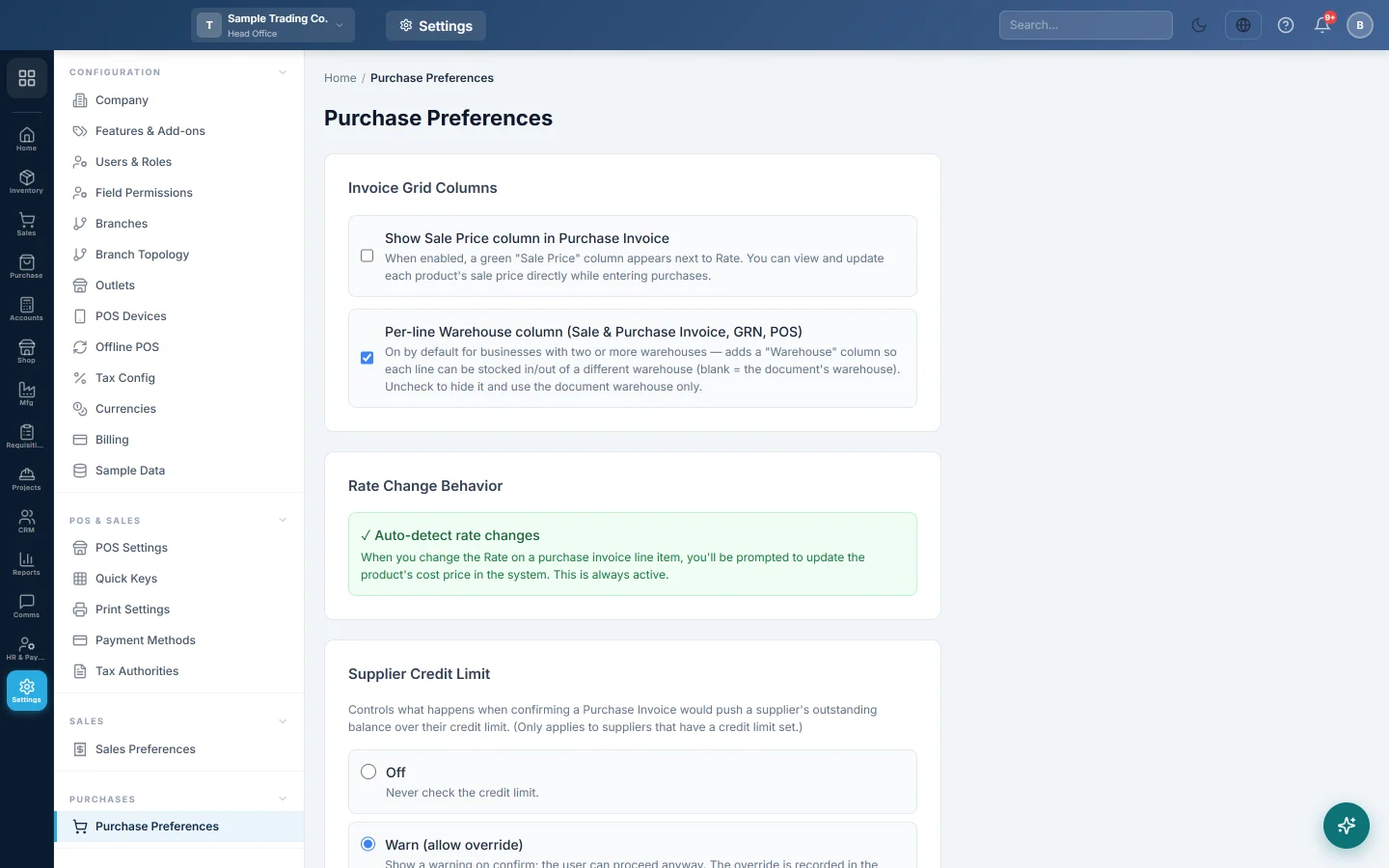
Choose the invoice grid columns
| Option | What it changes |
|---|---|
| Show Sale Price column in Purchase Invoice | Adds a green Sale Price column next to Rate, so you can see and update each product's sale price while entering a purchase. |
| Per-line Warehouse column (Sale & Purchase Invoice, GRN, POS) | Adds a Warehouse column so each line can go into or out of a different warehouse. Blank uses the document's warehouse. It is on by default when you have two or more warehouses. |
Tick or untick the option, then click Save Preferences.
When you change the Rate on a purchase invoice line, you are always asked whether to update the product's cost price. This cannot be switched off.
Set the supplier credit limit check
Under Supplier Credit Limit, choose what happens when confirming a purchase invoice would take a supplier over their credit limit:
| Choice | What happens |
|---|---|
| Off | The credit limit is never checked. |
| Warn (allow override) | A warning shows on confirm; the user can go ahead. The override is recorded in the audit trail. |
| Block | The confirm is refused if it goes over the limit. |
Click Save Preferences.
Set the approval thresholds
- Under Approval Workflow, type an amount for each document:
- Purchase Order approval threshold: purchase orders at or above it must be approved before goods are received or the order is invoiced.
- Purchase Invoice approval threshold: invoices at or above it must be approved before they can be confirmed, which posts stock and the ledger.
- Purchase Quotation approval threshold, Purchase Return approval threshold and GRN approval threshold: documents at or above the amount need approval before they go further.
- Type 0 to switch approval off for a document. The default is Rs. 1,000,000.
- Tick Maker-checker (segregation of duties) if the person who created a purchase order or invoice must not approve it.
- Click Save Preferences.
Documents waiting for approval are listed under Pending Approvals.
Common questions
A purchase invoice will not confirm. It may be over the Purchase Invoice approval threshold, or over the supplier's credit limit with Block chosen. Check Pending Approvals or the supplier's limit.
The Warehouse column is missing on my invoices. Tick Per-line Warehouse column and save.
Can I stop the cost price prompt? No. It always appears when you change a line's Rate, so the product's cost stays up to date.
I work alone. Should I use maker-checker? No. With maker-checker on, nobody else can approve your documents.
Gracias. Si todavía necesita ayuda, escriba a info@eloerp.net.