ZATCA E-Invoicing
Saudi Arabia only. Set up ZATCA (Fatoora) e-invoicing, with your seller details for Phase 1 QR codes and device onboarding for Phase 2 clearance and reporting.
For businesses in Saudi Arabia. This page sets up e-invoicing with the Zakat, Tax and Customs Authority (ZATCA), also called Fatoora. With your seller details saved, confirmed invoices carry the ZATCA QR code (Phase 1). After device onboarding, invoices are also stamped and sent to ZATCA (Phase 2).
Before you begin
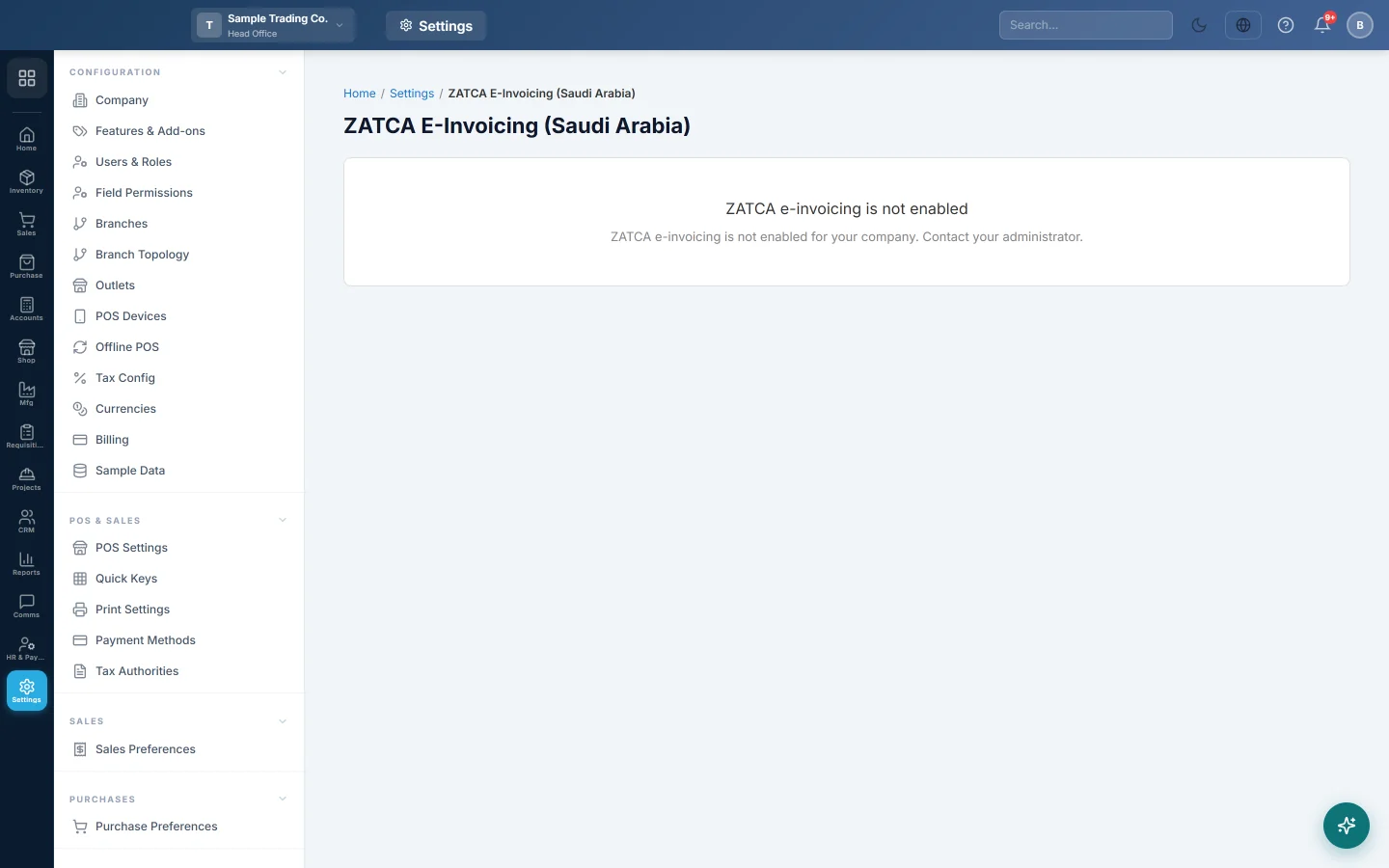
- Your service provider must switch on ZATCA for your company. Until then this menu item is hidden, and the page says ZATCA e-invoicing is not enabled.
- You need a role with the permission to manage ZATCA.
- Have your 15-digit VAT number, your Commercial Registration (CR) number and your national address ready.
- For Phase 2, you need access to the Fatoora portal (fatoora.zatca.gov.sa) to get a one-time password.
Where to find it
Open Settings → POS & Sales → ZATCA E-Invoicing.
Set up Phase 1 (QR codes)
- Under Environment, keep Active Environment on Sandbox (testing) while you set up.
- Tick Auto-generate ZATCA invoice on confirm so every confirmed invoice is generated straight away.
- Under Seller details, type the Seller Name (your registered legal name).
- Type the Seller VAT ID: 15 digits, starting and ending with 3.
- Type the Commercial Registration (CR) Number, and the Group VAT ID if you are in a VAT group.
- Fill in the Address: Building Number, Street, District, City, Postal Code (5 digits), Additional Number (4 digits) and Country Code (SA).
- Type your Industry.
- Click Save Settings.
When the seller details are complete, the page shows Phase 1 ready. Confirmed invoices then get the ZATCA invoice and QR code.
Onboard your device (Phase 2)
Phase 2 links this system to ZATCA: it creates a certificate request, gets the compliance and production certificates (CSIDs), and then stamps each invoice and sends it to ZATCA. Tax invoices to businesses (B2B) are cleared; simplified invoices to consumers (B2C) are reported.
- Save the seller details first.
- On the Fatoora portal, choose Onboard New Device and copy the one-time password. It is valid for about an hour.
- Under Phase 2 — Device Onboarding, paste it into One-Time Password (OTP).
- Leave the EGS serial blank to reuse the EGS Serial Number saved above, or type one.
- Click Start Onboarding.
The page shows each step as it completes: CSR generated, Compliance Certificate (CSID) issued, Compliance Checks and Production Certificate (CSID) issued. When it finishes, it says Live — cryptographic stamping active, with the date and the certificate's expiry.
Choose the environment
| Environment | When to use it |
|---|---|
| Sandbox (testing) | While you set up and test. |
| Simulation | ZATCA's simulation portal, for a final test with real-like data. |
| Production (live) | Only after Phase 2 onboarding is complete. |
Common questions
I do not see ZATCA E-Invoicing in Settings. ZATCA is not switched on for your company. Ask your service provider.
Invoices have no QR code. Check the page shows Phase 1 ready. The seller VAT ID and name must be filled in and saved.
Onboarding failed. The page shows the reason under Onboarding failed. A common cause is an expired OTP; get a new one from the portal and start again.
When does the certificate run out? The date is shown under Certificate expires:. Onboard again with a new OTP before then.
Is ZATCA only for Saudi Arabia? Yes. Businesses in other countries do not need this page.
Terima kasih. Jika masih butuh bantuan, kirim email ke info@eloerp.net.