Tax Authorities
Pakistan (PRA Punjab and FBR) and Lesotho (RSL Lekuka) only. Enter your tax authority credentials per branch, decide which sales are filed and how the till files them, and go live.
For businesses in Pakistan filing with the Punjab Revenue Authority (PRA) or the Federal Board of Revenue (FBR), and in Lesotho filing with the Revenue Services Lesotho (RSL) Lekuka system. This page holds the credentials and the filing rules for each tax authority switched on for your company. Each sale you mark as fiscal is then filed with that authority and prints its number and QR code.
Before you begin
- Your service provider must switch on PRA, FBR or Lekuka for your company. Until one is on, this menu item is hidden.
- You need a role that can edit tax authority settings.
- Get your test (sandbox) and live credentials from the authority's portal.
- If your branches run independently, switch to the branch first. Each branch files under its own registration.
Where to find it
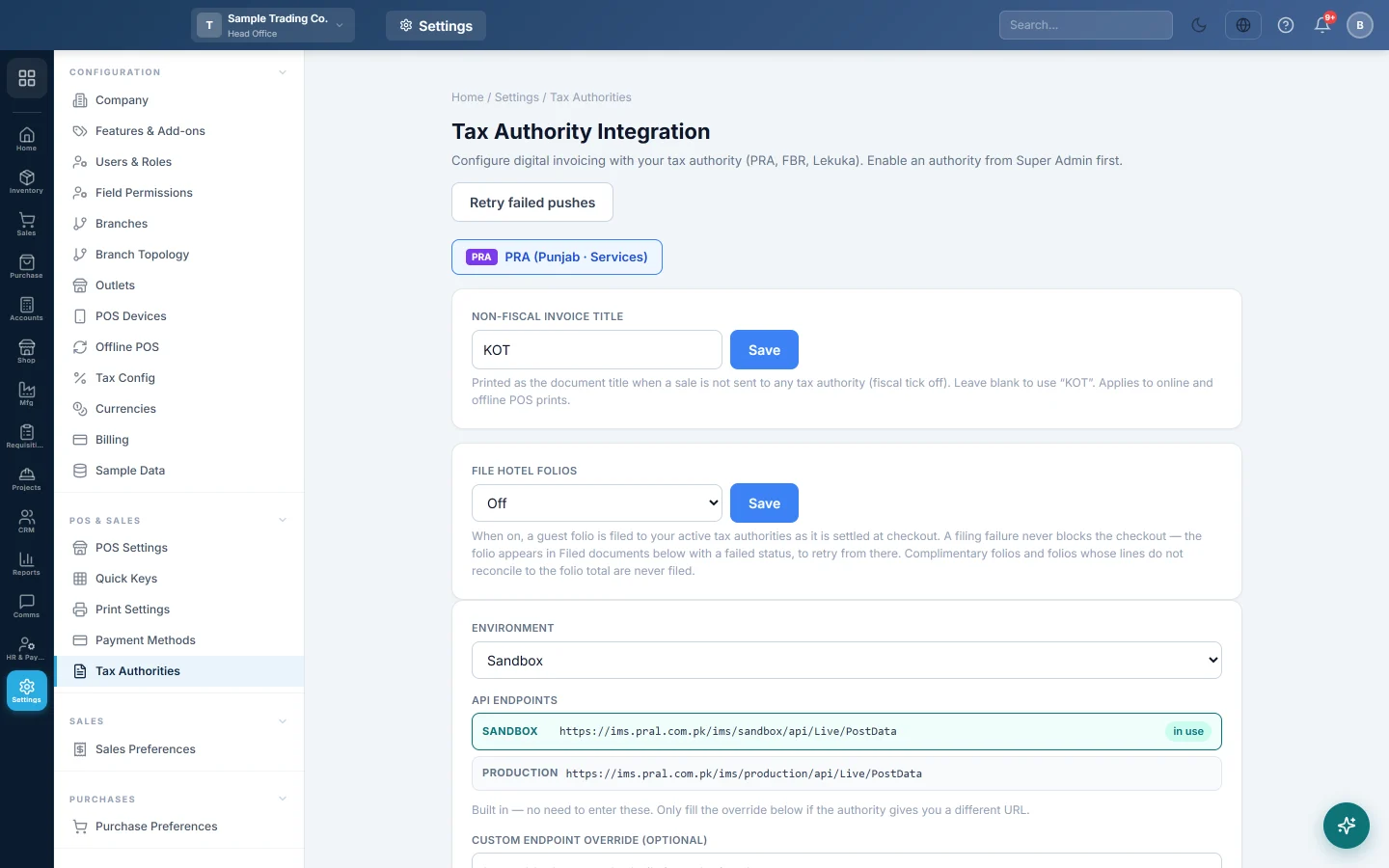
Open Settings → POS & Sales → Tax Authorities. There is one tab per authority: PRA (Punjab · Services), FBR (Federal · Goods) and Lekuka (Lesotho · RSL).
Set up PRA or FBR
- Click the authority's tab.
- Choose the Environment: Sandbox to test, Production to file for real.
- Enter the test credential: Sandbox Access Code for PRA, Sandbox Token for FBR.
- Enter the Production Token when you have it. A stored value shows as dots.
- Fill in the seller details: Seller / Registrant Name, PRA Registration No (PRA) or Seller NTN (FBR), Province and Seller Address.
- For PRA, also enter the POS ID (production), the POS Registration Number (sandbox), the Activation Access Code (live), the POS Counter Number / Name and the Registered Branch Name.
- Enter the Default PCT / Service Code. It is used when a product has no HS code of its own. Enter digits only, exactly as issued.
- Upload the Authority Logo if you want it printed beside the verification QR (up to 1 MB).
- Click Save, then Test Connection.
The endpoints are built in. Fill Custom Endpoint Override (optional) only if the authority gives you a different address.
Choose which sales are filed
| Option | What it changes |
|---|---|
| Applies To | Goods & Services, Goods only or Services only. |
| Auto-tick this authority by default on new sales | The fiscal tick is already on for new sales. |
| Auto-post when paid by | A sale paid with a ticked method is filed automatically. With none ticked, bank and card payments are filed. |
| POS badge text | The text of the chip in the POS cart header. |
| Non-fiscal invoice title | The title printed on a sale that is not filed (fiscal tick off). Blank prints KOT. Applies online and offline. |
| File hotel folios | Hotels only: a guest folio is filed when it is settled at checkout. A failure never blocks checkout. |
Choose how the till files sales
| Option | What it does |
|---|---|
| Offline Fiscal Mode | Deferred — push at sync (default): a sale rung offline is filed when the till syncs, dated on the sale day. Online-only: offline sales are not filed at sync. |
| File through the shop's till (fiscal relay) | The till files instead of the server. Use it when the server cannot reach the authority. |
| File in real time from the till | PRA: the till files the sale at once and prints the PRA number and QR on the receipt. |
| When the till is offline | Block stops a PRA sale without internet (default). Queue completes it and files on reconnect. Warn completes it with a "pending" receipt. |
Real-time filing and Block need an updated POS app. An older till keeps filing at sync and does not enforce Block.
Go live
- Set Environment to Production and click Save.
- Check the go-live list: Environment = Production and Production token stored must both be ticked.
- Click Activate Go-Live.
The box then shows LIVE. Until you activate, invoices are not filed even with Production selected. Click Revert to Sandbox to go back to testing.
Set up Lekuka (Lesotho)
RSL issues a Device ID and a one-time activation key for each fiscal device.
- Open the Lekuka (Lesotho · RSL) tab.
- Under Fiscal device, enter the Device ID, Serial No, Model name and Model version exactly as on your RSL registration sheet.
- Choose the Time zone and Close the fiscal day at.
- Choose whether Lines with no tax are Exempt or Zero-rated (VAT 0%), then click Save.
- Under Register with RSL, type the Activation key (8 characters) and click Check details, then Register device.
The key works once and expires 48 hours after RSL issues it. Once registered, the panel shows the certificate, the last receipt number and the current Fiscal day. Use Close fiscal day to close it, and Send now to send waiting receipts. Unsent receipts retry every 5 minutes.
Fix filings that failed
- Click Retry failed pushes at the top to send failed filings again.
- Under Filings on hold, each sale whose connection dropped can be marked Not on the portal — file it, or Already filed — enter number if it did reach the authority.
Common questions
I do not see Tax Authorities in Settings. No authority is switched on for your company. Ask your service provider.
Production is selected but nothing is filed. Go-live is not activated. Click Activate Go-Live.
PRA rejects an item. The item has no HS code and no Default PCT / Service Code is set. Enter the code, digits only.
A branch's sales are not filed. On independent branches each branch needs its own credentials. Switch to that branch and fill in its tab.
The Lekuka activation key is refused. It has expired or was used. Ask RSL for a new one.
Where is the FBR Digital Invoicing scenario testing? On FBR Digital Invoicing.
Gracias. Si todavía necesita ayuda, escriba a info@eloerp.net.