FBR Digital Invoicing
Pakistan only. Connect your sales tax registered business to the Federal Board of Revenue's Digital Invoicing system, pass the sandbox scenarios and go live.
For businesses in Pakistan registered for sales tax. This page connects EloERP to the Federal Board of Revenue (FBR) Digital Invoicing system, so your sale invoices are reported to FBR and carry an FBR invoice number. You test in FBR's sandbox first, then switch to production.
Before you begin
- Your service provider must switch on FBR for your company. Until then this menu item is hidden.
- You need a role with the FBR settings permissions (view to open the page, edit to save).
- Register on the FBR portal (e.fbr.gov.pk) and get your sandbox token. FBR gives the production token only after your sandbox scenarios pass.
- Note the scenario codes FBR assigned to your business on the IRIS portal, for example SN001.
Where to find it
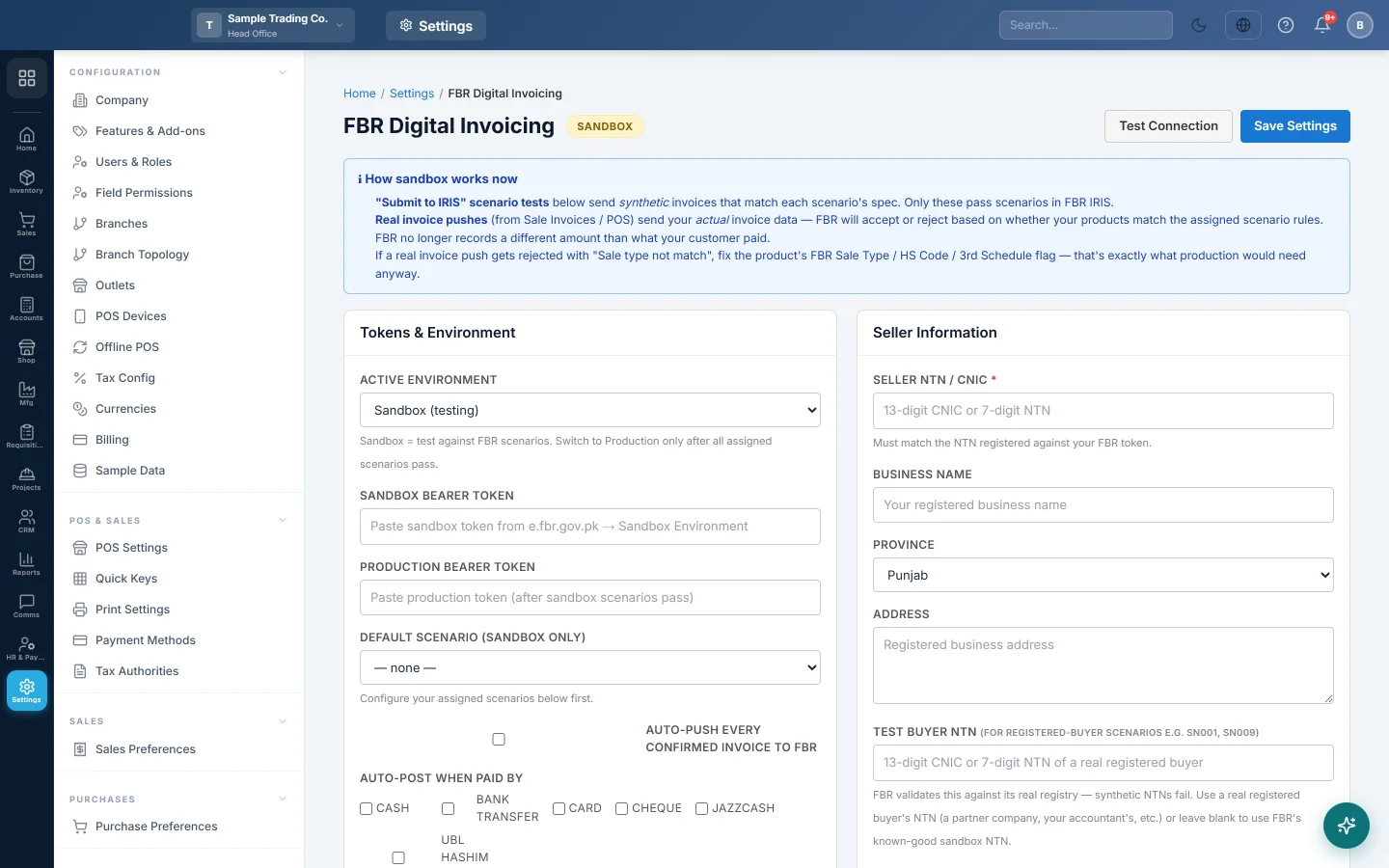
Open Settings → POS & Sales → FBR Digital Invoicing. The badge at the top shows SANDBOX or PRODUCTION.
Enter your tokens and choose when to push
- Under Tokens & Environment, keep Active Environment on Sandbox (testing).
- Paste the Sandbox Bearer Token. A configured tag appears once it is saved.
- Leave Production Bearer Token empty until FBR gives it to you.
- Tick Auto-push every confirmed invoice to FBR if every invoice should go to FBR.
- Under Auto-post when paid by, tick the payment methods whose invoices must go to FBR. The Submit to FBR box then ticks itself on those invoices. With none ticked, bank and card payments tick it.
- Choose the Offline Fiscal Mode (see below).
- Click Save Settings, then Test Connection. Reachable means FBR answered.
Fill in the seller information
- Type the Seller NTN / CNIC: the 7-digit NTN or 13-digit CNIC registered against your FBR token.
- Type the Business Name and Address as registered with FBR.
- Choose the Province.
- Optionally type a Test Buyer NTN of a real registered buyer, for the registered-buyer scenarios. Leave it blank to use FBR's sandbox buyer.
- Click Save Settings.
Pass your sandbox scenarios
FBR assigns each business a set of scenarios, based on its sector. All of them must pass before you can go live.
- Under Your Assigned Scenarios, click Configure.
- Tick the codes shown on your IRIS portal and click Save Assigned List.
- In the Sandbox Scenario Tester, click Validate on a scenario for a quick check of the invoice data. This does not pass the scenario in IRIS.
- Click Submit to IRIS on the scenario. Only this registers it as successful in FBR IRIS.
- Repeat until every scenario shows Passed.
Go live
- Paste the Production Bearer Token FBR gave you and click Save Settings.
- In the Go-Live Wizard, check that every item is ticked: tokens, seller NTN/CNIC, business name, province, address, scenarios configured and all scenarios passed.
- Click Activate Production.
The page then shows LIVE on production with the date. Follow your first live invoices on the FBR Submission Report.
Offline Fiscal Mode
| Choice | What happens to sales rung on an offline till |
|---|---|
| Deferred — push at sync (default) | The server sends the sale to FBR when the till syncs, dated on the day of the sale. |
| Online-only — block offline fiscal sales | Offline sales are not sent to FBR when they sync. Report them yourself. |
| Hybrid | Behaves like Deferred today. |
How this page differs from FBR POS Integration
This page holds the connection: tokens, seller details, scenarios and go-live. FBR POS Integration, under Sales, is the daily work screen: it lists your sale invoices and returns with their FBR status, so you can push pending or failed ones. To compare what you sent with what FBR recorded, use FBR Reconciliation.
Common questions
I do not see FBR Digital Invoicing in Settings. FBR is not switched on for your company. Ask your service provider.
Validate passed but IRIS still shows the scenario as pending. Validate is only a check. Click Submit to IRIS to register the scenario.
A registered-buyer scenario fails on the buyer NTN. FBR checks the buyer against its real registry. Use the NTN of a real registered buyer, or leave Test Buyer NTN blank.
Activate Production stays greyed out. One of the go-live checks is not met. The wizard shows which, for example a scenario still pending.
The province shows "not an FBR province". Pick the province again from the list, so it matches FBR's spelling.
谢谢。 如果仍需帮助,请发邮件至 info@eloerp.net。