Payment Methods
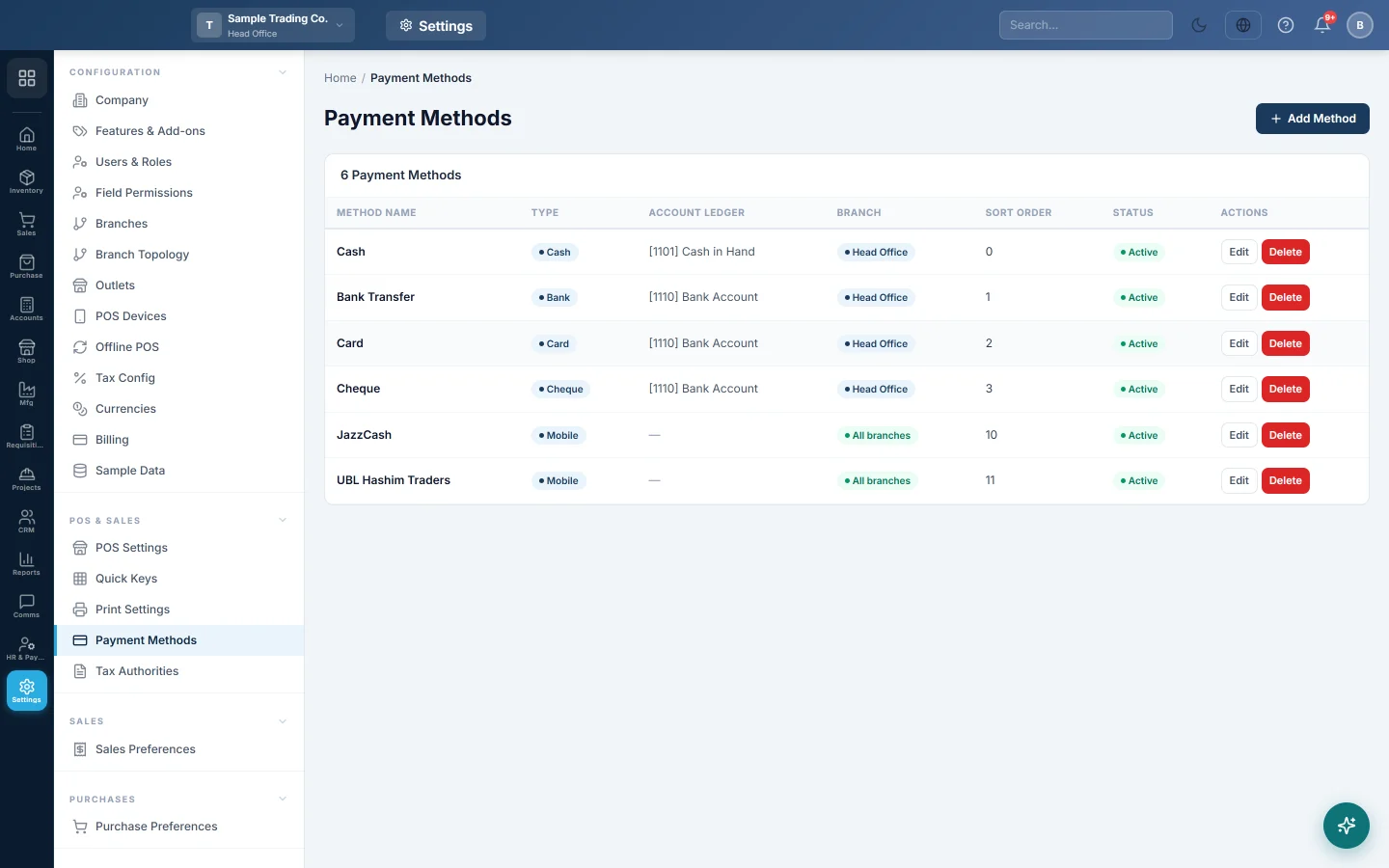
The list of ways you are paid and pay others (cash, card, bank transfer, cheque, mobile wallet), each tied to the cash or bank account its money posts to.
Payment Methods lists every way money comes in or goes out: cash, card, bank transfer, cheque, mobile wallet and others. Each method points to one cash or bank ledger, so every payment lands in the right account.
Before you begin
- You need a role that can view and edit Payment Methods.
- Add your real bank accounts first, so card and bank methods can point to them. See Set up payment methods.
- Only the head office can choose which branch a method belongs to.
Where to find it
Open Settings → POS & Sales → Payment Methods.
Add a method
- Click Add Method.
- Type the Method Name, for example Card – Bank A.
- Choose the Type: Cash, Card, Bank Transfer, Cheque, Mobile Payment or Other.
- Pick the Account Ledger (Cash/Bank). Every payment with this method posts to this account.
- In Branch, leave All branches (shared) for a method every branch uses, such as Cash, or pick one branch.
- Set the Sort Order. A lower number appears first.
- Leave Status on Active.
- Click Save.
Change or switch off a method
- Click Edit on the method.
- Change what you need, for example the ledger or the sort order.
- To stop offering it, set Status to Inactive.
- Click Save.
Print a pay-by-QR code on invoices
- Click Edit on the method, for example your mobile wallet.
- Tick Show QR on Invoice.
- Type the QR Value (account number), for example the wallet number or IBAN.
- Under Logo / Icon, choose a small logo to show above the code.
- Click Save.
Your invoices then print the logo and a QR code customers can scan to pay.
What each field changes
| Field | What it changes in daily work |
|---|---|
| Account Ledger (Cash/Bank) | The account debited when you receive money by this method, and credited when you pay by it. |
| Branch | Which branches see the method on the till and on payment screens. |
| Sort Order | The order of the methods on the till and on payment forms. |
| Status | Inactive methods are no longer offered for new payments. |
| Show QR on Invoice | Prints the method's logo and QR code on invoices. |
On the till, how the methods are shown (one-tap boxes or a dropdown) and which one is pre-selected are set in POS Settings. Which methods a cashier may take is set on the user, in Users & Roles.
What happens in the books
When a customer pays by a method, its account ledger is debited and the customer's ledger is credited. When you pay a supplier, the supplier's ledger is debited and the method's ledger is credited.
Common questions
My new branch has no payment methods. The starting methods may belong to the head office only. From the head office, edit each method and set Branch to All branches (shared).
Should I delete a method I no longer use? Set it to Inactive instead. Delete removes it straight away, even if old payments used it.
Card payments go to two banks. Add one card method per bank, each with its own Account Ledger (Cash/Bank).
Why can I not change the Branch field? Only the head office chooses the branch. In any other branch, new methods are added to your own branch.
The cashier does not see a method on the till. Check it is Active, that its Branch includes the cashier's branch and that the cashier's user allows it.
Obrigado. Se ainda precisar de ajuda, escreva para info@eloerp.net.