Print Settings
Paper size, what appears on printed invoices, receipts and vouchers, the number of copies and Share on WhatsApp, set for the branch you are working in.
Print Settings controls how your invoices, receipts and vouchers print: the paper size, what is shown on the page, how many copies come out and whether people can share a document on WhatsApp. The settings you save apply to the branch shown in the top bar.
Before you begin
- You need a role that can open and edit Print Settings.
- Switch to the branch you want to set up, using the branch in the top bar.
- The logo and the address on prints come from Company and Branches.
Where to find it
Open Settings → POS & Sales → Print Settings.
How branch settings work
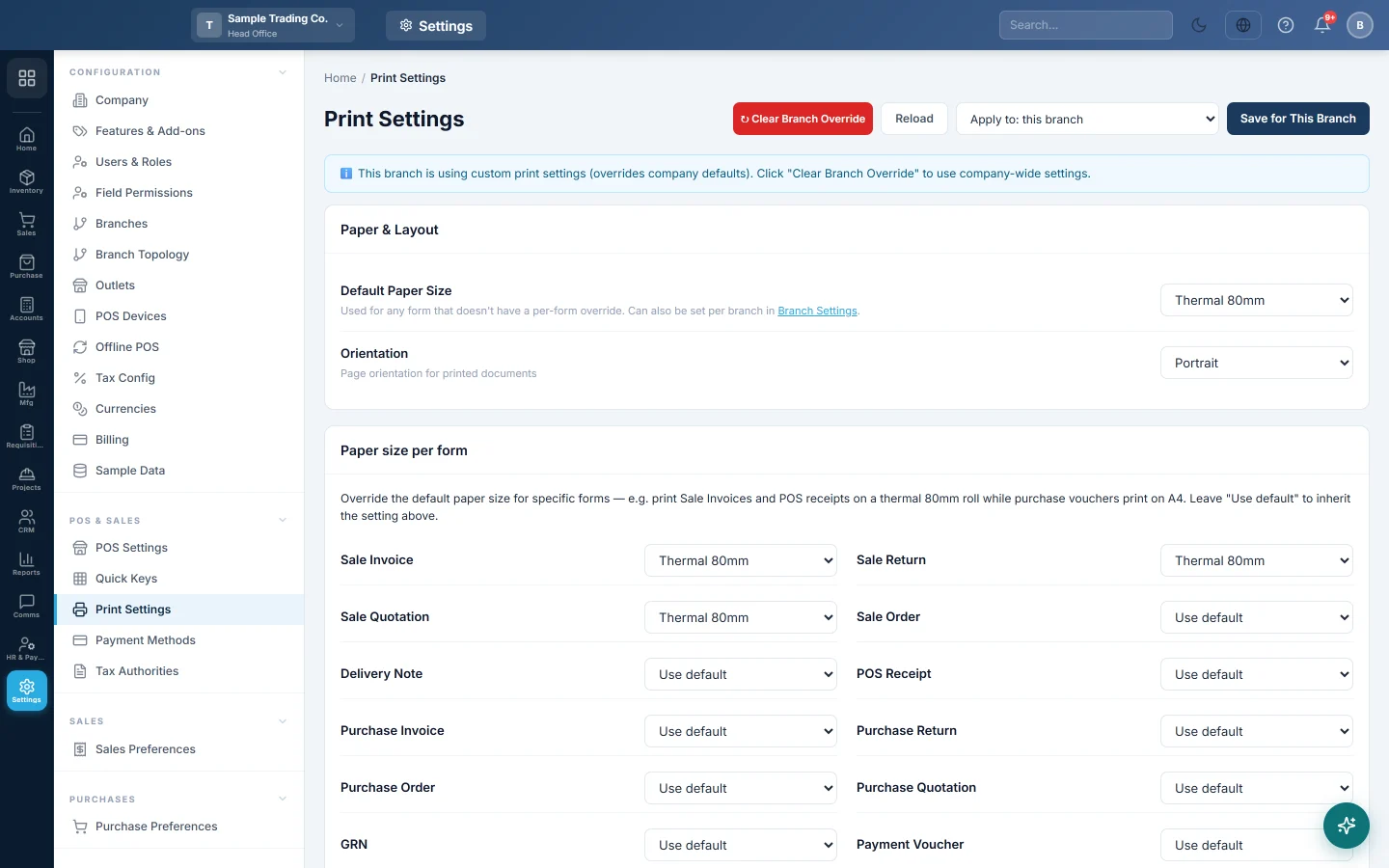
A blue note at the top says This branch is using custom print settings once the branch has saved its own settings. A grey note says Using company-wide defaults when it has not.
- Save for This Branch saves every value on the page for the current branch only.
- Clear Branch Override removes the branch's own settings, so it uses the company-wide defaults again.
- Reload reloads the saved settings and throws away unsaved changes.
Set the paper size
- Under Paper & Layout, choose the Default Paper Size: A4, A5, Thermal 80mm or Thermal 58mm.
- Choose the Orientation: Portrait or Landscape.
- Under Paper size per form, pick a different size for any form that needs one, for example POS Receipt on Thermal 80mm and Purchase Invoice on A4. Leave Use default to follow the default size.
- Click Save for This Branch.
The forms you can set separately are Sale Invoice, Sale Return, Sale Quotation, Sale Order, Delivery Note, POS Receipt, Purchase Invoice, Purchase Return, Purchase Order, Purchase Quotation, GRN, Payment Voucher, Receipt Voucher and Journal Voucher.
Choose what prints
| Option | What it changes on the printed page |
|---|---|
| Show Logo on Prints | Prints the logo at the top of documents. |
| Show Company Address | Prints the address on invoices and receipts. |
| Show Tax Breakdown | Adds a detailed tax section to printed invoices. |
| Show Signature Line | Adds a signature line at the bottom. |
| Show Barcode on Invoice | Prints the invoice number as a barcode you can scan. |
| Show Bank Details | Prints your bank account details so customers can pay. |
| Show Ledger Balance on Sale Invoice | Shows the customer's closing ledger balance in the totals of a sale invoice. |
Turn on Share on WhatsApp
- Under Share on WhatsApp, turn on Enable Share on WhatsApp.
- Click Save for This Branch.
A Share on WhatsApp button then appears on invoice, voucher and ledger print views. The document is turned into a PDF. On a computer, WhatsApp Web opens on the customer's chat with a private link to the PDF, valid for 30 days. On a phone, the PDF itself is attached.
Set copies and the duplicate mark
- Under Copies & Duplicates, type the Invoice Copies (1 to 5). For example, 2 prints an original and a duplicate of every invoice and POS receipt.
- Turn on Show "Duplicate" Watermark to mark the extra copies DUPLICATE.
- Click Save for This Branch.
Add footer text or custom styling
- Under Custom Content & Footer, type the Receipt / Invoice Footer Text, for example Goods once sold will not be returned.
- If you know CSS, add rules under Custom CSS for Prints to change fonts or sizes.
- Click Save for This Branch.
Common questions
I changed the settings in one branch but another branch prints the old way. Print settings are saved per branch. Switch to the other branch and save there too.
How do I undo a branch's changes? Click Clear Branch Override. The branch goes back to the company-wide defaults.
Where do I set the number of kitchen tickets? In POS Settings, under Number of KOT Prints. Invoice Copies here is for invoices and receipts.
The receipt is too wide for my printer. Set POS Receipt under Paper size per form to the size of your roll, Thermal 80mm or Thermal 58mm.
The customer cannot open the WhatsApp link. The link works for 30 days. After that, share the document again.
Merci. Si vous avez encore besoin d’aide, écrivez à info@eloerp.net.