Tax Config
Set up the tax rates (GST, sales tax, VAT, service charge) that sale and purchase documents use, the ledgers they post to and whether they apply per item or once on the invoice.
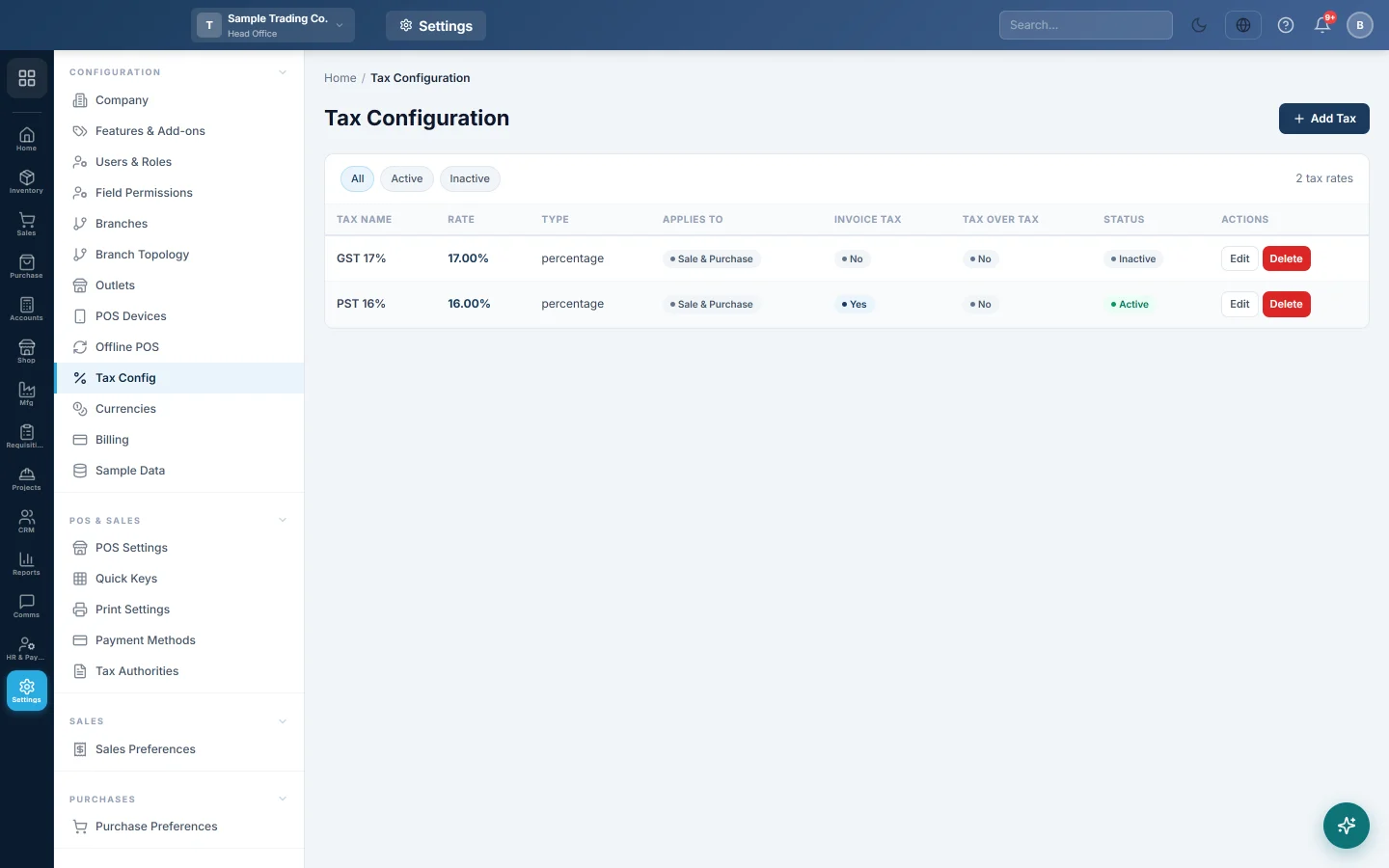
The Tax Configuration page lists every tax rate your documents can use, such as GST 17% or VAT 5%. For each tax you choose where it applies, which ledger it posts to and whether it is charged per item or once on the whole invoice.
Before you begin
- You need a role with Create Tax Rates to add a tax, Edit Tax Rates to change one and Delete Tax Rates to delete one.
- The tax ledgers must exist in the Chart of Accounts, for example Sales Tax Payable and Input Tax.
- Check the branch in the top bar. A tax you add belongs to that branch.
Where to find it
Open Settings → Configuration → Tax Config.
Add a tax
- Click Add Tax.
- Enter the Tax Name, for example GST 17%.
- Enter the Rate, for example 17.
- Choose the Type: Percentage (%) or Fixed Amount.
- Under Applies To, choose Sale & Purchase, Sale only or Purchase only.
- Search for and pick the ledger in Sales (output) tax ledger. For a purchase-only tax this box is called Purchase (input) tax ledger.
- For a Sale & Purchase tax, pick the Purchase (input) tax ledger too, or leave it blank to post purchases to the sales ledger.
- Tick Invoice Tax (shown in invoice footer) if the tax is charged once on the whole invoice.
- Leave Status as Active.
- Click Save.
Item taxes and invoice taxes
A tax is used in one of two places, depending on Invoice Tax:
| Setting | Where it is used |
|---|---|
| Invoice Tax off | The tax is offered in the tax column of each item row. It is worked out on that row's amount after discount. |
| Invoice Tax on | The tax is charged once, as its own line in the invoice footer totals. It is not offered on item rows. |
| Tax Over Tax | For an invoice tax only. The tax is worked out on the subtotal plus the invoice taxes applied before it. |
| Sort Order | For an invoice tax only. Lower numbers appear first in the footer, which also sets the order for Tax Over Tax. |
For an invoice tax, Percentage (%) is worked out on the subtotal. On sales and purchase invoices, Fixed Amount adds the rate as one amount, for example Rs. 50.
Choose where a tax applies
Applies To decides which forms may use the tax:
- Sale & Purchase: sales and purchase documents.
- Sale only: sales documents and the POS. It never appears on purchase invoices, orders or bills.
- Purchase only: purchase documents only.
Change or stop a tax
- Click Edit on the tax.
- Change what you need, or set Status to Inactive.
- Click Save.
An inactive tax is hidden from every sale and purchase form, but it stays in this list. Use the All, Active and Inactive chips above the list to filter it.
Common questions
A tax does not appear in another branch. A tax you add belongs to the branch in the top bar when you saved it. Switch to the other branch and add it there too.
Why is my tax missing from the item rows? It is either Inactive, an Invoice Tax (footer only), or limited by Applies To to the other side.
I entered a fixed amount above 100 and it was refused. The Rate box accepts 0 to 100, for fixed amounts too.
Where do I see the tax collected and paid? Run the Tax Summary report under Accounting.
Which ledger does a sales tax post to? The ledger chosen in Sales (output) tax ledger. For a Sale & Purchase tax, purchases post to the Purchase (input) tax ledger when one is set.
Спасибо. Если помощь всё ещё нужна, напишите на info@eloerp.net.