POS Devices
Pair the offline POS registers and field sales phones that may sync with your company, re-pair a broken till, revoke an old one and remove the POS app from a PC.
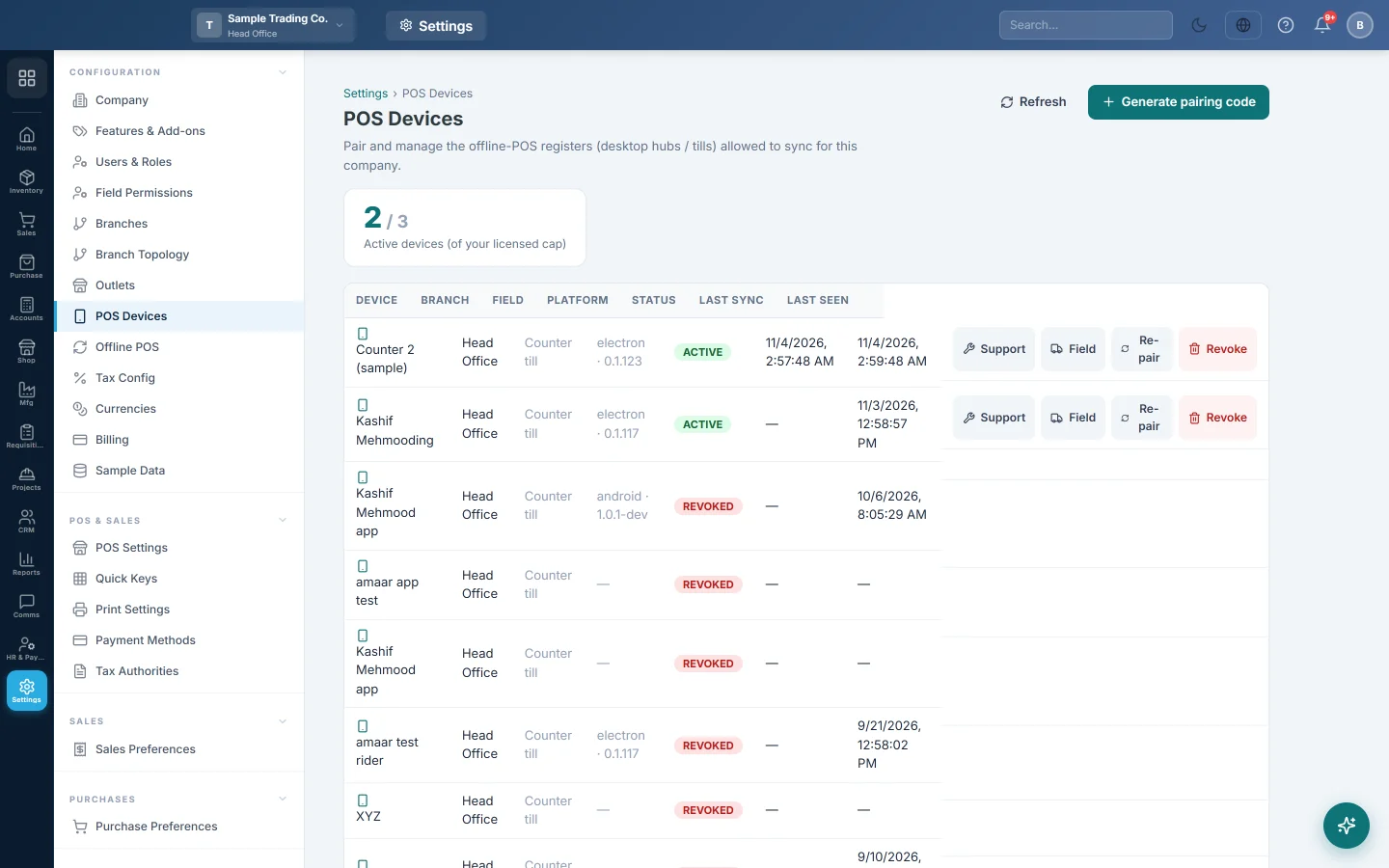
POS Devices lists the registers allowed to run the offline POS and sync with your company: desktop tills, browser tills and field sales phones. You pair each one here with a single-use code.
Before you begin
- You need a role with the permission to manage POS devices.
- Offline POS must be switched on for your company by your service provider. They also set how many devices you may pair. Until then the page says Offline POS not enabled.
- Add the branch the till belongs to first. See Branches.
Where to find it
Open Settings → Configuration → POS Devices.
Pair a new register
- Click Generate pairing code.
- Type a Device name, for example Front counter or Till 2.
- Choose the Branch. A till needs a branch before it can take offline invoice numbers.
- Click Generate. The code appears under Pairing code ready, with the time left before it expires.
- On the register, open the POS app (or a browser till).
- On the Connect this register screen, enter your store address and the code.
The device pairs and starts syncing. The code works once only; if it expires, generate a new one.
Read the device list
| Column | What it shows |
|---|---|
| Device | The name you gave the register. |
| Branch | The branch it sells in. |
| Field | For a field sales phone, its mode and van warehouse. Otherwise Counter till. |
| Platform | The kind of device and the POS app version. |
| Status | Whether the device is active, waiting to pair or revoked. |
| Last sync | When it last uploaded or downloaded data. |
| Last seen | When it last contacted the server. |
The box at the top shows how many active devices you have against your allowance.
Re-pair a till
Use Re-pair when a till is broken, was reinstalled or shows the pairing screen again.
- Click Re-pair on the device.
- Confirm. A new pairing code is issued for this same device.
- Enter the code on the till's Connect this register screen.
The device keeps its invoice-number band and shift history. Its old token stops working until the new code is entered.
Revoke a device
Use Revoke when a register is retired or lost.
- Click Revoke on the device.
- Confirm.
The device's sync token is deleted at once, so it can no longer sync, and its slot is freed. If the till still has sales waiting to upload, you are warned first.
Set up a field sales phone
When your plan includes field sales, a Field button appears on each device.
- Click Field on the phone.
- Choose the Mode, for example Van sales, Order taker or Recovery.
- Choose the Van warehouse. Sales and returns this phone syncs move stock in this warehouse, whoever is signed in.
- Click Save.
Remove the POS app from a PC
Uninstalling from Windows leaves the saved pairing behind, so a new install comes back linked to the old company or branch. Use the uninstaller when a register was paired to the wrong company, is being moved or will not unpair.
- On that register, sync first. The Manager Console should show 0 waiting to sync.
- Click Download uninstaller (Windows) on that PC and run it. Allow it when Windows asks, type YES and press Enter.
- Revoke the register in the list, so it stops using a device slot.
- Install the POS app again and pair it with a new code, generated in the right branch.
The uninstaller moves the register's own data to a backup folder on the PC, so unsynced sales can still be recovered.
Common questions
The page says I am at my device cap. Revoke a device you no longer use, or ask your service provider for a larger allowance.
The pairing code expired. Codes are short-lived. Click Generate pairing code again.
A till was paired to the wrong branch. Sync it, revoke it, then pair it again with a code generated in the right branch. If it still links to the old branch, use the uninstaller first.
What is the difference between Re-pair and Revoke? Re-pair keeps the same device, its number band and shift history. Revoke retires the device for good.
Where are the offline sync problems listed? On Offline POS.
Спасибо. Если помощь всё ещё нужна, напишите на info@eloerp.net.