Outlets
Run several outlets in one location, such as two restaurants, a shop and a gaming zone, each with its own POS type, staff and menus.
An outlet is a point of sale inside a branch: a restaurant, a café, a shop, a gaming zone or an internal store. Use outlets when one location runs several businesses that each need their own till, staff and customers.
Before you begin
- You need a role that can open and edit Branches.
- Add the branch the outlets belong to first. See Branches.
- Add the users who will work in each outlet. See Users & Roles.
Where to find it
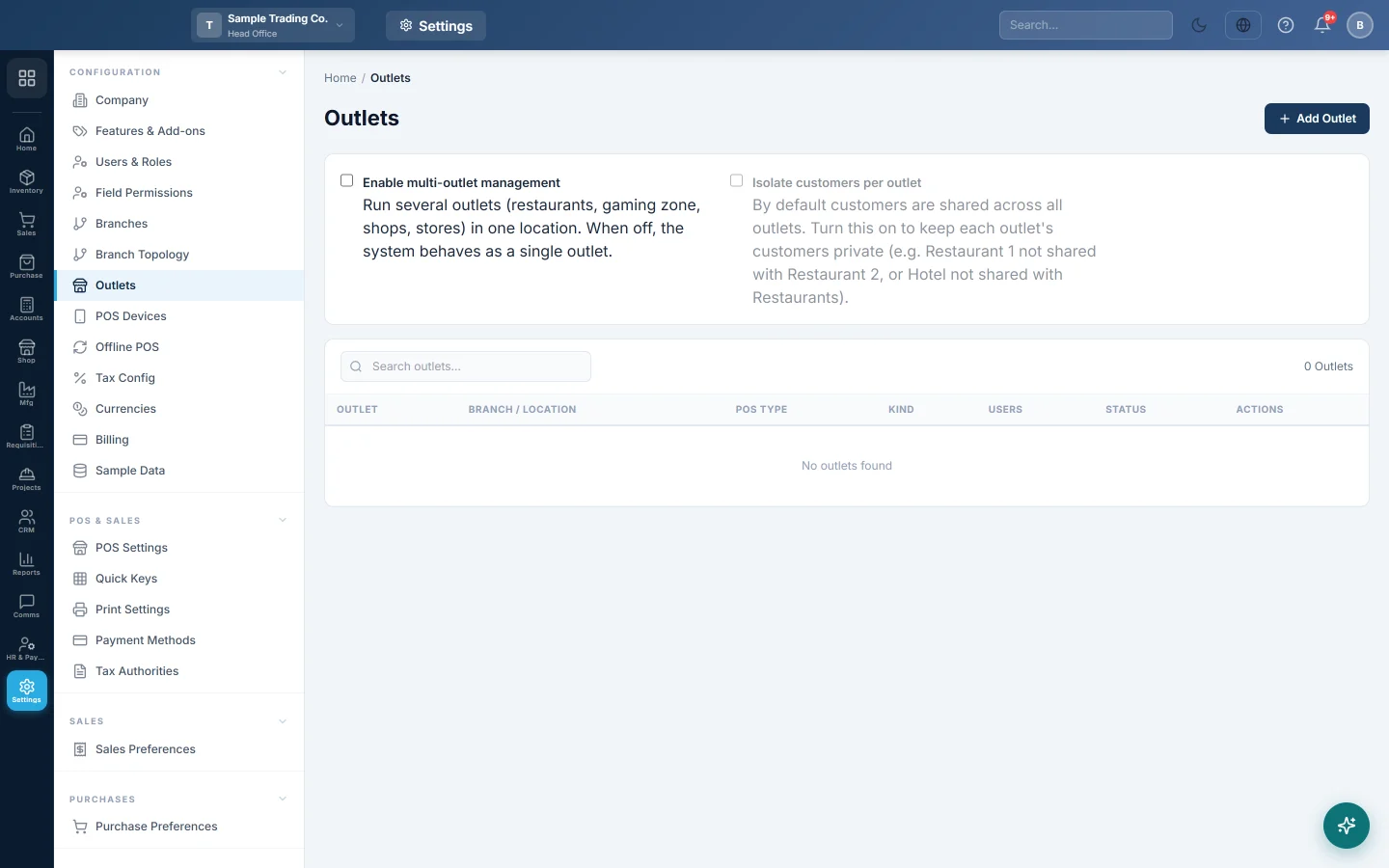
Open Settings → Configuration → Outlets.
Turn on multi-outlet management
- Tick Enable multi-outlet management. It saves straight away.
- Tick Isolate customers per outlet if each outlet must keep its own customers.
When multi-outlet management is off, the system behaves as a single outlet. Customers are shared across all outlets unless you isolate them. For example, isolate them so a hotel's guests are not shared with its restaurants.
Add an outlet
- Click Add Outlet.
- Type the Outlet Name, for example Continental Restaurant.
- Choose the Branch / Location.
- Type a short Code, for example CONT.
- Choose the POS Type: Retail, Restaurant or Game Zone. It decides which POS screen the outlet's cashiers get.
- Choose the Kind: Sales outlet, Internal store or Service.
- Leave Status on Active and set the Sort Order.
- Under Menus shown to this outlet's staff, tick the modules its staff need. Leave all unticked to show every module.
- Click Add Outlet.
Each branch has a Default outlet. It is marked in the list and cannot be deleted.
Assign users to an outlet
- Click Users on the outlet.
- Tick the users who may work in this outlet.
- Click Save Assignment.
A user assigned to more than one outlet gets an outlet switcher. Administrators working in All outlets always see every module.
Delete or close an outlet
- Click Delete on the outlet.
- Confirm.
An outlet that already has products or transactions cannot be deleted. Edit it and set Status to Inactive instead.
Common questions
The Isolate customers per outlet box is greyed out. Turn on Enable multi-outlet management first.
A cashier sees the wrong POS screen. Edit the outlet and check its POS Type. Retail, restaurant and game zone tills look different.
Staff in one outlet see menus they do not need. Edit the outlet and tick only the modules they use under Menus shown to this outlet's staff.
Can I delete the default outlet? No. Every branch keeps its default outlet. Rename it if you need to.
Do I need outlets for two separate shops in two cities? No. Those are two branches. Outlets are for several businesses in one location.
Merci. Si vous avez encore besoin d’aide, écrivez à info@eloerp.net.