Branch Topology
Decide what your branches share (customers, suppliers, warehouses, products and users), who may transfer stock between branches, and move masters from one branch to another.
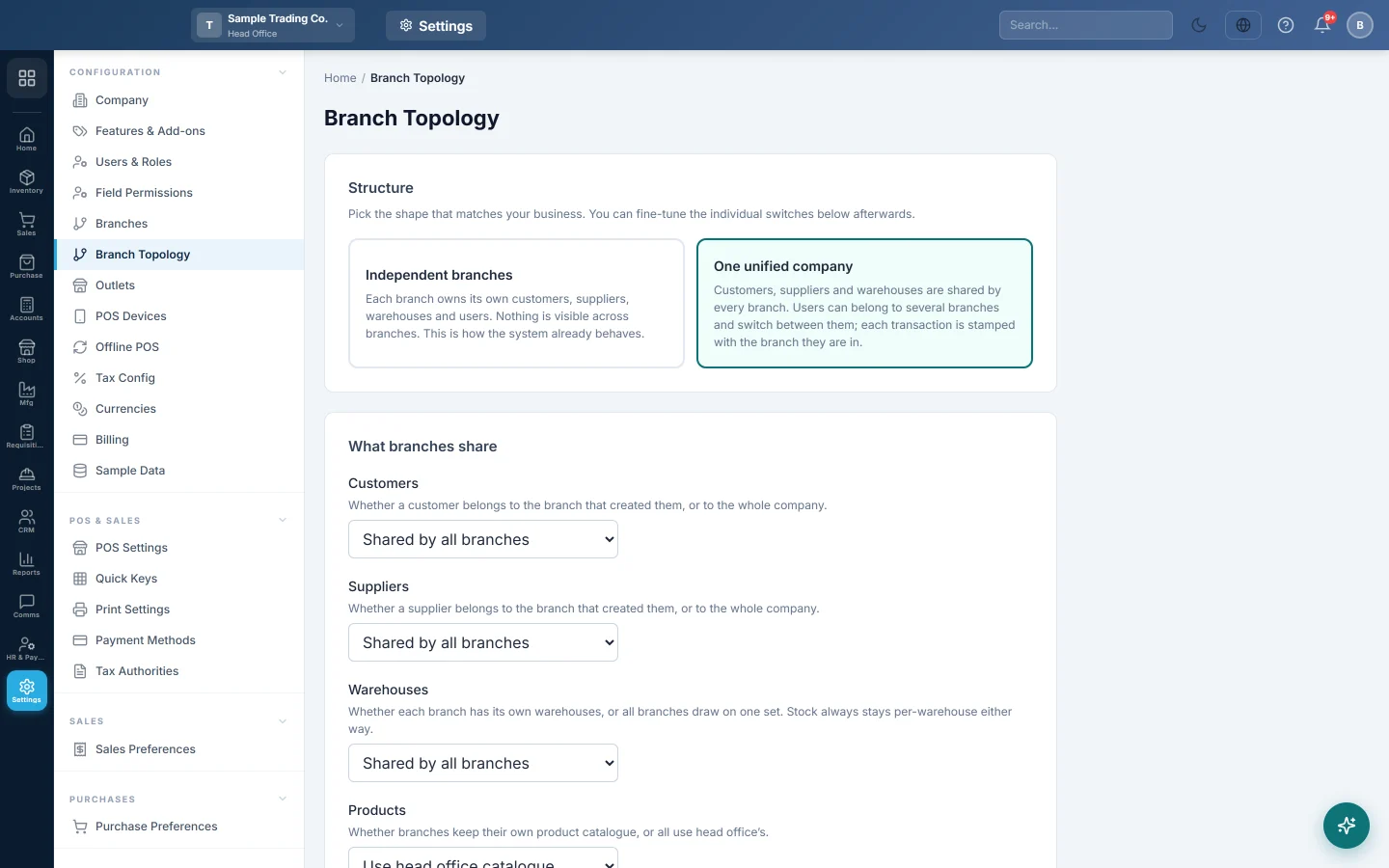
Branch Topology decides how much your branches share. Some businesses run each branch on its own; others are one company with several locations sharing customers, suppliers and stock. Pick the shape that fits, then fine-tune each switch.
Before you begin
- You need a role that can open Branches. Only the head office can change the topology; other branches see it Read only.
- The settings only matter once you have a second branch. See Branches.
Where to find it
Open Settings → Configuration → Branch Topology.
Pick a structure
- Under Structure, click the card that matches your business.
- Check the switches under What branches share. The card fills them in for you.
- Change any switch you need.
- Click Save Topology.
| Structure | What it means |
|---|---|
| Independent branches | Each branch owns its own customers, suppliers, warehouses and users. Nothing is visible across branches. |
| One unified company | Customers, suppliers and warehouses are shared by every branch. Users can belong to several branches and switch between them. Each transaction is stamped with the branch it was entered in. |
If your switches match neither structure, the page says so and shows them as set.
What branches share
| Switch | Choices and effect |
|---|---|
| Customers | Per-branch: a customer belongs to the branch that created it. Shared by all branches: every branch can sell to it. |
| Suppliers | Per-branch or Shared by all branches, the same way. |
| Warehouses | Per-branch or Shared by all branches. Stock always stays per warehouse either way. |
| Products | Each branch has its own catalogue, or Use head office catalogue. |
| Users in multiple branches | One branch per user, or Users may span branches so a user can switch branch from the top bar. |
| Stock transfer between branches | Not allowed, Head office only or Any branch. |
| Assign customers to users | On lets you limit a user to a list of customers they may deal with. |
Move masters to another branch
Use this to move customers, suppliers or warehouses from one branch to another, or to make them shared.
- Under Reassign masters between branches, choose the Type: Customers, Suppliers or Warehouses.
- Search and tick the records to move.
- In Move to, choose a branch, or Shared (all branches).
- Click Assign.
Shared (all branches) is offered only when that type is set to Shared by all branches above. Documents keep the branch they were filed under.
Changing these is safe
- Switching a master to shared widens who can see it. Nothing is deleted.
- Switching back to per-branch leaves already-shared records needing a branch. You are asked to assign them.
- Existing documents keep their branch. The change affects what is created and shown from now on.
Common questions
The page is read-only. Topology is set by the head office. Switch to the head office branch in the top bar.
I set customers to shared but a branch still cannot see one. Check you clicked Save Topology, then reload the page in that branch. To share a customer created earlier, move it to Shared (all branches) under Reassign masters between branches.
Does a shared warehouse mix the branches' stock? Stock is always kept per warehouse. A shared warehouse simply lets every branch use it.
A user needs to work in two branches. Set Users in multiple branches to Users may span branches, then give the user both branches in Users & Roles.
Vielen Dank. Wenn Sie weitere Hilfe brauchen, schreiben Sie an info@eloerp.net.