Advances
Pay an employee part of their salary early and recover it in full from the next payroll.
A salary advance pays an employee part of their salary before payday. The next payroll recovers it in full, or as much as the salary allows, with the rest carried to the following month.
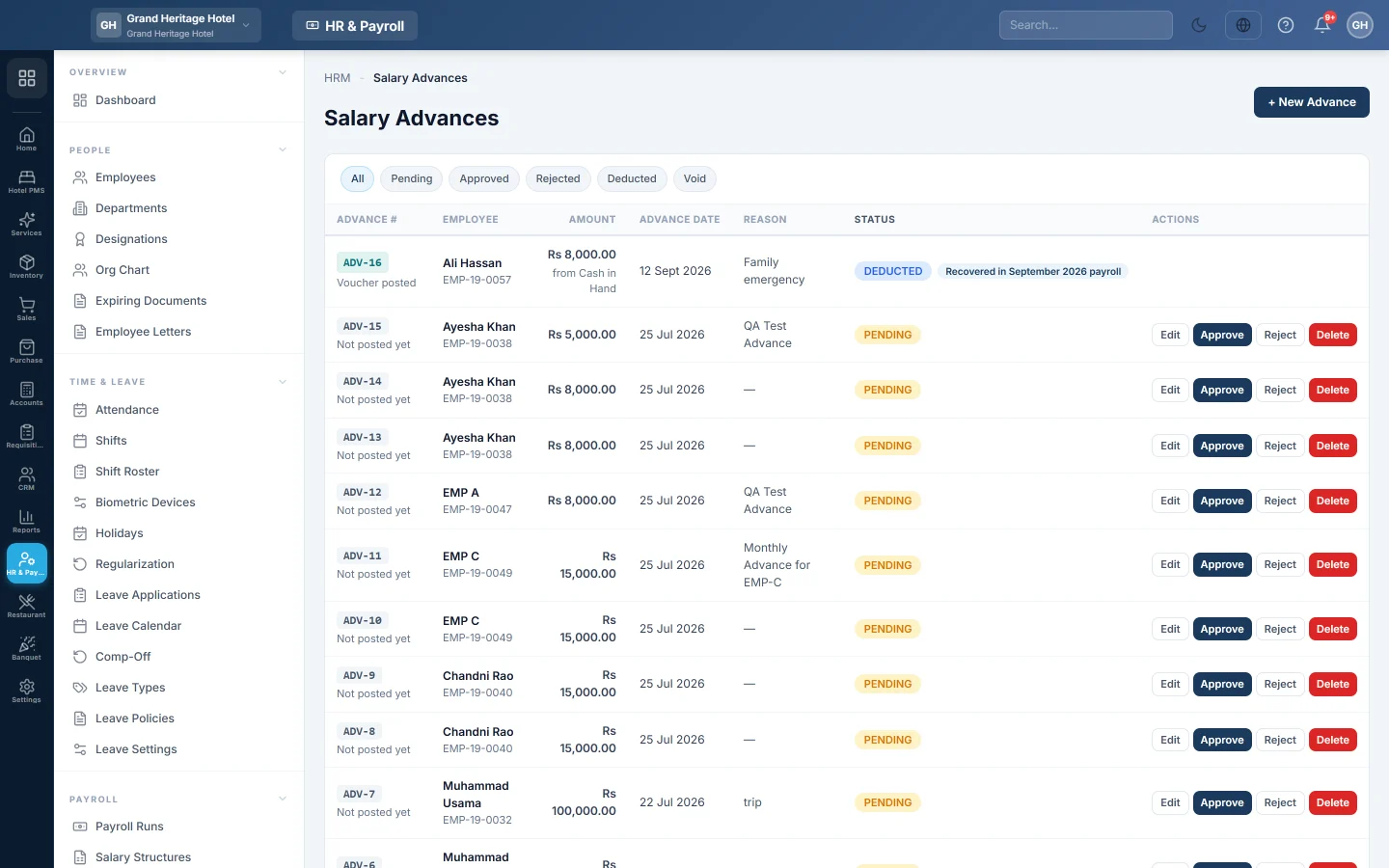
Before you begin
- The employee exists, ideally with their own ledger. See Employees.
- A cash or bank account exists in the Chart of Accounts.
Where to find it
Open HR & Payroll → Payroll → Advances.
Give an advance
- Click + New Advance.
- Under EMPLOYEE, select the employee.
- Type the AMOUNT and the ADVANCE DATE.
- Type the REASON.
- Click Create Advance. It waits as pending.
While pending, you can change it with Edit or remove it with Delete.
Approve and pay out the advance
- Click Approve on the row.
- Choose PAID FROM, the cash or bank account, and PAID ON.
- Click Approve & post.
The payout is posted and the next payroll recovers it. To refuse, click Reject and give a reason.
Undo a paid advance
- Click Void on the row.
- Type the reason, for example "Entered by mistake", and click Void advance.
Its entry leaves the books and payroll stops recovering it. The advance stays on the list, marked as voided. If a finalized payroll has already recovered it, correct that payslip first.
What happens in the books
| Event | Debit | Credit |
|---|---|---|
| Advance paid out | The employee's ledger (or Employee Advances) | The cash or bank account it was paid from |
| Recovered in payroll | (part of the payroll voucher) | The employee's ledger (or Employee Advances) |
Common questions
What if the salary is less than the advance? Payroll recovers what the salary allows and carries the rest to the next month.
Can I recover an advance over several months? Use a loan instead. A loan is repaid in monthly instalments.
Can I change an approved advance? No. Void it and enter a new one.
Where do I see it was recovered? Filter the list by status, or open the payroll run: the recovery shows in the Advance / Loan column.
Gracias. Si todavía necesita ayuda, escriba a info@eloerp.net.