Payroll Runs
Run the monthly payroll from start to finish, covering generating, tax and EOBI, finalizing, posting to accounts, paying staff, payslips and corrections.
A payroll run works out one month's salaries for every active employee, posts them to the books and records the payments. You never type a salary journal by hand.
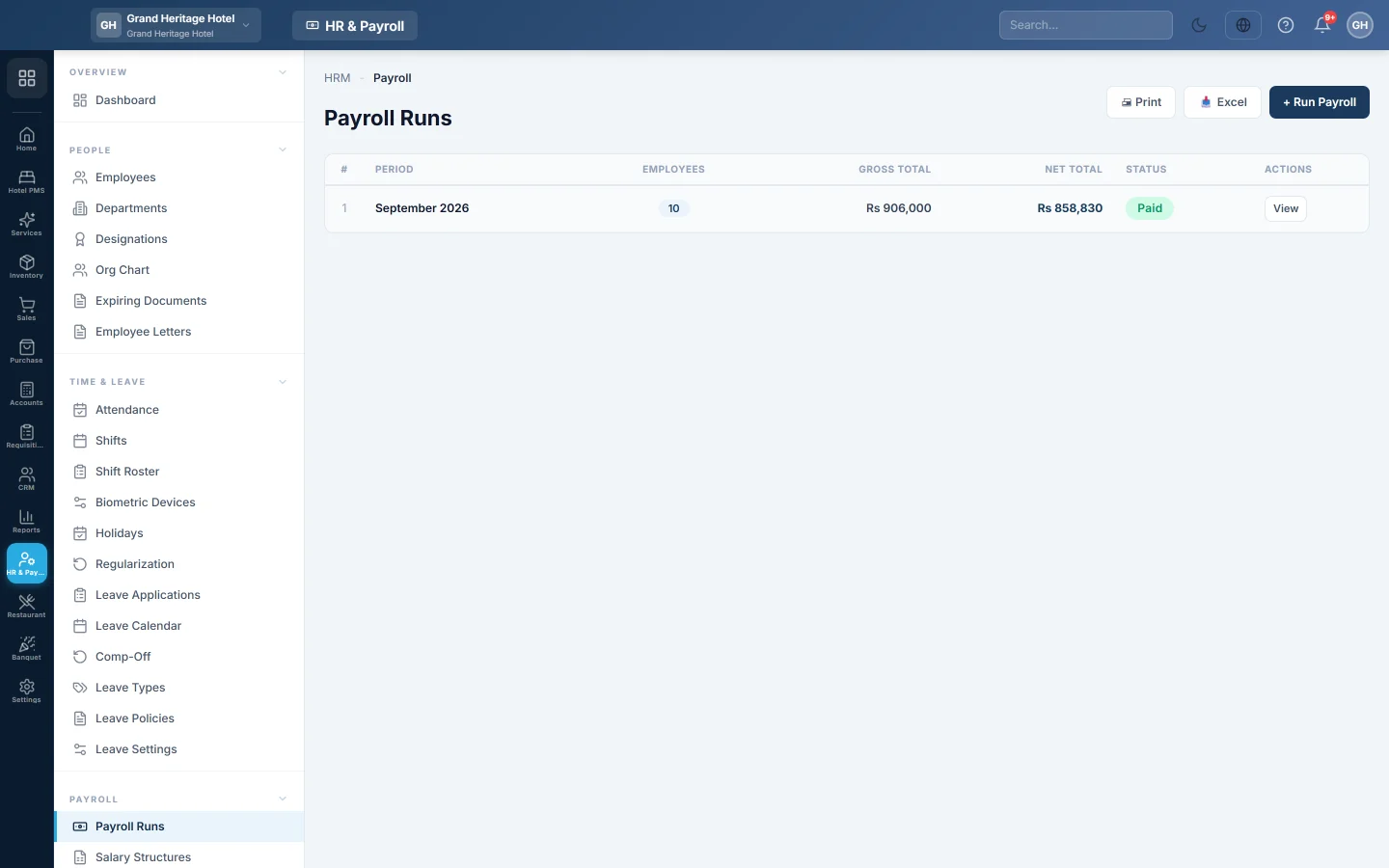
A run moves through these steps:
- Draft: generated, and open to changes.
- Processed: finalized, payslips ready. If approval is required, a second person approves it.
- Posted to Accounts: the month's salary expense and amounts owed are in the books.
- Paid: every employee has received their net pay.
Before you begin
- Review Statutory & Tax Slabs once: the working week, how a day's pay is worked out, EOBI, social security and income tax.
- Each employee has a salary: Basic Salary and Allowances on their record, or a Salary Structure.
- The month's Attendance, Leave Applications, Loans and Advances are complete.
- A cash or bank account exists in the Chart of Accounts to pay from.
- Your role needs the payroll permissions to run, process and post payroll. See Users & Roles.
Where to find it
Open HR & Payroll → Payroll → Payroll Runs.
Step 1: Generate the run
- Click Run Payroll.
- Pick the MONTH and YEAR.
- Click Generate Payroll.
EloERP picks up every active employee with a salary. It prorates joiners and leavers, and adds loan instalments and advance recoveries. The run opens as a draft.
Step 2: Apply tax, EOBI and overtime
- On the run, click Apply Tax/EOBI/OT.
- Check the totals at the top and each employee's row.
This works out absences, half days, late fines, unpaid leave, overtime, commissions, EOBI, PESSI or SESSI, provident fund and income tax. Press it again after any change; it is safe to repeat.
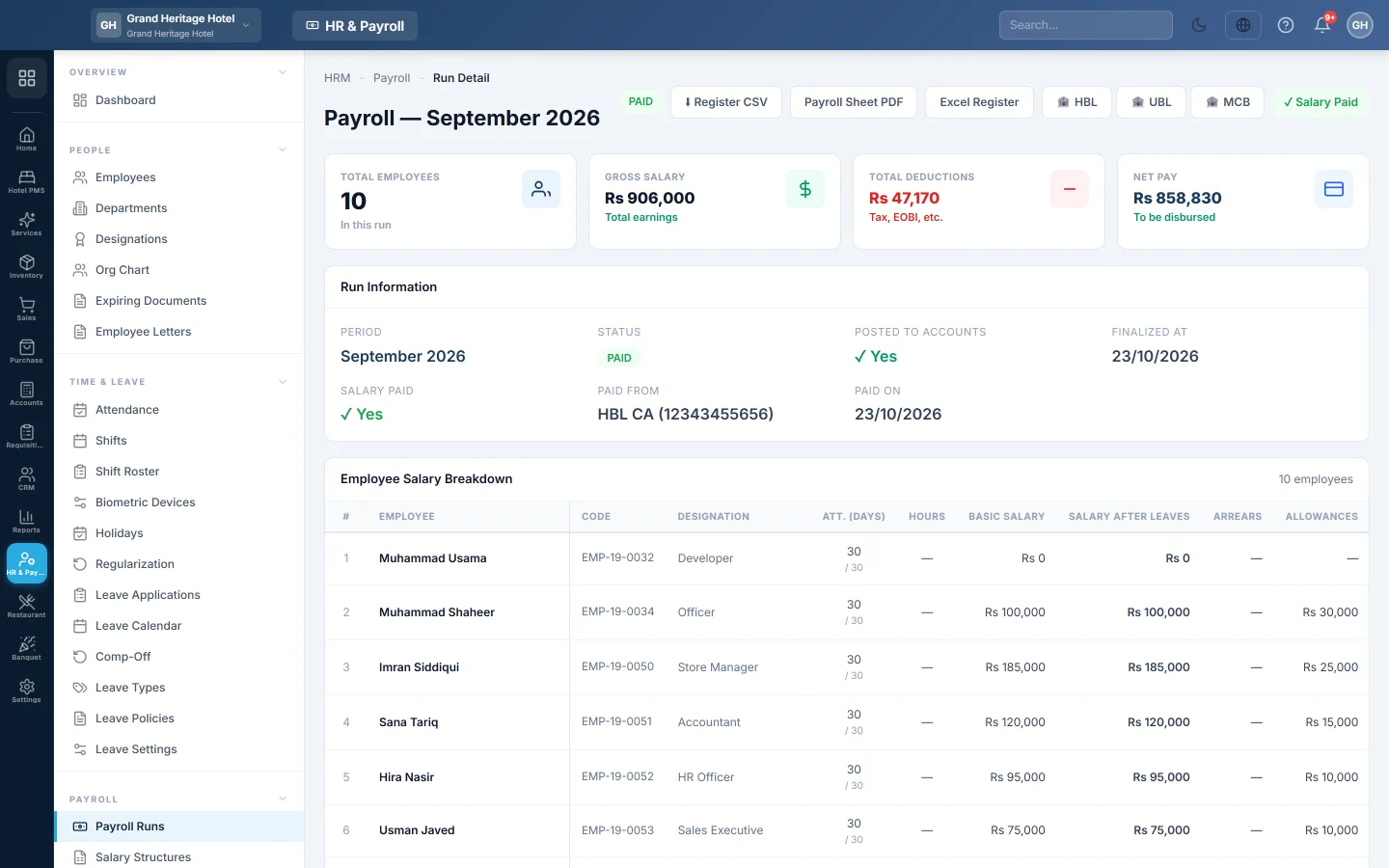
Step 3: Adjust the draft
- Att. (days): type the paid days for someone without daily attendance. This replaces the attendance figure for them.
- Hours: change the hours credited this month, for example to cap a long day.
- + Ad-hoc on a row: add a one-off earning or deduction for this month, such as a bonus or a phone deduction.
- + Arrears: pay a backdated raise for earlier months. Pick the employee and the months, then click Compute & Add Arrears.
- Pay Slip: preview an employee's slip before you finalize.
Click Apply Tax/EOBI/OT again after your changes, so tax is worked out on the new figures.
Step 4: Finalize
- Click Finalize Payroll.
- If approval is required, a second person opens the run and clicks ✓ Approve, or ✕ Reject to send it back to draft.
The run becomes processed and payslips are ready. Before it is posted, Re-open as draft takes it back for changes; approval then starts over.
Step 5: Post to accounts
- Click Post to Accounts and confirm.
- One balanced journal voucher is posted for the whole month.
Step 6: Pay the employees
Pay everyone at once or some of them:
- Click Pay Employees.
- Choose Pay from (Cash / Bank account) and the Payment date.
- Tick the employees. Change Pay now for anyone paid in part.
- Click the Pay button, which shows the batch total.
Pay the whole run in one voucher: click Record Payment, choose the account and click Record Payment.
Bank transfer files: click HBL, UBL or MCB to download that bank's bulk transfer file for internet banking.
When everyone is paid, the run shows Salary Paid.
Payslips
- Click Pay Slip on an employee's row.
- Click Print Pay Slip, PDF to download it, or Email Slip to send it.
A slip can only be emailed once the employee is paid in full. Each paid row shows ✉ Sent, ✉ Not sent or ✉ Failed, and ✉ Email payslips at the top sends the slips of the whole run. See Email payslips. For all slips of a month in one PDF, use Payslips (Batch) on HR & Payroll Reports. Employees with a self-service login see their own slips.
Correct a posted run
Posted figures are never edited in place. EloERP posts the difference.
- Correct one employee: click Edit on their row. Change paid days, hours or lines, type a Reason, and click Apply & post correction. If they were already paid and the pay goes up, the message shows the balance; pay it with Pay on the row. To bring the pay below what was paid, click Void payment in the same window first.
- A raise issued after the month was finalized: the row shows ↑ Increment. See Back-dated increment on a paid payroll.
- Change this month's loan deduction: click Loan on the row and type the amount. 0 takes nothing this month.
- Undo the whole posting: click Reverse Posting before any salary is paid. A mirror voucher is posted and the run returns to finalized.
Every correction is listed in the run's Corrections log, with the reason.
Download the run
Register CSV, Payroll Sheet PDF and Excel Register at the top of a run give the salary sheet in three formats. On the list, Print and Excel export all runs.
What happens in the books
Posting the run creates one journal voucher, dated the last day of the month:
| Debit | Credit |
|---|---|
| Salary Expense: gross salaries | Each employee's own ledger, or Salaries Payable: net pay |
| EOBI Expense: the employer's share | Income Tax Payable: tax withheld |
| PESSI or SESSI Expense: the employer's share | EOBI Payable: employee and employer shares |
| Provident Fund Expense, if used | PESSI or SESSI Payable, Provident Fund Payable |
| Each employee's ledger, or Employee Loan Receivable: loan and advance recoveries |
Whether net pay goes to each employee's own ledger depends on Post each employee's salary to their own ledger in Statutory & Tax Slabs.
Paying salaries debits the employee's ledger (or Salaries Payable) and credits the cash or bank account.
Tax, EOBI and social security stay as amounts owed until you pay them. Record each deposit with a Payment Voucher (PV) that debits the payable and credits the bank.
Common questions
Why is an employee missing from the run? They are not active, or have no salary. With Pay from the employee's Basic Salary off, an employee without a salary structure is not paid.
Can I run payroll twice for the same month? Each month has one run. Open the existing run and change it while it is a draft. Once finalized, use Re-open as draft if it is not yet posted.
Why is there a "Short hours" deduction? It comes from hours, not days. Set Hours to the required figure, or fix the attendance, and apply the engine again.
Where do I see an employee's statement? Open their ledger in Ledger Statement. A debit balance means they owe you, such as an unpaid loan. A credit balance means you owe them.
How do I pay the tax withheld? Deposit it with the tax authority, then post a Payment Voucher (PV) against Income Tax Payable. The WHT Return on Payroll Reports lists it per employee.
The month is posted but someone was paid the wrong amount. What do I do? Click Edit on their row and correct the figures. If they were underpaid, post the correction and pay the balance with Pay. If they were overpaid, void the payment first, post the correction, then pay them again.
شكرًا لك. إذا كنت لا تزال بحاجة إلى مساعدة، راسلنا على info@eloerp.net.