Regularization
Raise and approve corrections to a day's attendance, such as a missed punch or a late arrival that was excused.
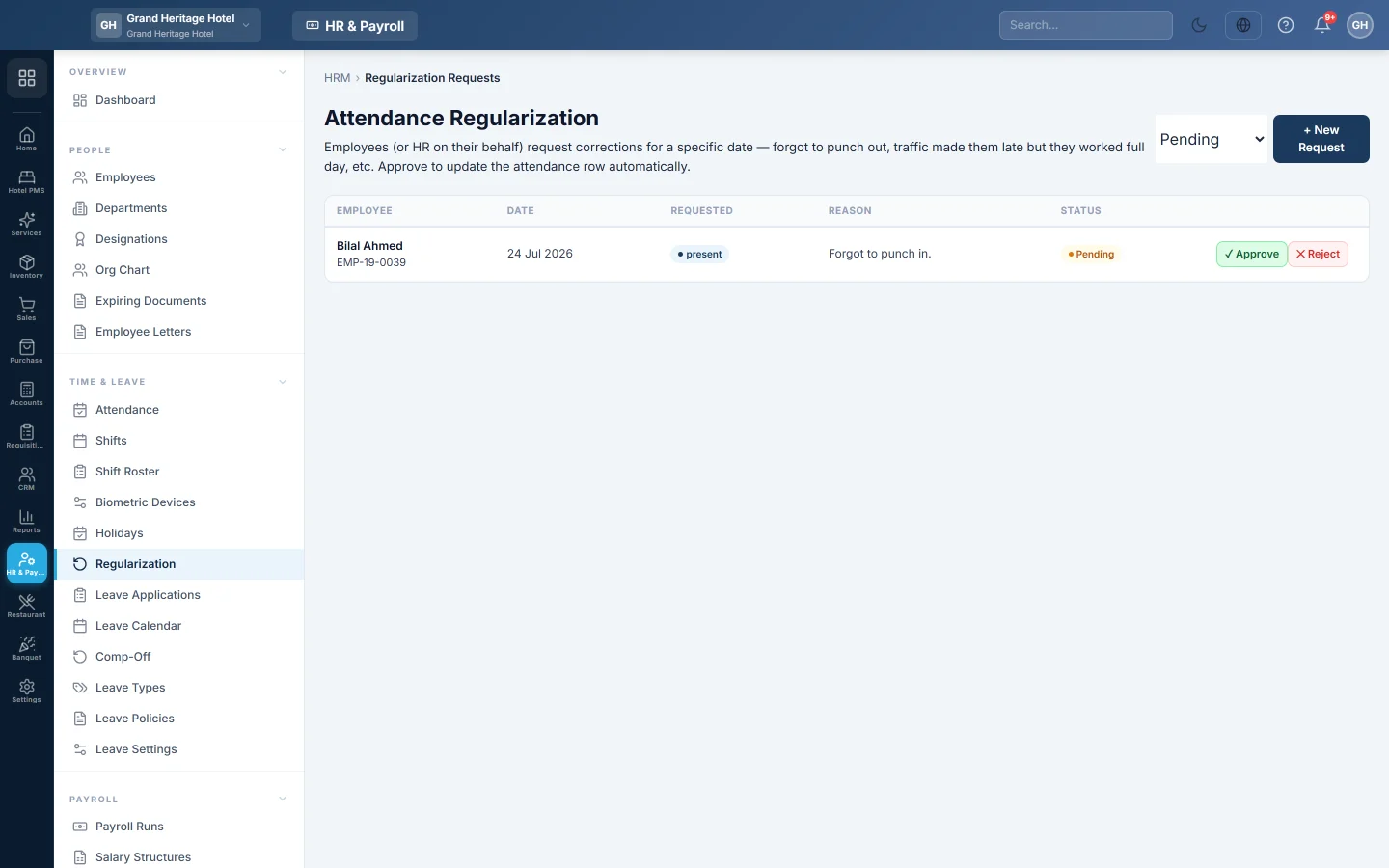
Regularization fixes a day's attendance through a request and an approval. An employee forgot to punch out, or traffic made them late but they worked the full day: raise a request, and approving it rewrites that day.
Before you begin
- The employee has an attendance record, or the day is to be added. See Attendance.
- Approving needs the HR permission to approve regularization. See Users & Roles.
Where to find it
Open HR & Payroll → Time & Leave → Regularization.
Raise a request
- Click + New Request.
- Pick the Employee and the Date.
- Choose the Requested Status: Present, Late, Half-day, Absent or On leave. Leave it unchanged to correct the times only.
- Type the Requested In and Requested Out times.
- Type the Reason, for example "Forgot to punch out".
- Click Submit.
Employees with a self-service login can raise their own requests.
Approve or reject
- Pick Pending in the status filter.
- Read the request and its reason.
- Click Approve and confirm. The attendance row is updated at once.
- Or click Reject and type an optional reason.
Common questions
Can HR just edit the attendance instead? Yes, on Attendance. Regularization keeps a record of who asked, why and who approved.
Does an approved request change pay? Yes, if payroll for that month is not yet finalized. Press Apply Tax/EOBI/OT on a draft run to recalculate. See Payroll Runs.
Can a rejected request be approved later? No. Raise a new request.
Teşekkür ederiz. Hâlâ yardıma ihtiyacınız varsa info@eloerp.net adresine yazın.