Holidays
Keep the holiday calendar, so public, religious and company holidays are not counted as absences or working days.
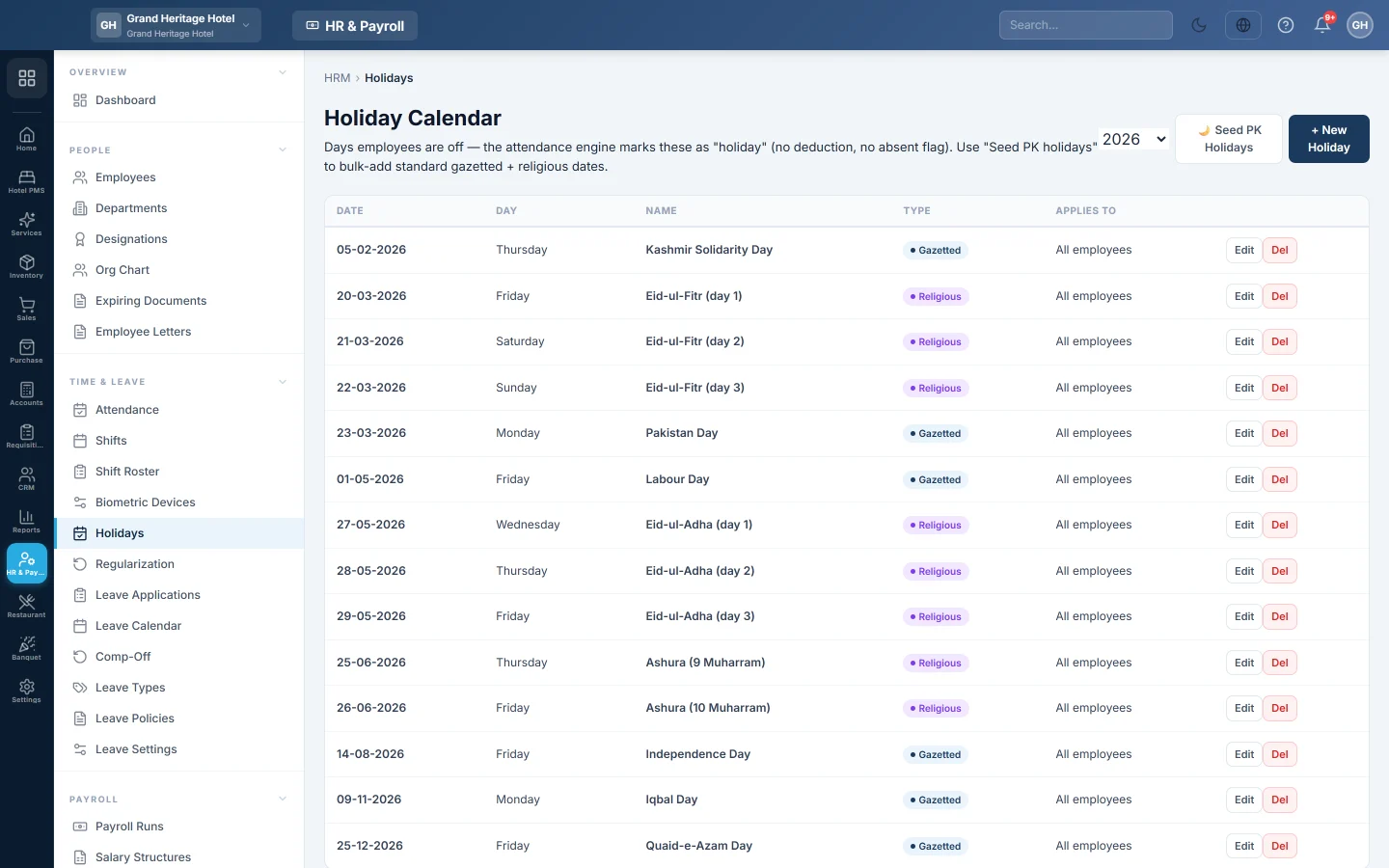
The holiday calendar lists the days your employees are off. Attendance marks these days as holidays, so nobody is marked absent or loses pay for them.
Before you begin
- Your role needs the HR permissions to manage holidays. See Users & Roles.
Where to find it
Open HR & Payroll → Time & Leave → Holidays.
Load the national holidays
- Pick the year at the top.
- Click Seed PK Holidays. The fixed gazetted holidays, such as Pakistan Day and Labour Day, are added, with the main religious holidays for that year.
- Check the religious dates against the official announcement and correct them with Edit. They depend on the moon sighting.
Add a holiday
- Click + New Holiday.
- Type the Name and pick the Date.
- Pick the Type: Gazetted, Religious or Company.
- Leave Applies to all employees ticked.
- Optional: add Notes, then click Save.
Change or remove a holiday
Click Edit on its row to change it, or Del to delete it.
Common questions
Does a holiday reduce the working days in the month? Yes. A holiday that applies to all employees is not counted as a working day, so a day's pay is worked out on the remaining days.
Someone worked on a holiday. Can they get a day off later? Yes. Record it on Comp-Off.
What happens if I untick Applies to all employees? There is no screen yet to pick who it applies to, so keep it ticked.
شكرًا لك. إذا كنت لا تزال بحاجة إلى مساعدة، راسلنا على info@eloerp.net.