Biometric Devices
Keep a record of your fingerprint and face attendance machines; get their punches in by importing the machine's CSV export on the Attendance page.
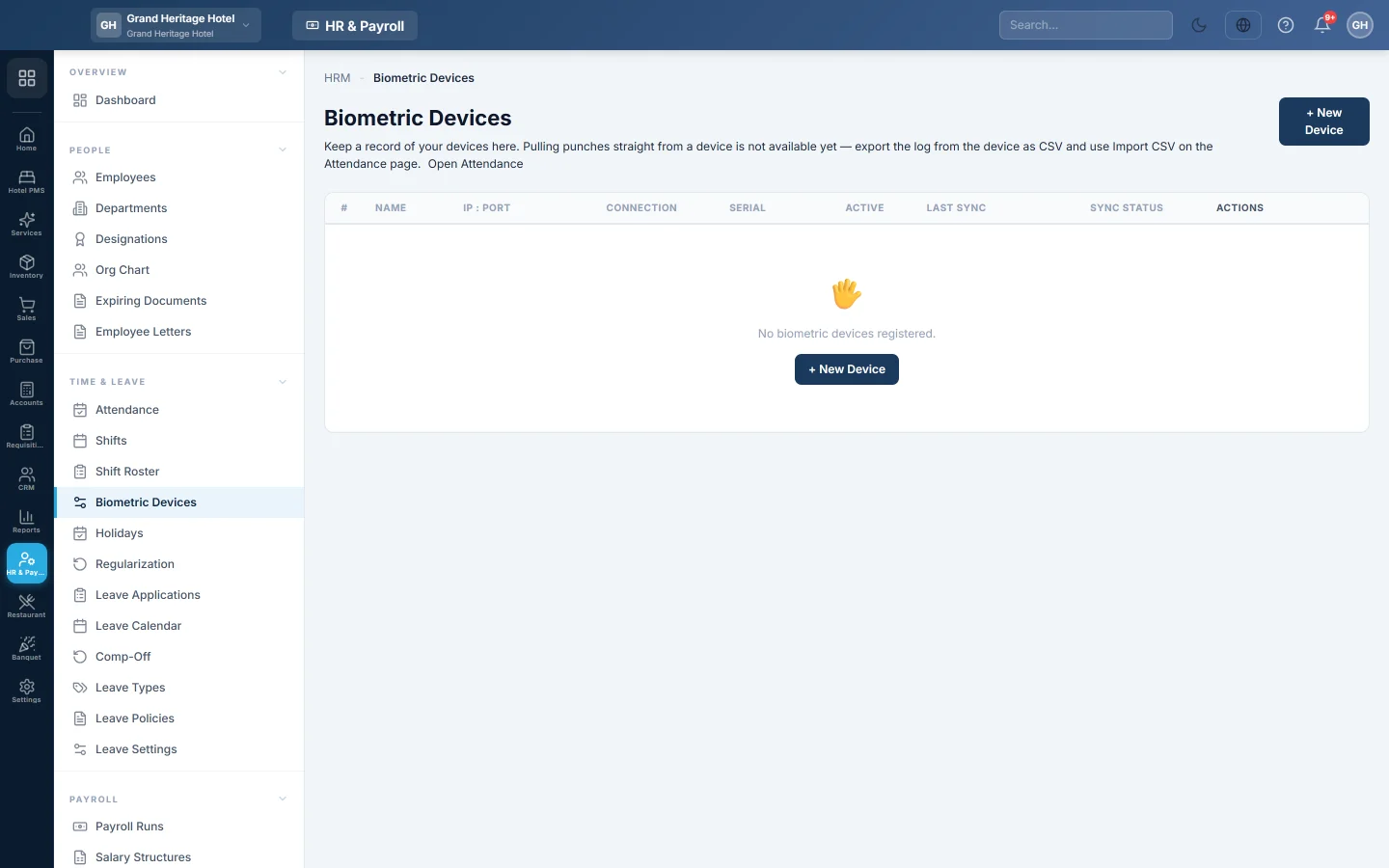
Biometric Devices keeps a record of your fingerprint and face attendance machines: where they are, how to reach them and their serial numbers.
EloERP does not pull punches from a machine yet. To get attendance in, export the log from the machine as a CSV file and import it on the Attendance page.
Before you begin
- Note each machine's IP address, port, serial number and login from its own settings menu.
- Make sure each employee's code on the machine matches their Employee ID in EloERP. The import matches rows on this code.
Where to find it
Open HR & Payroll → Time & Leave → Biometric Devices.
Register a device
- Click + New Device.
- Type the DEVICE NAME, for example "Main Gate".
- Pick the VENDOR: ZKTeco, Suprema, Hikvision, Anviz, Generic or Other.
- Type the IP ADDRESS and PORT, and pick the CONNECTION: TCP, UDP or HTTP.
- Type the SERIAL NUMBER, and the USERNAME and PASSWORD the device uses.
- Leave Active ticked while the machine is in use.
- Click Create.
To change a device, click its pencil button, make the change and click Update. Leave PASSWORD blank to keep the saved one. The bin button deletes the device record; it does not touch any attendance.
Get the punches into attendance
- On the machine, or in its own software, export the attendance log as a CSV file.
- Open HR & Payroll → Time & Leave → Attendance. The Open Attendance link under the page heading goes there too.
- Click Import CSV, then Download template.
- Copy the machine's columns into the template. employee_no and date are required; check_in and check_out carry the times.
- Choose the file under Upload CSV and click Import.
See Attendance for the file format and what the result means.
Common questions
What does the Sync button do? Nothing yet; it is switched off. Use Import CSV on Attendance.
Why register devices at all? It keeps one list of your machines, their location, network address, serial number and login, which you need when servicing them or exporting logs.
The import skipped some rows. Each skipped row is listed with its reason. The usual cause is a machine user code that does not match any employee's Employee ID.
I imported the same day twice. A row for an employee and date that already exists is updated, not duplicated.
谢谢。 如果仍需帮助,请发邮件至 info@eloerp.net。