Notification Channels
Connect the SMS, email and WhatsApp accounts that automatic notifications go out through, switch each one on, cap it per day and send a test.
Notification Channels connects the accounts your automatic messages go out through: an SMS gateway, an email server and a WhatsApp account. Rules and templates decide what is sent and when; this page decides how it leaves.
Before you begin
- Have an account with the provider you want to use, and its login details: for example a Twilio account, an SMTP mailbox, a Meta WhatsApp Business account or a FOXAF workspace.
- Your role needs permission to edit company settings to save a channel or send a test.
Where to find it
Open Settings → Notifications → Notification Channels. The same page is under Communication → Notification System → Channels.
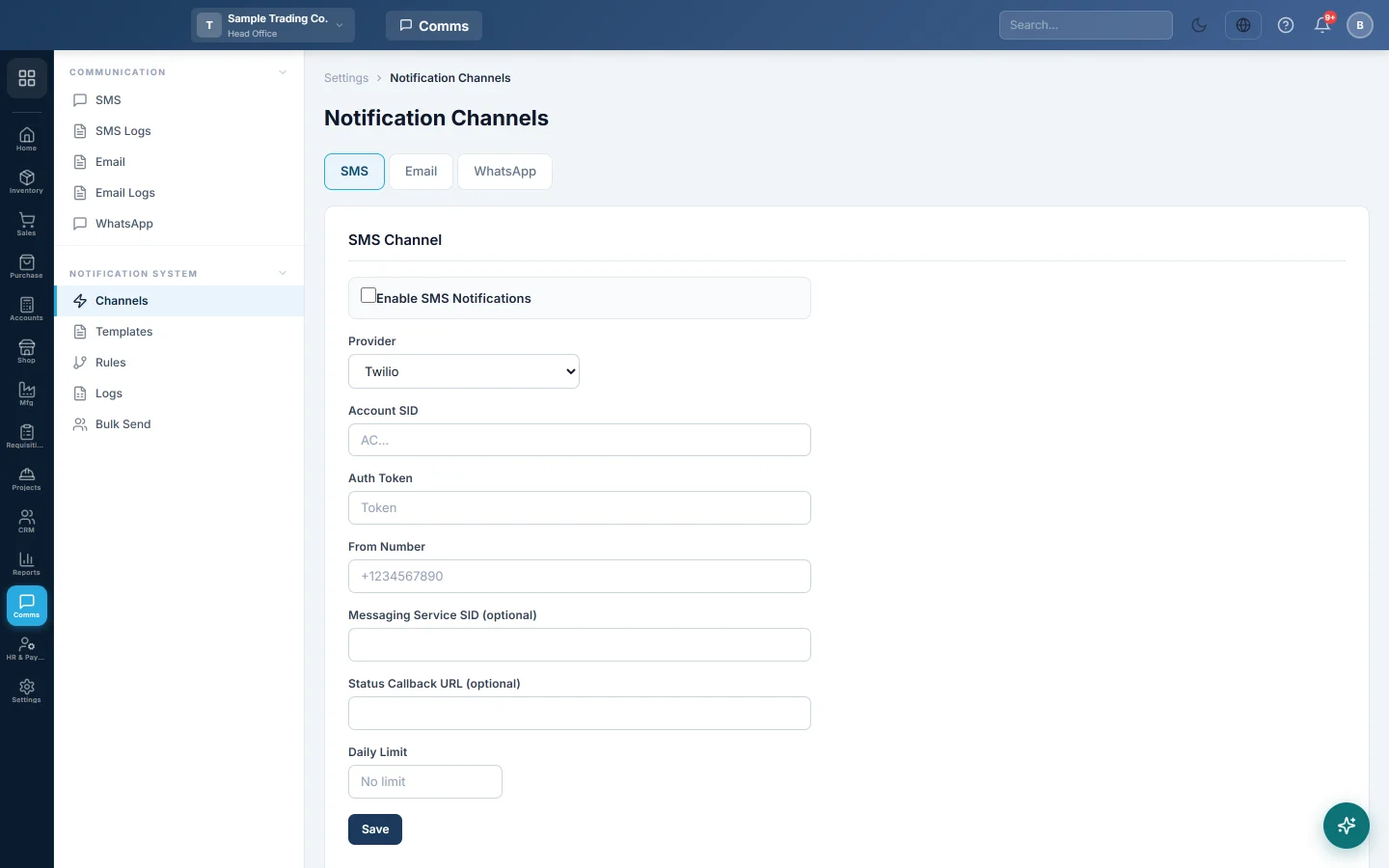
The page has three tabs: SMS, Email and WhatsApp. Each channel is set up and saved on its own.
Set up SMS
- Click the SMS tab.
- Tick Enable SMS Notifications.
- Pick the Provider: Twilio, Watilio Android SMS Gateway or FOXAF CRM.
- Fill in that provider's fields. For Twilio: Account SID, Auth Token and From Number. For Watilio: API Secret, the Sending Mode and the Device ID and SIM Slot of your Android phone.
- Type a Daily Limit if you want to cap messages per day, or leave it blank for no limit.
- Click Save.
Set up email
- Click the Email tab.
- Tick Enable Email Notifications.
- Pick SMTP as the Provider.
- Type the SMTP Host, SMTP Port, SMTP Username and SMTP Password from your mail provider, and pick the Encryption (usually TLS on port 587).
- Type the From Name your customers see, for example Ali Traders, and the From Email.
- Add a Reply-To (optional) address if replies should go to a different mailbox.
- Click Save.
Set up WhatsApp
- Click the WhatsApp tab.
- Tick Enable WhatsApp Notifications.
- Pick the Provider:
- Meta Cloud API (Official): type the Phone Number ID, Business Account ID and Access Token from Meta.
- Watilio WhatsApp (Unofficial): type the API Secret and WhatsApp Account ID.
- FOXAF CRM (Meta Cloud or QR): paste the FOXAF API token, click Load channels and pick the channel to send from.
- Click Save.
For a FOXAF QR channel, click Connect WhatsApp (scan QR). On the phone, open WhatsApp → Settings → Linked devices → Link a device, and scan the code. The page shows WhatsApp is connected when it is paired.
Send a test
- Save the channel first. The test uses the saved settings, not what is typed on screen.
- Under Test SMS, Test Email or Test WhatsApp, type a phone number with its country code, or an email address.
- Click Send Test.
The result shows below in green or red. Every test is also recorded in the notification logs.
Common questions
Why do my passwords show as stars after saving? Saved passwords and tokens are masked, showing only their last four characters. Leave the stars as they are and click Save to keep the saved value, or type a new one to replace it.
I saved a channel but nothing is sent. Check that the Enable box is ticked and saved, and that a notification rule is switched on for the event. A channel only carries messages; rules start them.
What happens when the daily limit is reached? Further automatic messages on that channel are not sent that day.
The test says the channel is not configured. You have not clicked Save on that tab yet.
Gracias. Si todavía necesita ayuda, escriba a info@eloerp.net.