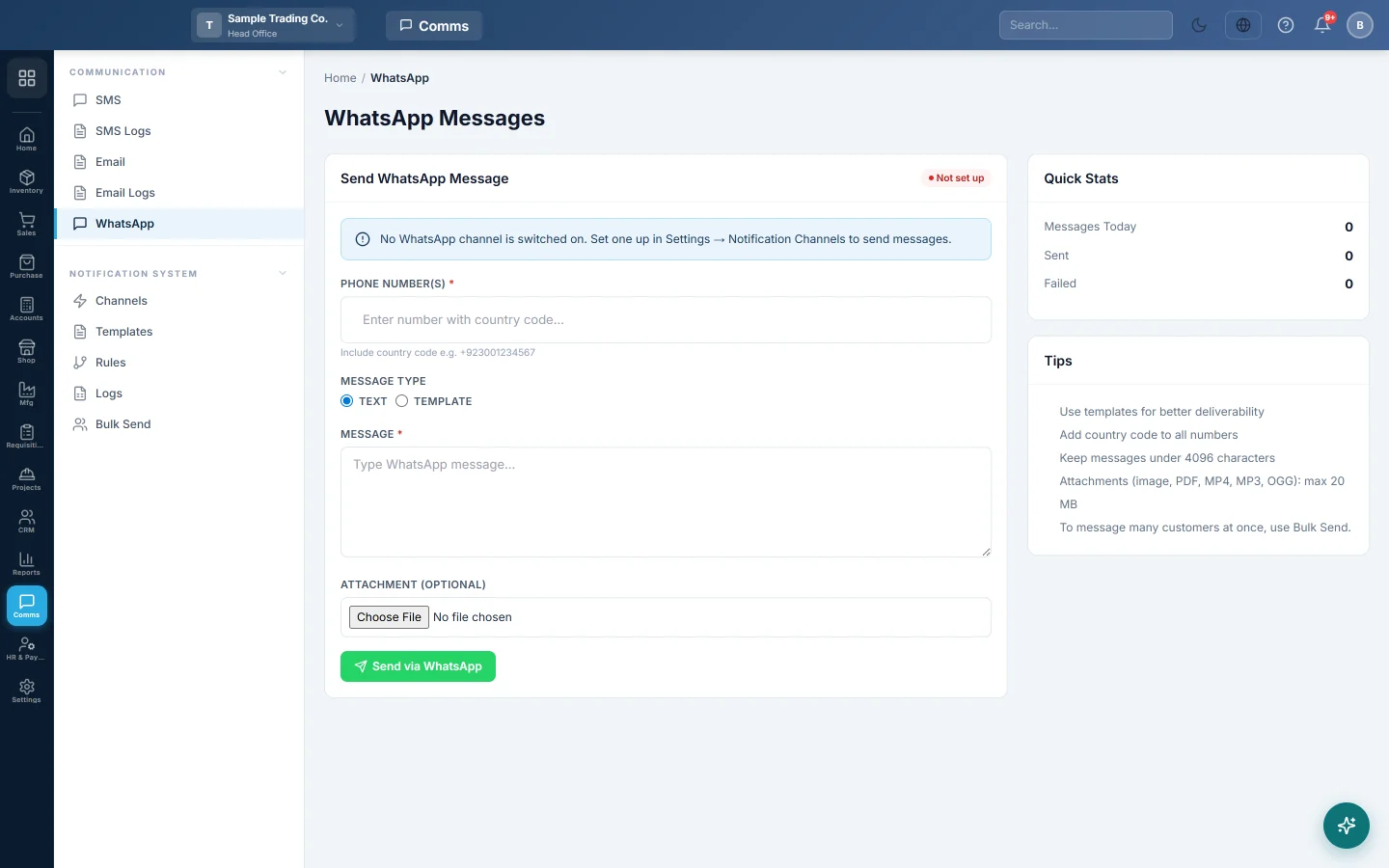
Send a WhatsApp message, with an optional picture or PDF, to one or more numbers through your company's WhatsApp channel.
WhatsApp Messages sends a WhatsApp message straight away to the numbers you type. You can add a picture, a PDF, a short video or a voice file.
Before you begin
- Set up and switch on a WhatsApp channel with your WhatsApp provider. See Notification Channels.
- Your role needs the permission to send WhatsApp messages. See Users & Roles.
Where to find it
Open Communication → Communication → WhatsApp.
Send a message
- In Phone Number(s), type a number with its country code, for example +923001234567, and press Enter. Add more numbers the same way.
- Leave Message Type on Text.
- Type the Message.
- To send a file, choose it under Attachment (optional): a picture (JPG, PNG, GIF, WEBP), a PDF, an MP4 video or an MP3 or OGG audio file, up to 20 MB.
- Click Send via WhatsApp.
A box shows how many messages were sent and how many failed. Each message is recorded in the notification Logs.
Common questions
It says no active WhatsApp channel is configured. Switch on WhatsApp on the WhatsApp tab of Notification Channels and click Save.
Can I send a Word file? No. Save it as a PDF first.
Can I send an invoice on WhatsApp? Yes, from the invoice itself. When WhatsApp sharing is switched on in Print Settings, the print view has a WhatsApp button that sends the invoice as a PDF.
A message failed. Why? Open it in the notification Logs and read the Error. Common reasons are a number without a country code, a number not on WhatsApp, or a disconnected phone.
Спасибо. Если помощь всё ещё нужна, напишите на info@eloerp.net.