SMS
Type an SMS and send it at once to one or more phone numbers through your company's SMS channel.
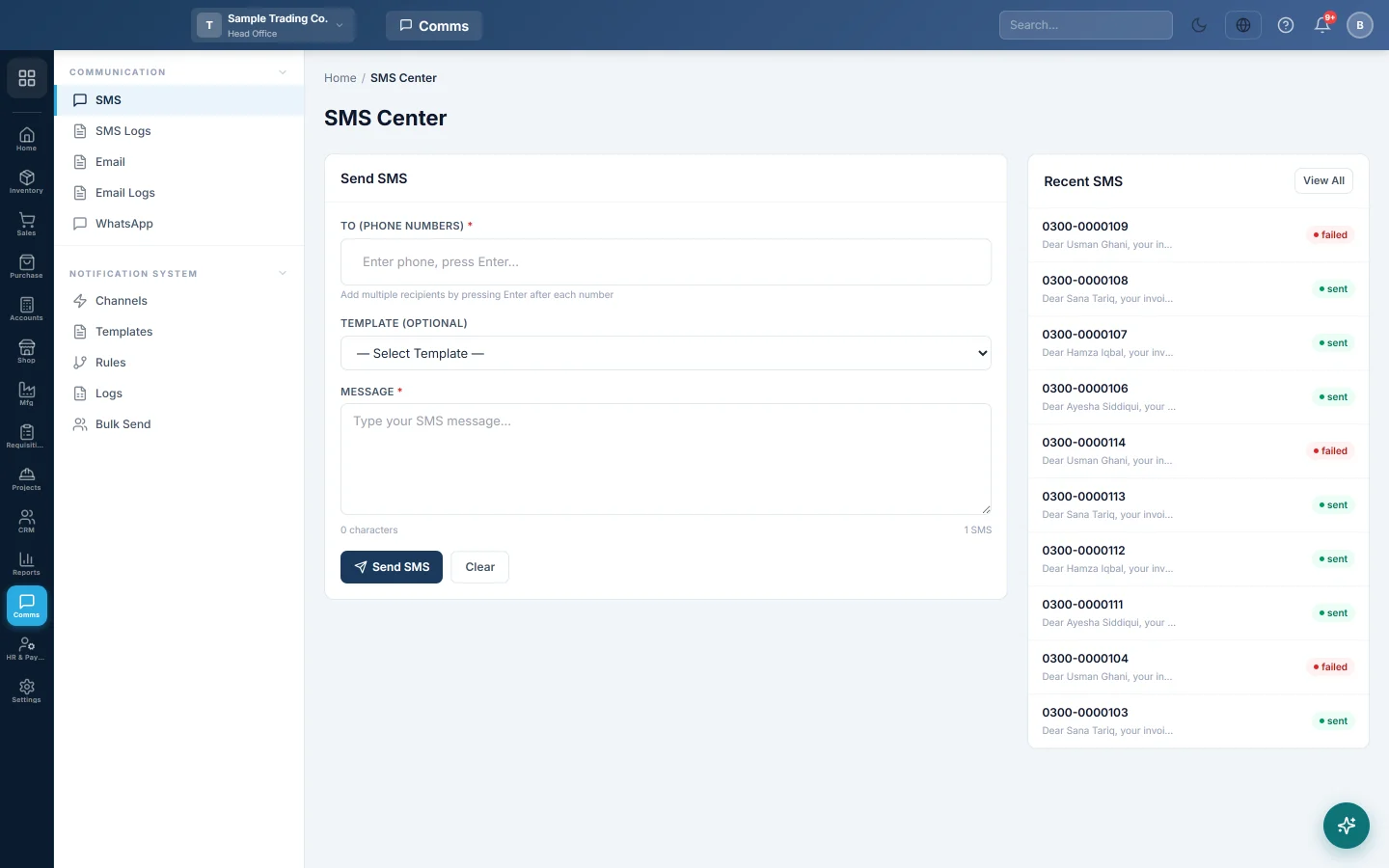
The SMS Center sends a text message straight away to the phone numbers you type. Use it for a one-off message, such as telling a customer their order is ready.
Before you begin
- Set up and switch on an SMS channel with your SMS provider. See Notification Channels.
- Your role needs the permission to send SMS. See Users & Roles.
Where to find it
Open Communication → Communication → SMS.
Send an SMS
- In To (Phone Numbers), type a number with its country code, for example +923001234567, and press Enter.
- Repeat for each further number. Click × on a number to remove it.
- Optionally pick a saved message in Template (optional).
- Type or check the Message. The counter shows the characters and how many SMS parts it uses.
- Click Send SMS.
A green line shows how many were delivered to your provider. Clear empties the form.
One SMS part holds 160 characters. A longer message is sent as several parts, and your provider charges each part.
See what was sent
Recent SMS on the right lists the last 10 messages. View All opens SMS Logs.
Common questions
It says no active SMS channel is configured. Switch on SMS on the SMS tab of Notification Channels and click Save.
Can I send to all my customers? Use Bulk Send. It picks customers, suppliers or employees and fills in each name.
Can I send an SMS automatically when an invoice is confirmed? Yes, with a template and a rule. See Send a message automatically when something happens.
Is the message in Urdu counted the same way? Messages in Urdu or with emoji fit fewer characters in one part, so they may cost more parts than the counter shows.
Terima kasih. Jika masih butuh bantuan, kirim email ke info@eloerp.net.