Stock Transfer Register
A read-only list of the stock transfers sent from your branch in a period, with where they went, how much moved and their status.
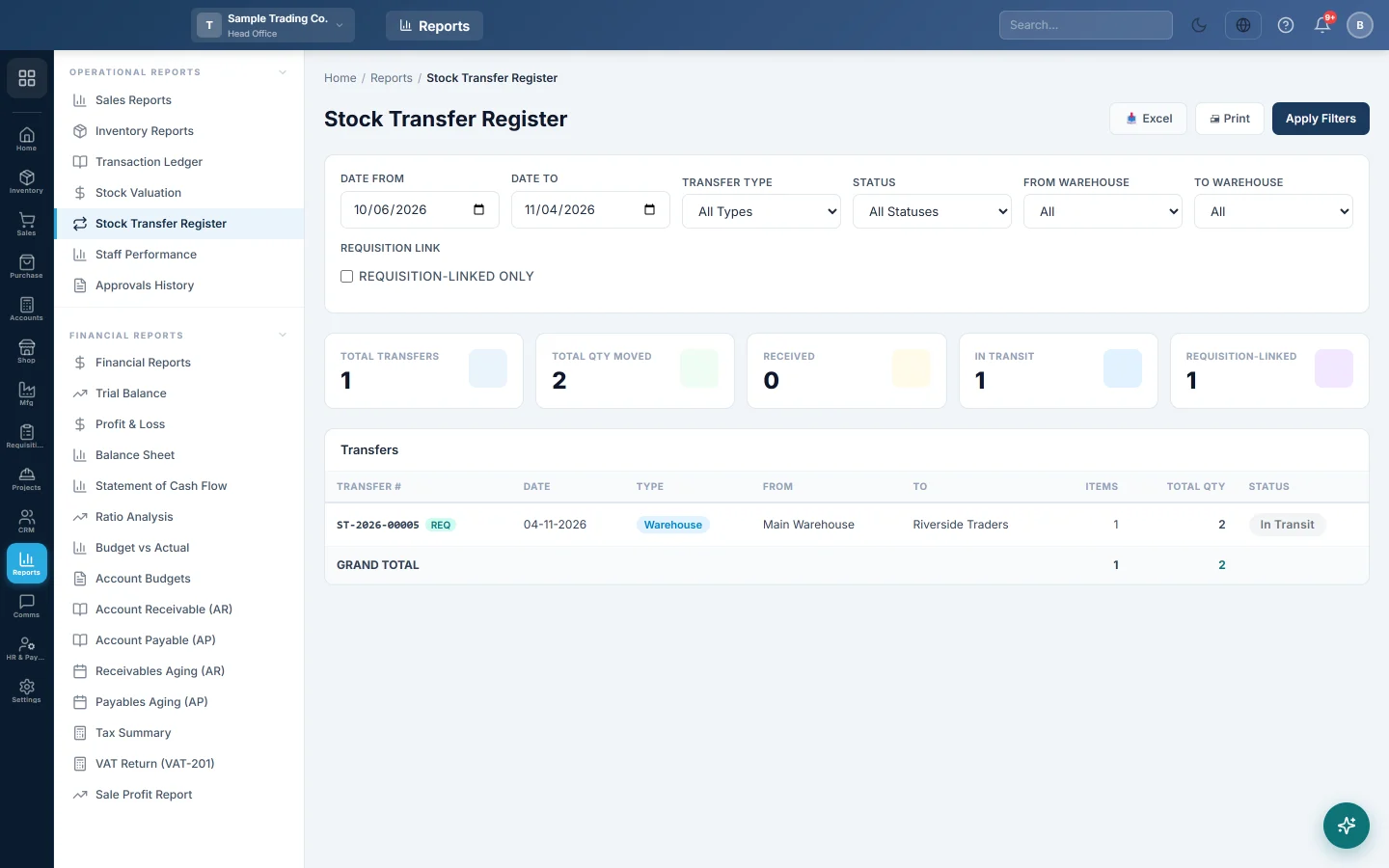
The Stock Transfer Register lists every stock transfer made from your branch in a period: warehouse to warehouse and branch to branch. Use it to check what was sent, whether it arrived and how much stock moved.
Before you begin
- Transfers are made under Stock Transfers. See Stock Transfers. This register only reads them.
- The register shows transfers created in the branch in the top bar. A transfer sent to you by another branch is listed in that branch's register.
- The dates it opens with come from Default Report Date Range under Settings → Company.
Where to find it
Open Reports → Operational Reports → Stock Transfer Register.
Run the register
- Set Date From and Date To. The transfer date is used.
- Choose a Transfer Type: Warehouse for moves inside the branch, Branch for moves to another branch.
- Pick a From Warehouse or To Warehouse to see one warehouse's transfers.
- Tick Requisition-linked only to see only transfers made from a requisition.
- Click Apply Filters.
Read the table
| Column | What it means |
|---|---|
| Transfer # | The transfer number. A REQ badge means it came from a requisition. |
| Date | The transfer date. |
| Type | Warehouse or Branch. |
| From, To | The two warehouses, or the two branches for a branch transfer. |
| Items | How many product lines the transfer has. |
| Total Qty | The quantity sent, all lines added up. |
| Status | Received when the stock has landed, In Transit while a branch transfer waits for the other branch, Partially Received when only part was accepted, Cancelled when it was recalled. |
The GRAND TOTAL row adds up Items and Total Qty for the rows shown.
Read the summary cards
- Total Transfers: how many transfers match your filters.
- Total Qty Moved: the quantity sent on all of them.
- Completed: transfers with the older Completed status. Transfers made today show Received instead and are not counted here.
- Requisition-linked: transfers made from a requisition.
Print or export
Click Print for a landscape printout or Excel for a spreadsheet. Both list the period and filters you used.
What the transfers did to stock and books
- Warehouse to warehouse, same branch: the stock leaves one warehouse and lands in the other at once, at the source warehouse's average cost. No voucher is posted, because the stock stays in the same branch's books.
- Branch to branch: the stock leaves the sending branch at once and the transfer shows In Transit. Its value sits in the Inter-Branch Clearing account until the other branch receives it on its Stock Transfers screen. Receiving moves the value into that branch's inventory.
- Serial-numbered or batch-tracked items move in one step even between branches, so those transfers show Received straight away.
Common questions
The Status list has Pending, Confirmed and Completed, but nothing shows. Transfers today are In Transit, Received, Partially Received or Cancelled. Of the options in the list, only Cancelled finds anything; leave Status on All Statuses and read the Status column instead.
A transfer another branch sent me is missing. The register lists transfers by the branch that created them. Open Stock Transfers and look for transfers marked Incoming, or switch to the sending branch.
A branch transfer stays In Transit. The receiving branch has not accepted it yet. Ask them to open Stock Transfers, find the transfer marked Incoming and click Receive.
Can I open a transfer from here? No, the register is read-only. Open Stock Transfers and use View / Print on the transfer.
Where do I see the value of the transfers? The register shows quantities only. The value of each transfer is on the transfer itself in Stock Transfers.
Teşekkür ederiz. Hâlâ yardıma ihtiyacınız varsa info@eloerp.net adresine yazın.