Calendar
See CRM calls, meetings and tasks laid out by day for a month, open one and mark it done.
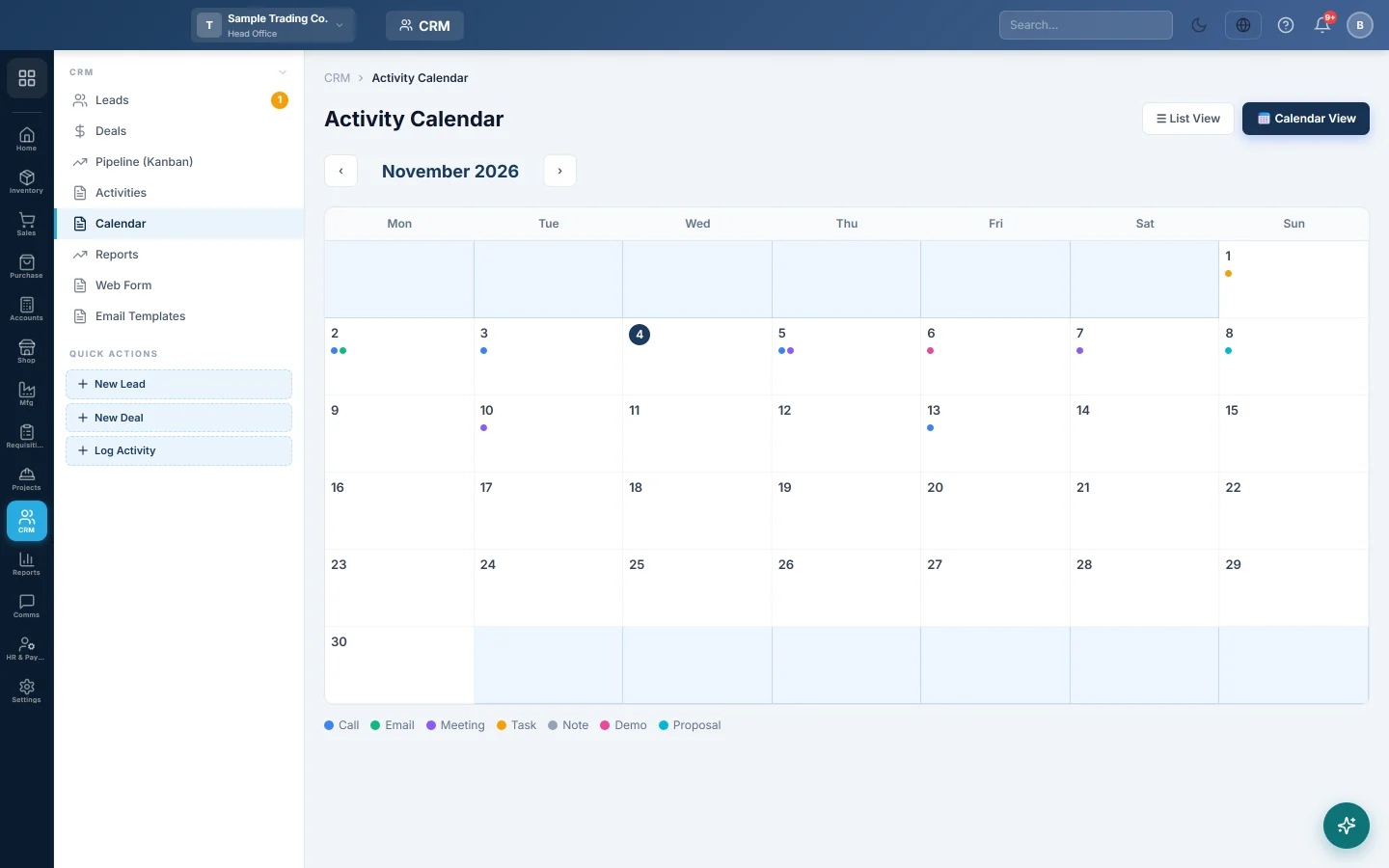
The activity calendar shows your CRM calls, meetings and tasks on a month grid, so you can see which days are busy and what is coming up.
Before you begin
- Activities need a scheduled date to appear. Set Scheduled or Scheduled At when you log one. See Activities.
- Your role needs the CRM activities permission.
Where to find it
Open CRM → CRM → Calendar. On the Activities list, Calendar View opens the same page.
Use the calendar
- Use the arrows to move to the previous or next month. Today is highlighted.
- Each day shows up to four activities; **+**n means there are more.
- Click a day to list all its activities.
- Click an activity to open Activity Detail, with its Type, Status, Scheduled time, Assigned To and Linked To lead or deal.
- Click Mark Done when it is finished, or Close.
Common questions
An activity is missing from the calendar. It has no scheduled date, or it belongs to another branch. Check it on Activities.
Can I add an activity from the calendar? No. Log it on Activities, or on the lead or deal.
Cet article vous a-t-il été utile ?
Merci. Si vous avez encore besoin d’aide, écrivez à info@eloerp.net.